Importing Contacts
Google Contacts Sync
Automatically import contacts saved in Google Contacts into Relate.
Overview
Connect your Google account to automatically import contacts saved in Google Contacts into Relate.
There's no need to build a file yourself — you simply sync the contacts you already have.
There are two ways to bring contacts into Relate.
- Sync from Google Contacts (this page) — connect your Google account to sync automatically
- Import an Excel/CSV file — upload a file and let AI map it
If your contacts are already in Google Contacts, use the sync method on this page. If you have a separate file, use the import method.
Connecting Google Contacts (Step-by-Step)
Step 1. Go to the Integrations menu
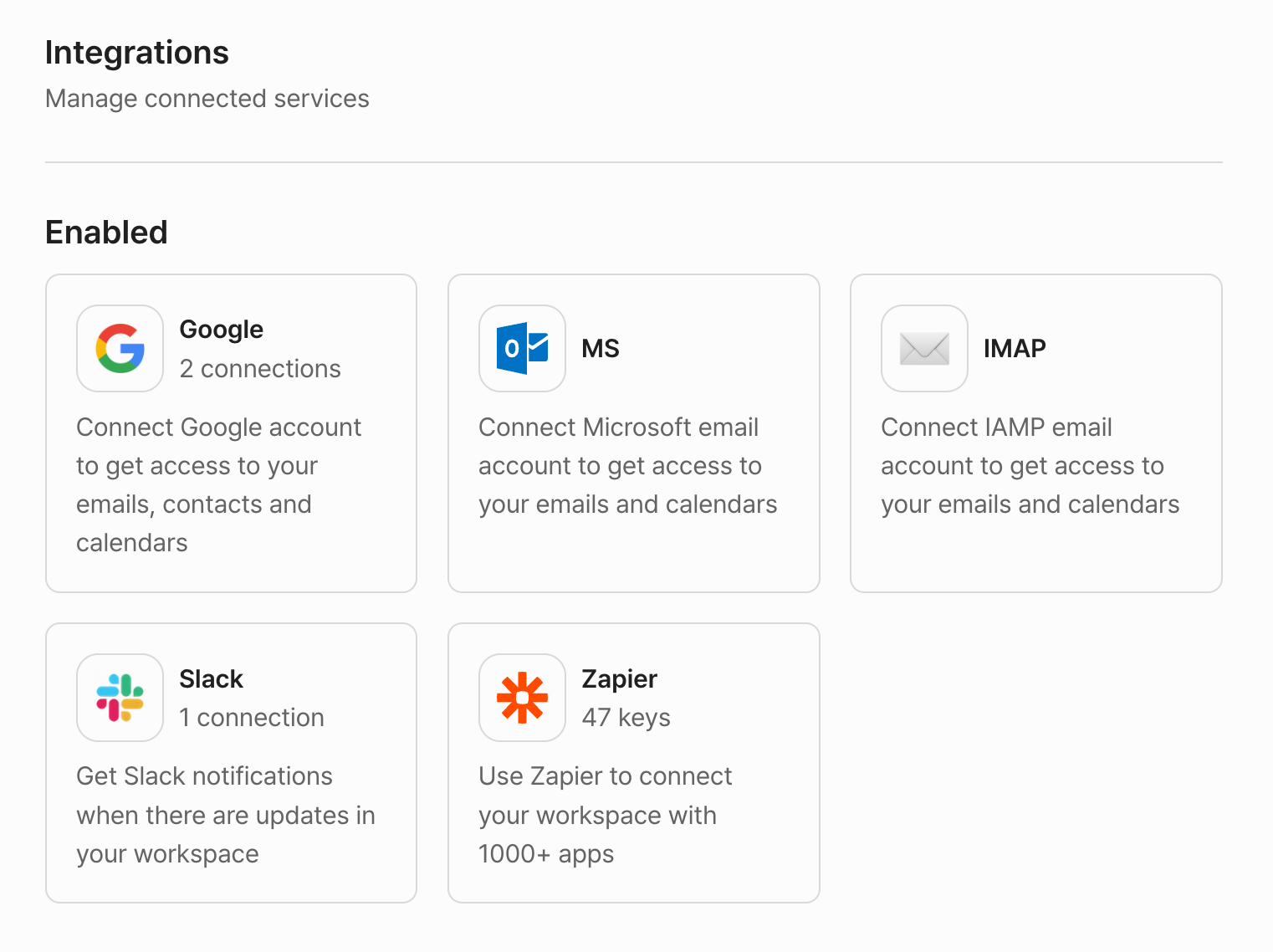
Go to Workspace Settings → Integrations, then select Google under In use.
Step 2. Allow Google Contacts access
When connecting an account for the first time, sign in to Google and grant Contacts access on the consent screen. This permission is required for Google Contacts sync to work.
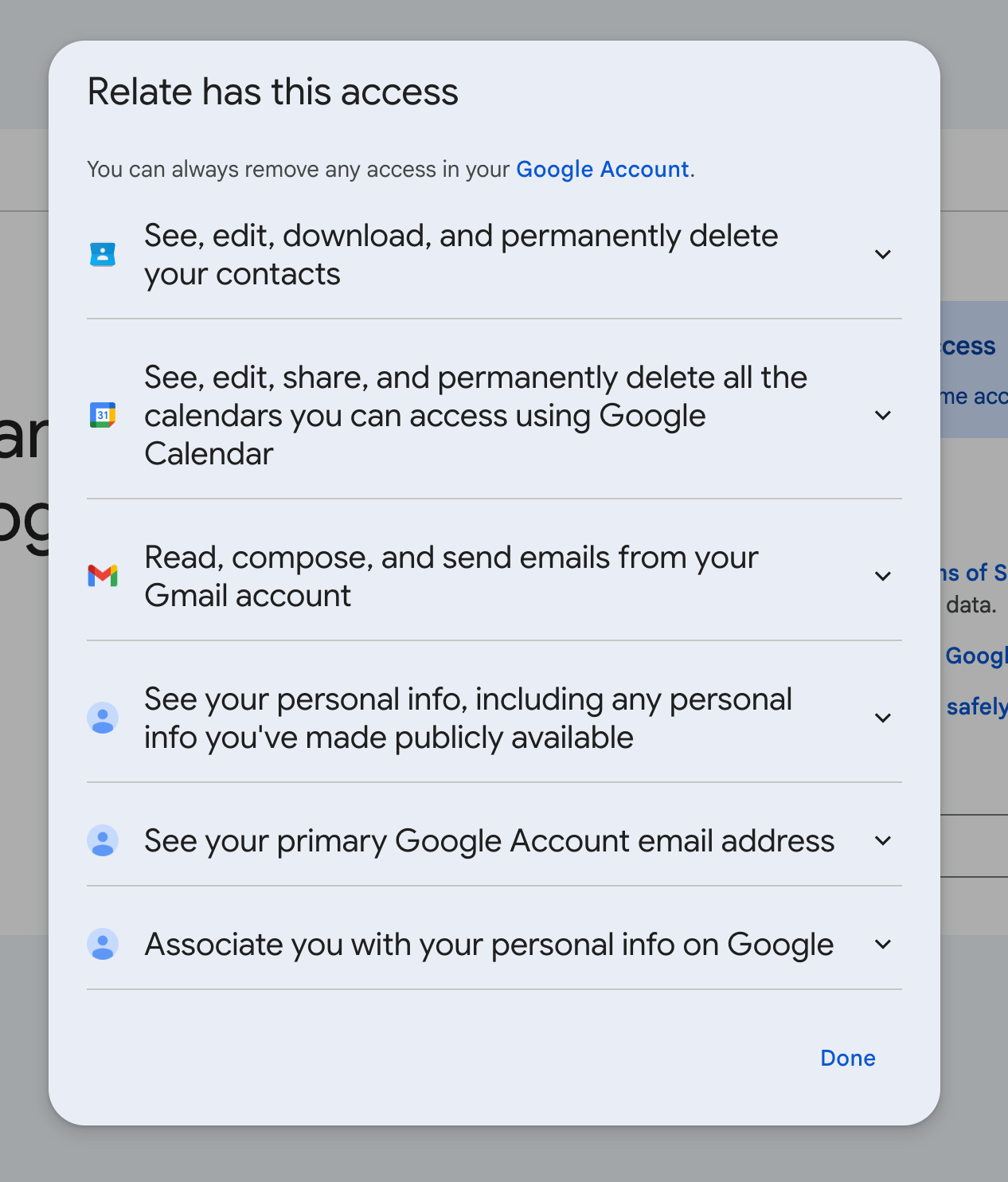
The Google consent screen also requests Calendar and Gmail permissions. A single Google account connection lets you use email, calendar, and contacts together.
Step 3. Check the Contacts option and save
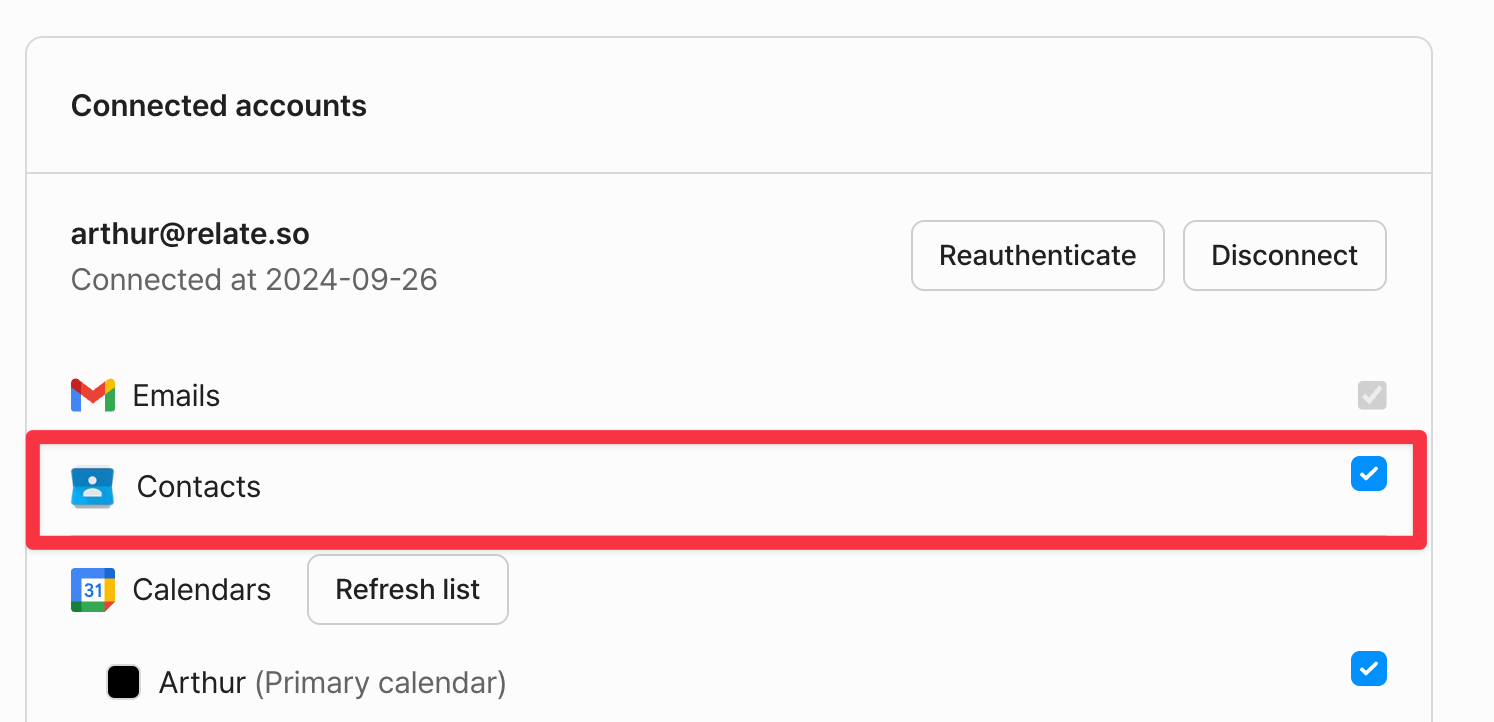
In Connected accounts, check the Contacts option for the Google account and save to start syncing.
What information is imported
Relate imports the name, company, phone number, email, and title (job title) registered in Google Contacts.
Step 4. Check the sync results
Once you check the Contacts option and save, the first sync starts immediately, and shortly after, your Google Contacts appear in your Relate contact list.
If you have a large number of contacts, it may take some time for all of them to be reflected.
How sync works
- Sync timing: A full sync runs once immediately when you first enable it. After that, contacts are automatically updated once every 24 hours (daily at midnight), reflecting any added or changed contacts.
- Scope: Relate imports all contacts from the connected Google account. (It does not import only a specific group or label.)
- Duplicate handling: Contacts are matched by email. If a contact with the same email already exists in Relate, it is not duplicated — instead, the existing contact is updated with the merged information.
- Contacts without an email: If a contact has no email, it must have a name to be imported.
- Deleted contacts: Contacts deleted in Google are excluded from sync.