

Overview
You can import your existing customer data into Relate by uploading a CSV or Excel file. Relate AI automatically detects the meaning of each column and maps the data to the appropriate fields. You do not need to manually map columns or create custom fields in advance.What you need to know before importing customer data
1. Import data types
1. Import data types
Relate supports four data types for import.Organizations are the primary data type in Relate, and Contacts are always associated with Organizations.Processes and Lists are a series of deal closing processes and customer lists that you create using Organizations and Contacts.
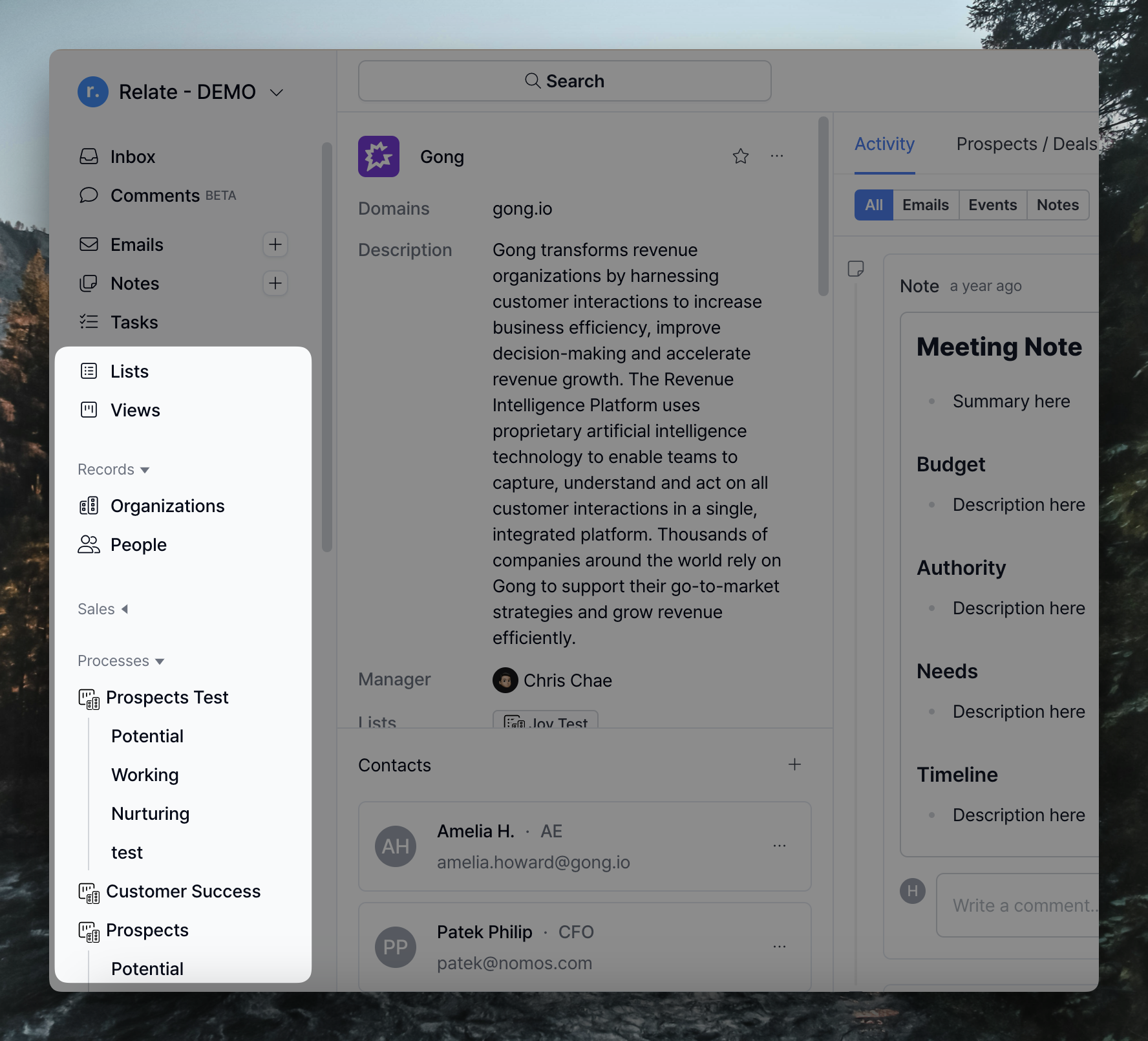
2. Data Fields
2. Data Fields
Each data type has its own default fields.Some fields are required:
- Organizations: Organization name is required.
- Contacts: Contact name or Email is required.
- Processes / Lists: Check the Entry type (Organizations or Contacts) of the selected process/list, and proceed with step 1 or 2.
Organizations
Organizations
- Organization name (Required)
- Domain (Website): If not provided, the domain is automatically populated using the email domain of associated contacts.
- Description
- Manager
Contacts
Contacts
- Contact name
- Title
- Phone number
Processes
Processes
By default, processes have different default fields depending on whether the Entry type is Organization or Contact.Below are the default fields specific to Processes.
- Value
- Status
- Assignee (assignee email is required)
- Contact
Lists
Lists
Lists do not have additional default fields beyond Organizations and Contacts fields.
3. Custom fields
3. Custom fields
Custom fields are fields created in addition to Relate’s default fields.During import, Relate AI analyzes each column in the file.
If a column cannot be mapped to an existing field, a new custom field is automatically created and mapped.You do not need to create custom fields before importing.
Review and edit AI mapping resultsIf you need to adjust the AI-generated mappings, you can change a column to a different field or create a new field and map it directly.
How to import your data
Step 1. Upload your file
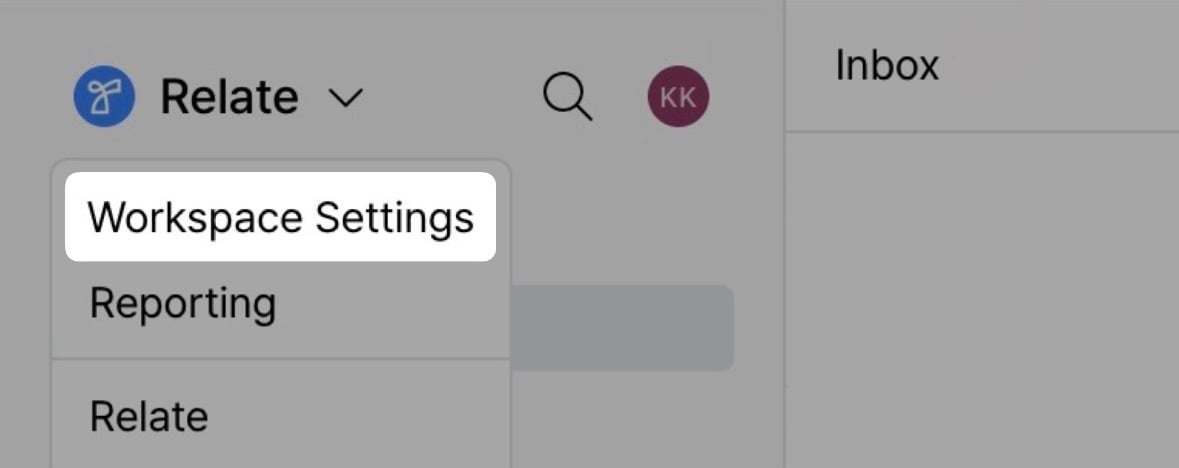
- Open the Relate app and select
Workspace settingsfrom the top-left menu.
-
Select
Importfrom the left sidebar, and clickImport contactsin the top-right corner.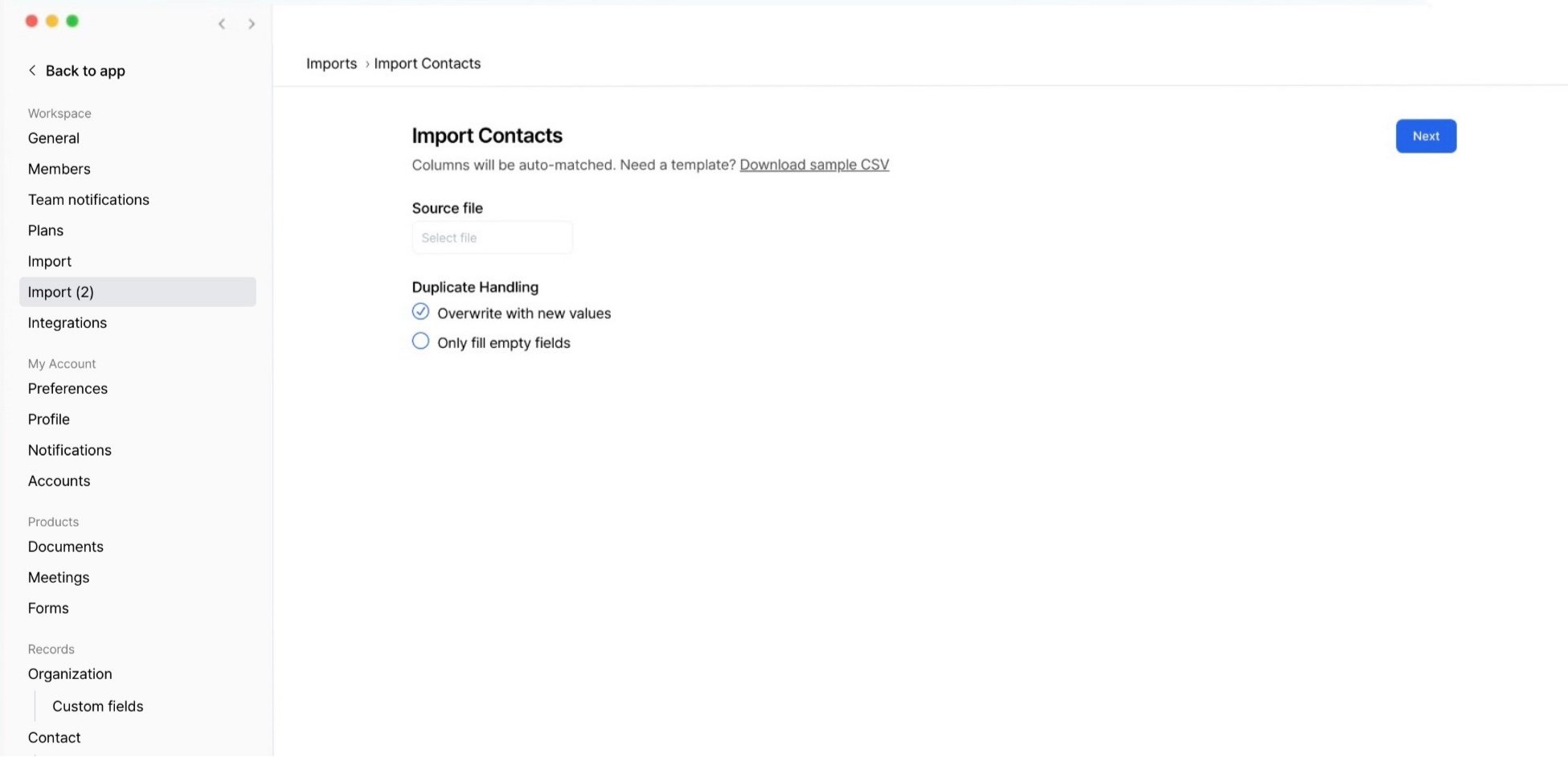
-
Click
Select fileand upload a CSV or Excel file.
Step 2. Select duplicate handling options
After uploading the file, select how to handle duplicate data.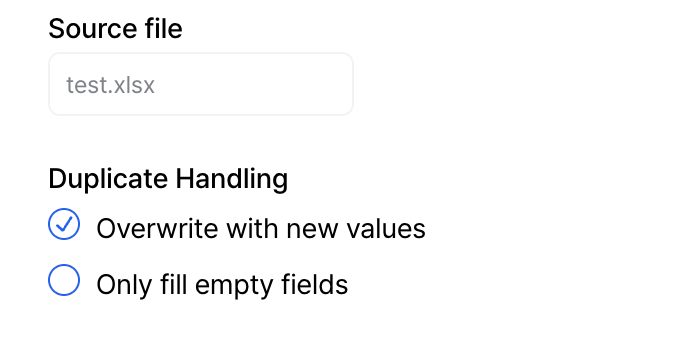
-
Overwrite with new valuesEven if existing Contacts/Organizations already have values, all fields are updated using the values from the imported file. -
Only fill empty fieldsExisting values are preserved, and only empty fields are filled.
🔹 Case 1. Importing data into Relate for the first time
🔹 Case 1. Importing data into Relate for the first time
This applies if:
➡️ You are using Relate for the first time
➡️ There is little or no existing data, or existing data is not importantRecommended options
✅
✅
➡️ You are using Relate for the first time
➡️ There is little or no existing data, or existing data is not importantRecommended options
✅
Overwrite with new values✅
Only fill empty fieldsFor an initial import, both options produce the same result.
🔹 Case 2. Updating existing data with the latest information
🔹 Case 2. Updating existing data with the latest information
This applies if:
➡️ Contacts/Organizations already exist in Relate
➡️ You want to broadly update existing data using the latest CSV file or external dataRecommended option
✅
➡️ Contacts/Organizations already exist in Relate
➡️ You want to broadly update existing data using the latest CSV file or external dataRecommended option
✅
Overwrite with new valuesWhen this option is selected, all fields are updated using values from the imported file, even if existing values are present.
🔹 Case 3. Keeping existing data and filling in missing information
🔹 Case 3. Keeping existing data and filling in missing information
This applies if:
➡️ Existing data is highly reliable
➡️ You only want to fill empty fields or supplement newly added information
➡️ You want to add new data without modifying existing valuesRecommended option
✅
➡️ Existing data is highly reliable
➡️ You only want to fill empty fields or supplement newly added information
➡️ You want to add new data without modifying existing valuesRecommended option
✅
Only fill empty fieldsWhen this option is selected, existing values are preserved and only empty fields are filled using the imported data.
Next in the top-right corner to start AI mapping.
Step 3. Review AI mapping results
On the next screen, Relate AI analyzes the meaning of each column and displays the automatically mapped results.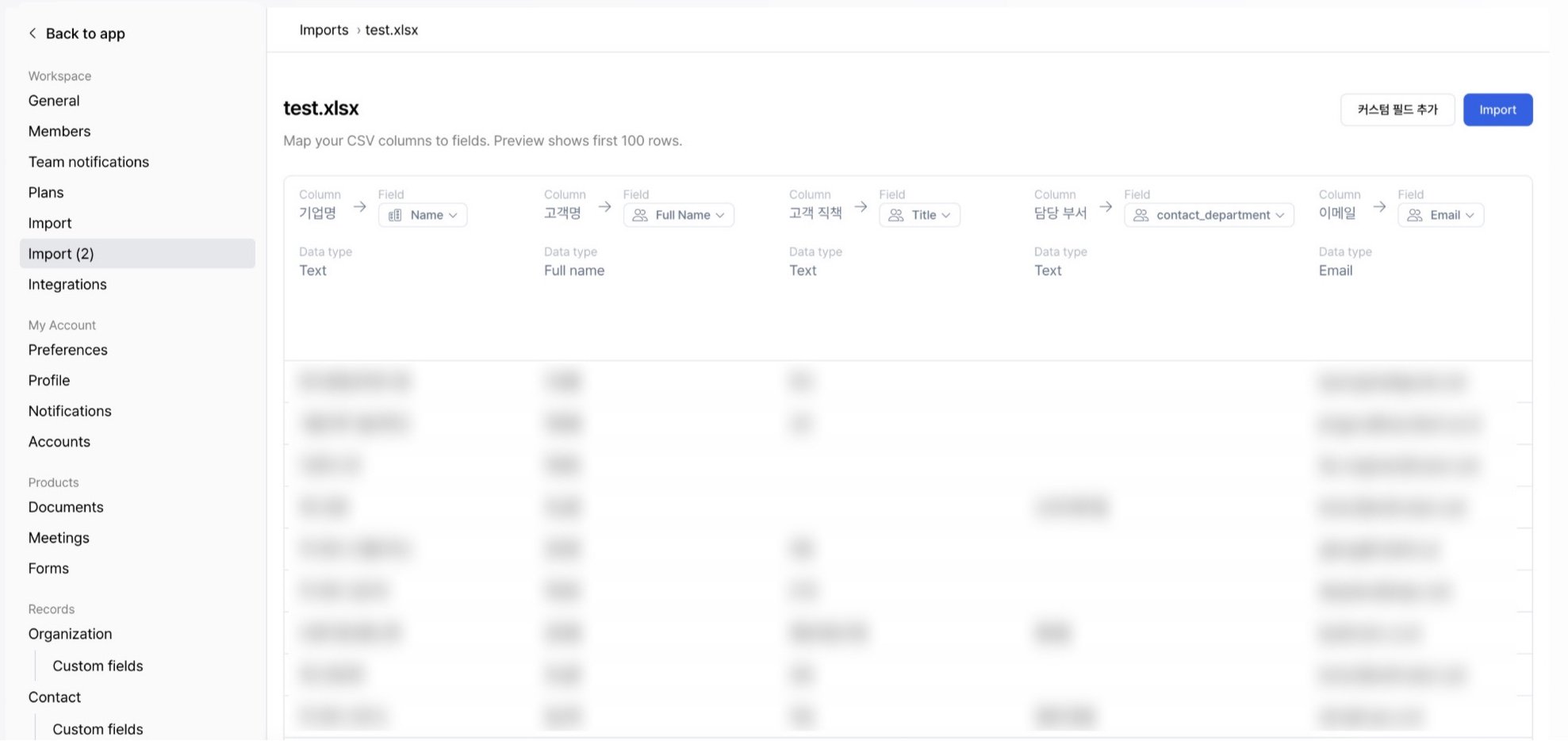
Field types are divided into Contact Fields and Organization Fields.

Change column mapping
- When you click the field mapped to each column, a list of available fields is displayed. You can select a different field from the list to change the column mapping.
-
If there is no suitable field to map, you can click
Add a custom fieldin the top-right corner to create a new field and map it immediately.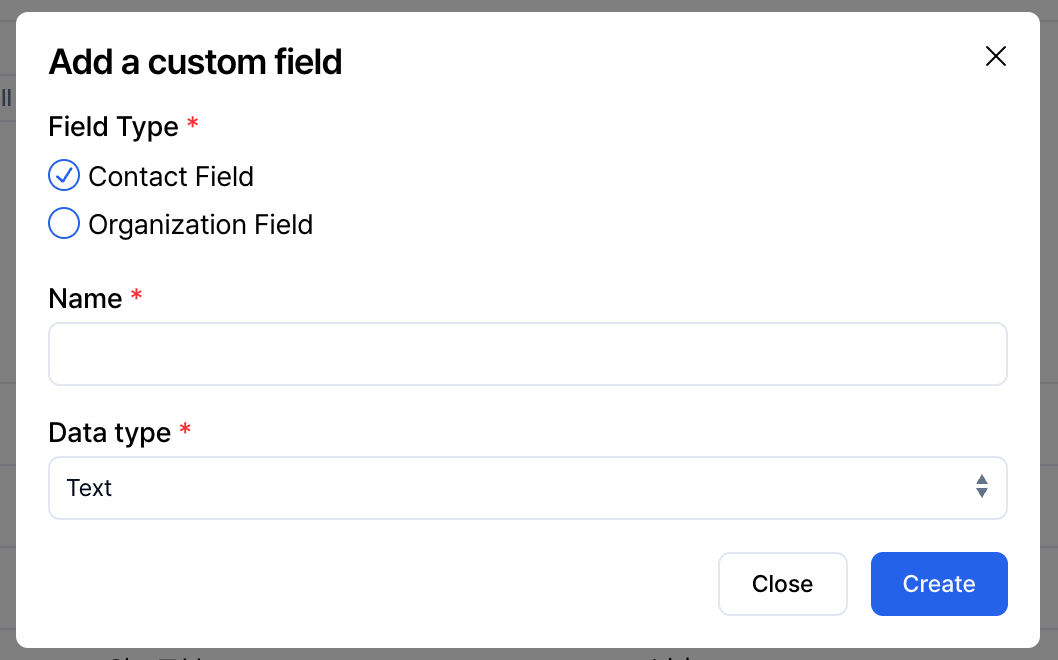
Step 4. Run the import
-
After reviewing the mapping results, click the
Importbutton in the top-right corner. - When the import is complete, you are redirected to the result page.
View import results
After the import is complete, the result page shows an overview of data that was created, updated, or failed.
The left side of the top section shows a summary of Contact import results.Contact import results
- Contacts found: Number of contacts detected during the import process
- created: Number of newly created contacts
- updated: Number of existing contacts that were updated
- failed: Number of contacts that failed to import
The right side of the top section shows a summary of Organization import results.Organization import results
- Organizations found: Number of organizations detected during the import process
- created: Number of newly created organizations
When organization information is included in the import fileExisting organizations are automatically matched.
A new organization is created only when no matching organization is found.
If there are rows that failed to import, you can review the reason in theReview failed records
Failed Records section at the bottom of the result page.
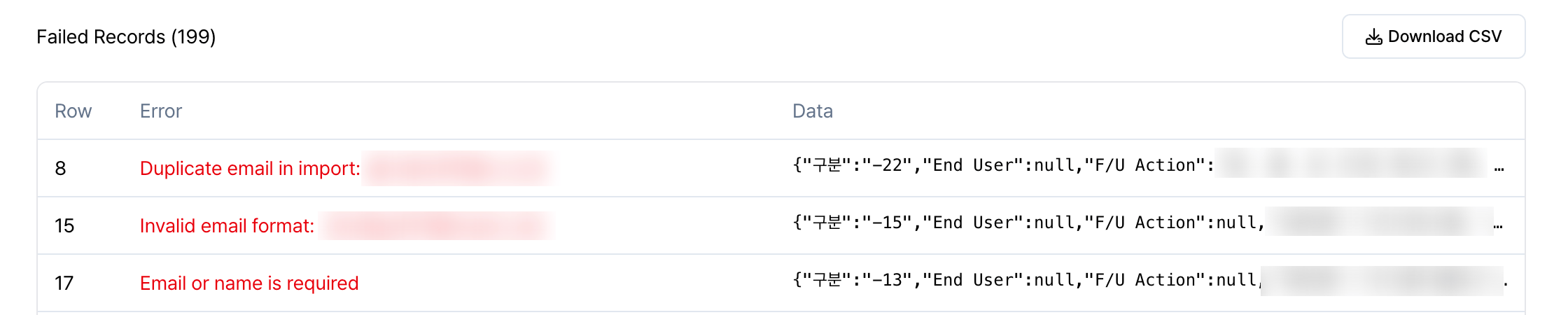
- Row: Row number in the original file
- Error: Reason the import failed
- Data: Original data for the row
Invalid email format: The email format is invalid
⛔️ Duplicate email in import: The same email appears more than once in the import file
⛔️ Email or name is required: Both contact email and contact name are missing or invalid
ClickReprocessing failed records
Download CSV on the right side of the Failed Records section to download a CSV file containing only failed rows.
After fixing the errors in the file, run the import again to import the missing data.
Import directly into Processes or Lists
If you want to upload contacts or organizations and import them directly into a specific process or list, you can start the import from that process or list. Step 1. Select or create a process/list Select an existing process/list, or create a new one.
+ New contact or + New organization at the top.
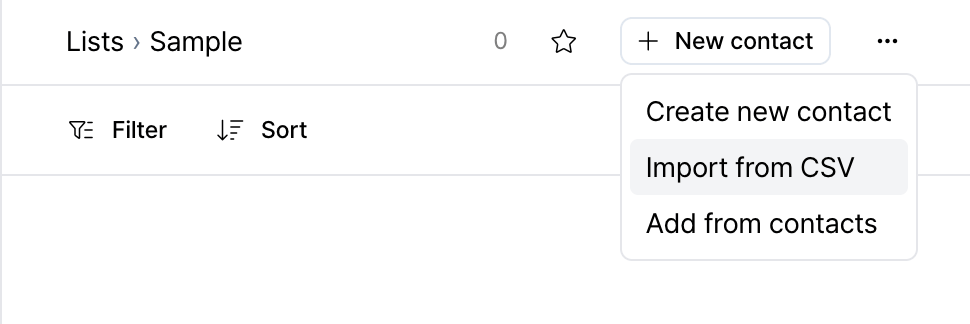
Import from CSV to move to the import screen.
Step 3. Run the import
The rest of the process follows the same import steps described earlier.Once the import is complete, each row will be created as a single entry and added directly to the selected process or list.
Important notes before importing
- Review AI mapping results: Before running the import or on the result page, verify that AI-mapped fields match your intended data.
- Start with a small test import: If this is your first time importing data, run a test import with a small dataset before importing all data.
- Back up the original file: Before importing, back up your original CSV/Excel file. This is especially important when using the Overwrite option, as it allows you to restore data if needed.
Frequently asked questions (FAQ)
Korean characters are broken when importing a CSV file. How can I fix this?
Korean characters are broken when importing a CSV file. How can I fix this?
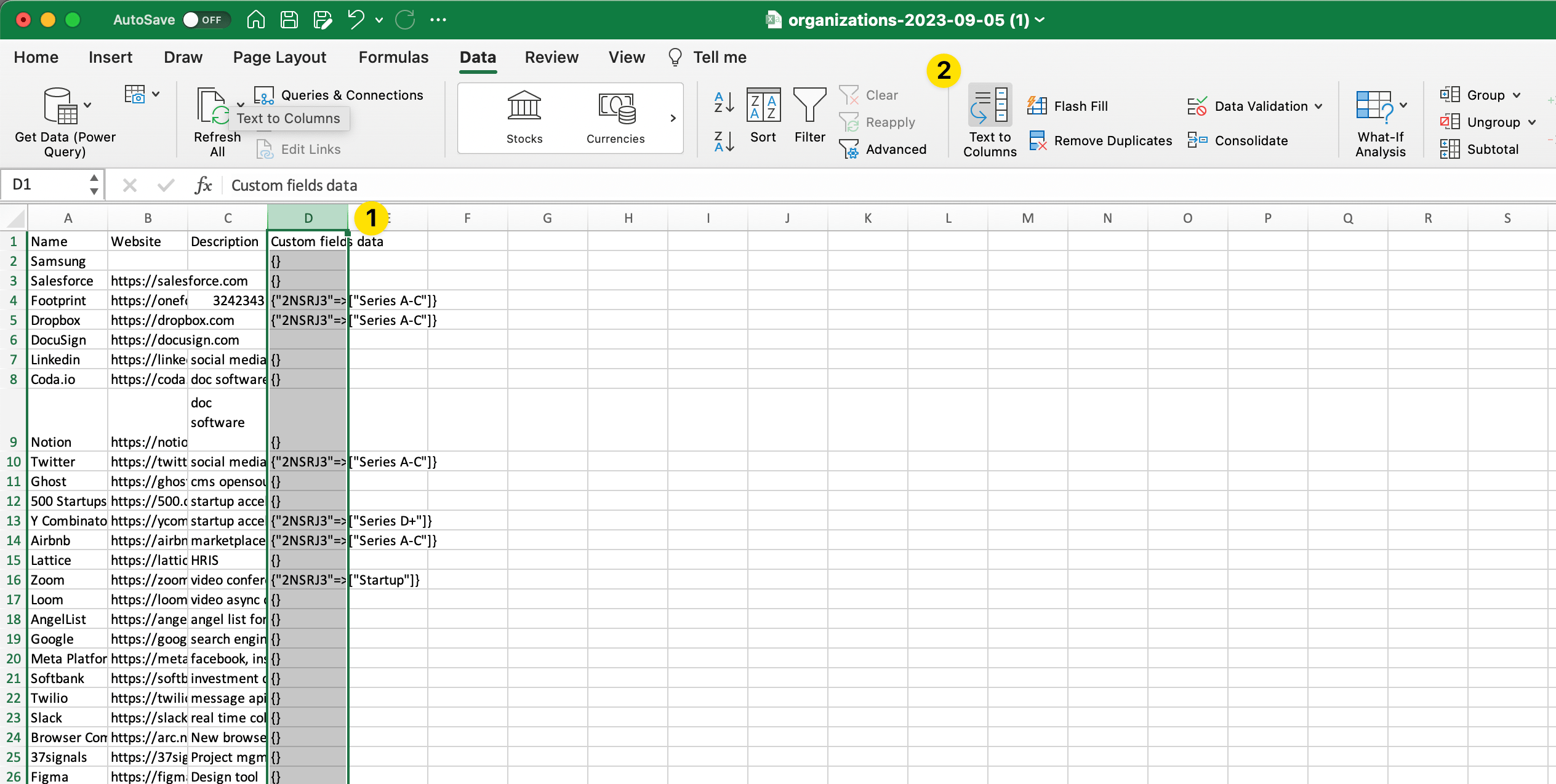
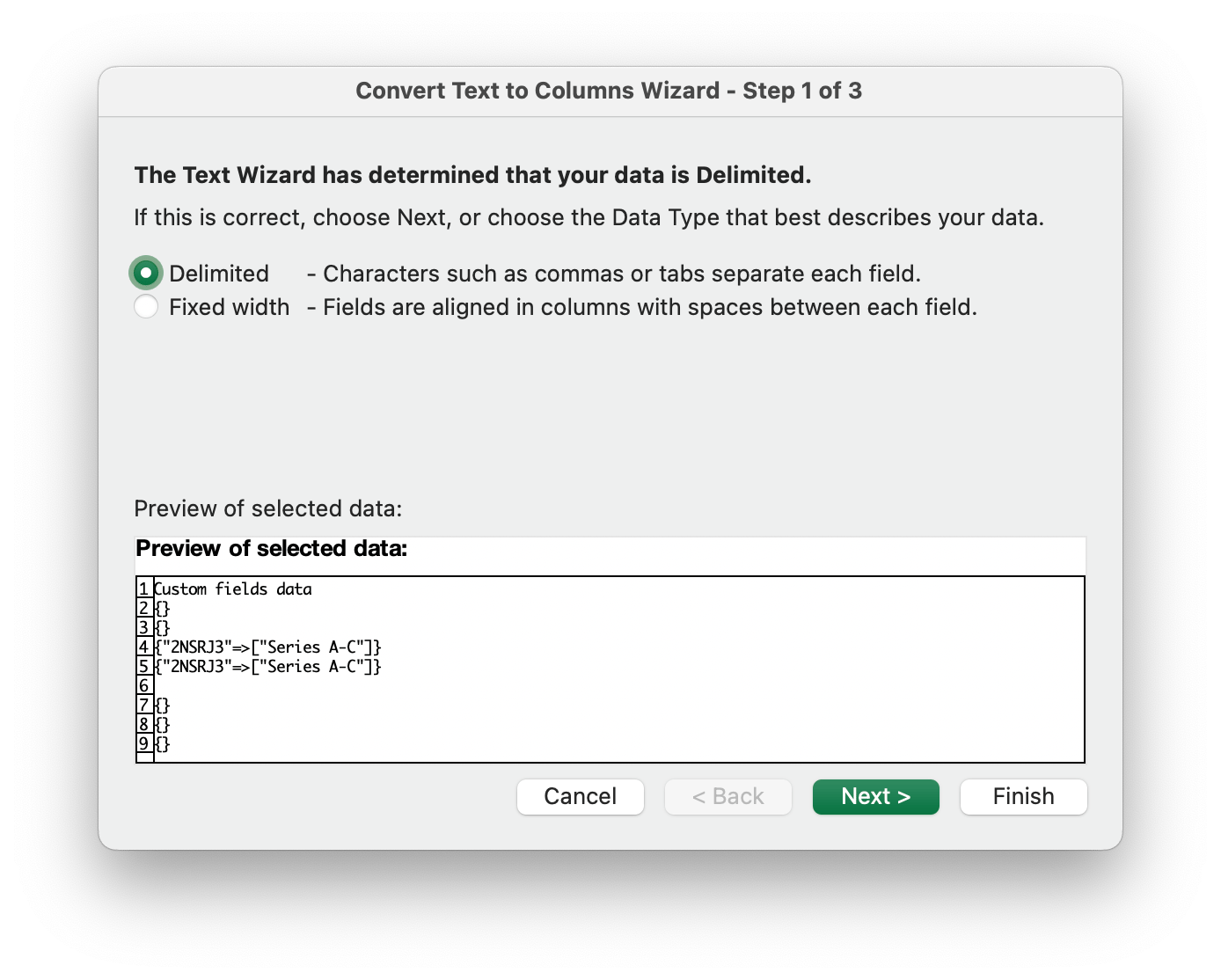
Open the file and save it as an XLSX file instead of CSV using the steps below.1. In Microsoft Excel, go to the Data tab and click Get Data (Power Query)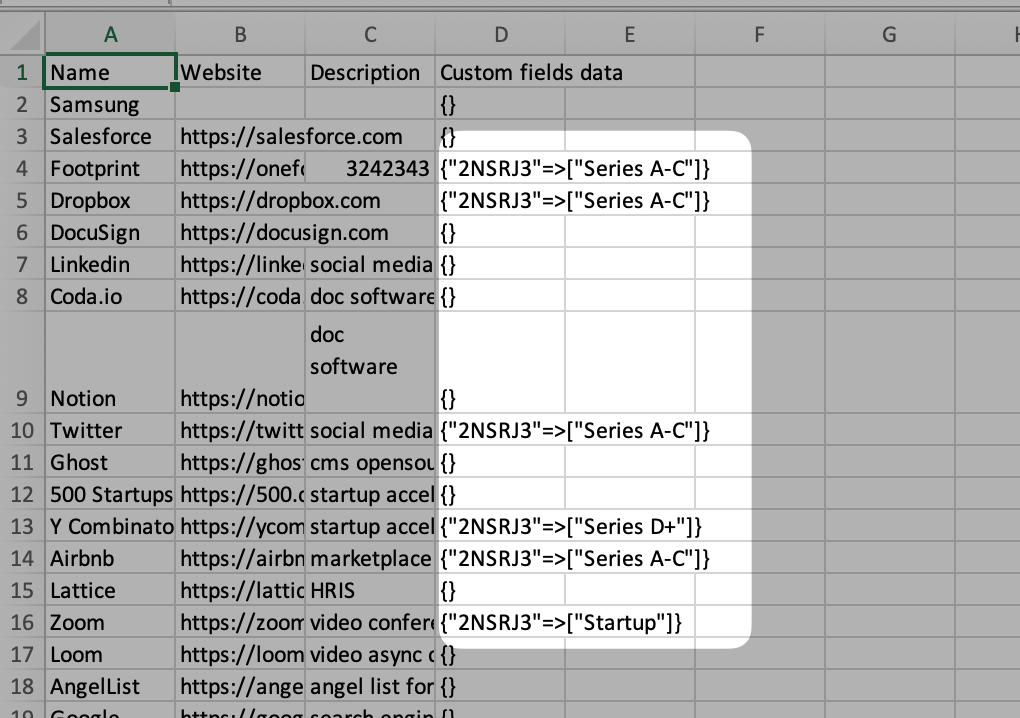
What are the most common reasons for import failures, and how can I resolve them?
What are the most common reasons for import failures, and how can I resolve them?
There are two main reasons import failures occur.
- Duplicate unique fields
In Relate, organization name, contact email, and domain must be unique.
For example, if two different organizations, Relate (@example.so) and Pixelic (@example.so), share the same domain, the import fails due to duplication. Note that domains can be automatically generated from email addresses, even if not explicitly provided.
- Invalid email addresses
This includes email addresses with invalid formats or special characters other than@(for example, test@ or abc.com).
How is the current import process different from the previous one?
How is the current import process different from the previous one?
With the previous import method, users had to manually create custom fields and map columns before importing.With the current import process, Relate AI automatically understands and maps column data, so no prior field setup is required.
Why were Organizations created when I only imported Contacts?
Why were Organizations created when I only imported Contacts?
If organization or company information exists in the import file, Organizations are automatically created and linked to Contacts.