MCP (Model Context Protocol) is a standard protocol that lets AI agents like Claude and ChatGPT connect securely to external tools and data.Relate provides an MCP server, so when you connect an MCP-capable AI agent such as Claude Code or Codex to Relate, you can query CRM data and create/update contacts, deals, notes, campaigns, and more — all in natural language. Without writing any code, you can hand requests like “summarize the companies I met with last week” or “add a note to this company” straight to the AI.The Relate MCP server address is:
https://app.relate.so/mcp
Access through MCP follows the permissions of the connected workspace and user account. In other words, the AI agent can only access data that you can already see in Relate.
To connect to Relate MCP, you first need an MCP token (authentication token).
Log in to Relate, then go to Workspace Settings > MCP for the workspace you want to connect.
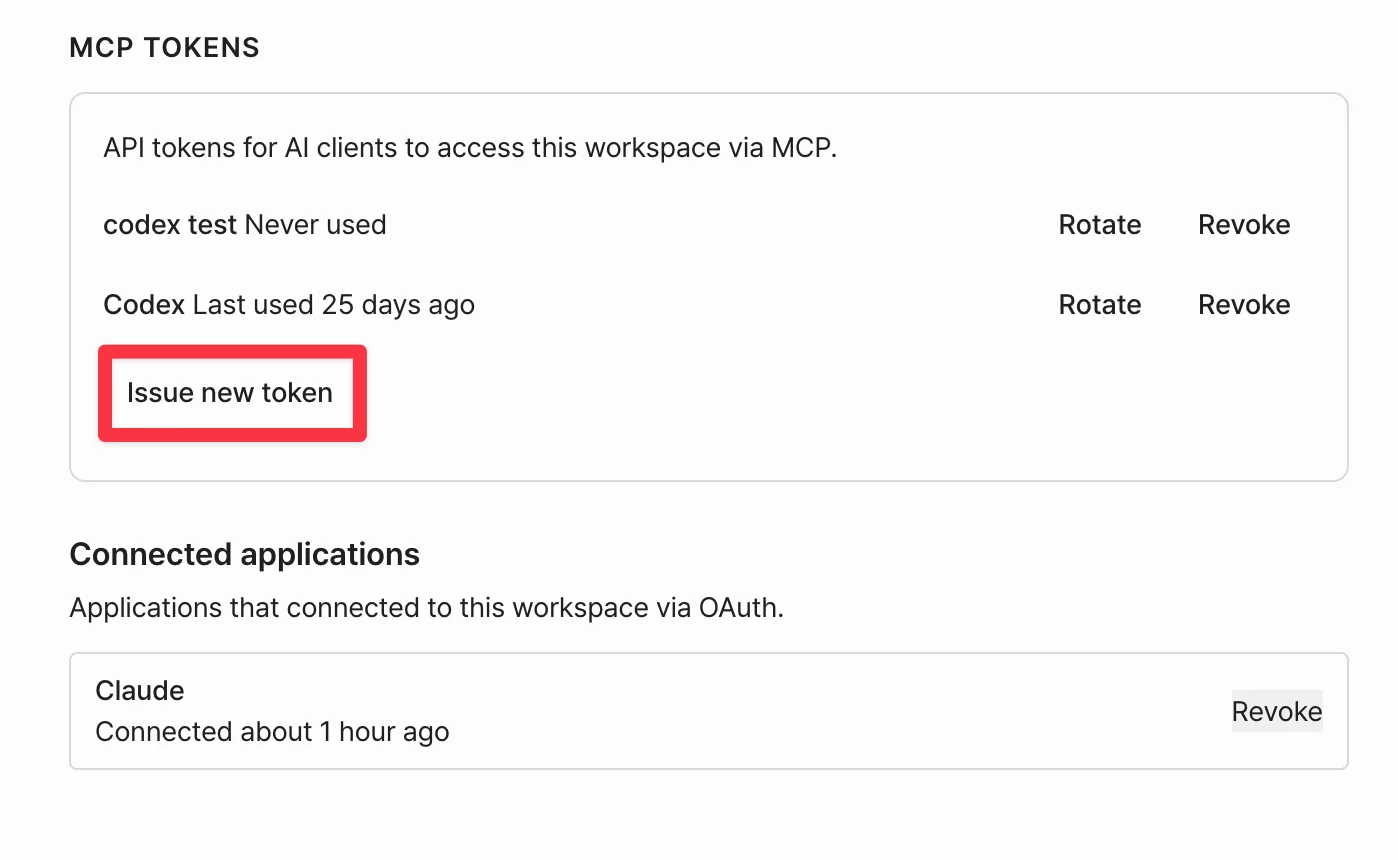
Click Issue new token to create a new token.
The token starts with rk_. For security it is shown only once right after creation, so copy it and store it somewhere safe.
Issue a new token in Workspace Settings > MCP
An MCP token is a secret key that can access your workspace data. Keep it from being exposed, and if you suspect it has leaked, revoke it immediately and generate a new one.
Use the issued token to connect Relate MCP to the AI agent you use.
Connect Claude Code
In Claude Code (desktop app), you connect to Relate MCP through a custom connector and authenticate via OAuth.
In Claude Code, go to Customize > Connectors.
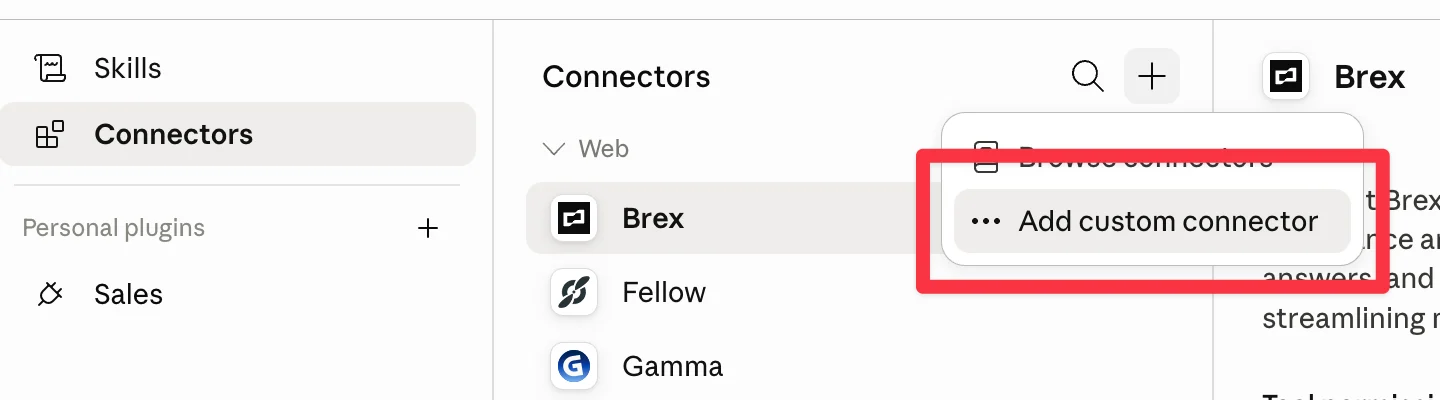
From the + button in the top right, select Add custom connector.
Select Add custom connector under Customize > Connectors
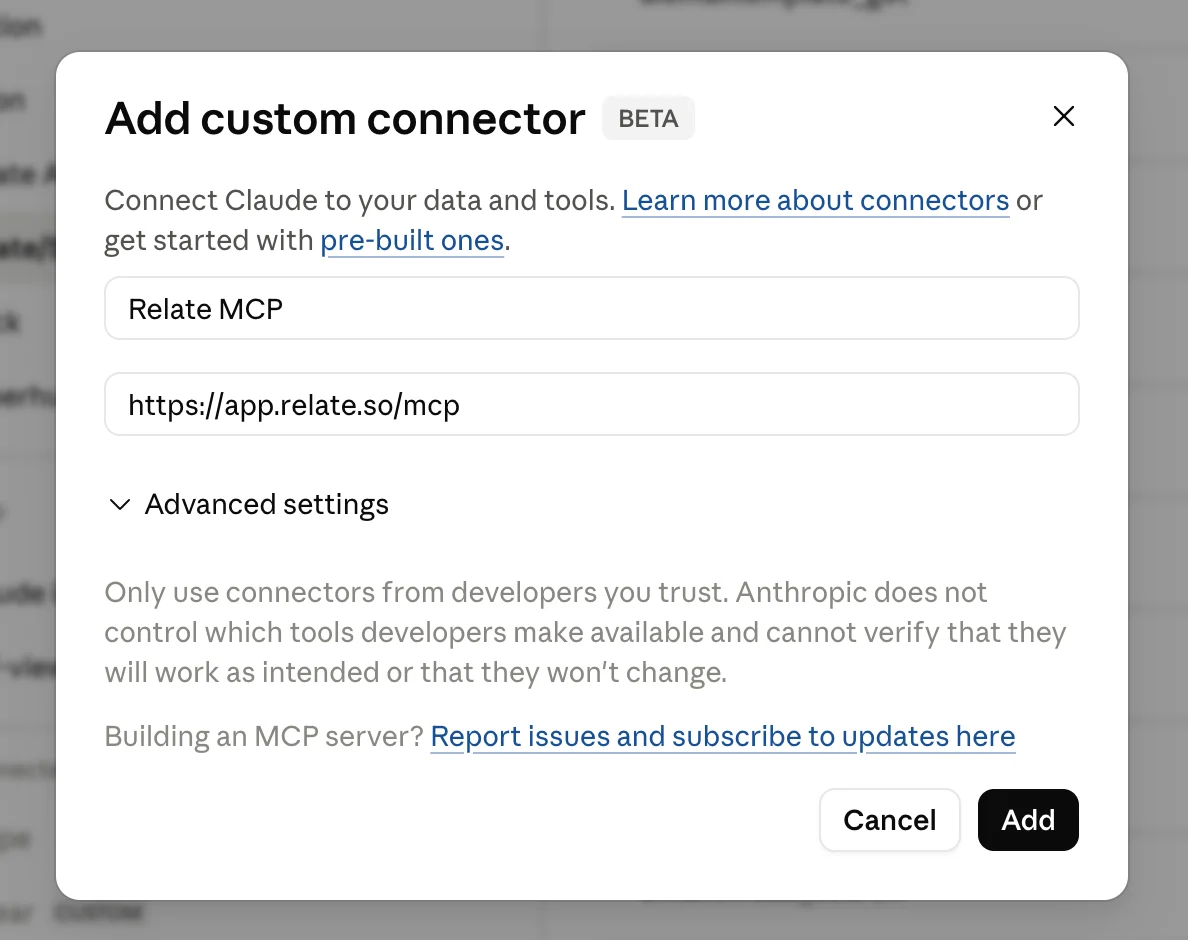
Enter a name (e.g. Relate MCP) and the MCP server URL, then click Add.
https://app.relate.so/mcp
Enter the Relate MCP server URL in the custom connector
After adding the connector, you are taken to the Relate OAuth authorization screen. Log in with your Relate account and grant access to complete the connection.
Once connected, you can use Relate tools in your conversations with Claude.
When connecting Claude Code via OAuth, you don’t need to enter the MCP token separately — authentication is completed simply by logging in to Relate.
Connect Codex
In the Codex CLI, you register the MCP server in the config file (~/.codex/config.toml) and pass the issued token via an HTTP header (Authorization).Open ~/.codex/config.toml and add the Relate MCP server as shown below.
Once Relate MCP is connected, you can perform the following through an AI agent in natural language. (As of June 15, 2026)
Contacts
Search contacts by name, email, phone number, or field conditions, and view details
Create and update contacts, and bulk-import from a spreadsheet
Add to / remove from the denylist (sending block list)
Organizations
Search organizations by name or domain, and view details
Create and update organizations
Deals / Entries
Search and view deals (entries) within a specific list/process
Create deals; update status, assignee, value, and field values; delete
Notes
Search across all notes by body content
List notes attached to a specific contact, organization, or deal
Create notes on contacts and organizations
Lists
List, create, and rename lists
Add contacts to a list
Summarize a list’s campaign deliverability (sendable / blocked breakdown)
Email
Search email threads for a contact or organization and view message content
Send email immediately on your own behalf
Campaigns & Sequences
Search, view, create, update, and deliver broadcast campaigns, and check statistics
View and create email sequences; add/edit steps; enroll contacts
View AI campaigns / AI email templates and check recipients and engagement
Sender Identity
List the sender identities (sending domains) in the workspace
Connect a sending domain and check/re-verify DNS records (MX, SPF, DMARC, DKIM) and verification status
Relate Notetaker
Search completed meeting notetaker records (transcripts and summaries)
List records scoped to a contact/organization/calendar event, and retrieve the full transcript and summary
Reports & Workspace
Sales pipeline funnel and conversion-rate report by process
Recent email-activity report for an AI plan
Workspace info (lists, statuses, custom fields, team members, sending limits, etc.)
The available MCP tools are continuously being added and improved. You can check the exact list of tools available in your connected environment from your AI agent’s tool list (e.g. in Claude Code).
Try asking your AI agent in natural language, like the examples below.
Customer research & meeting prep
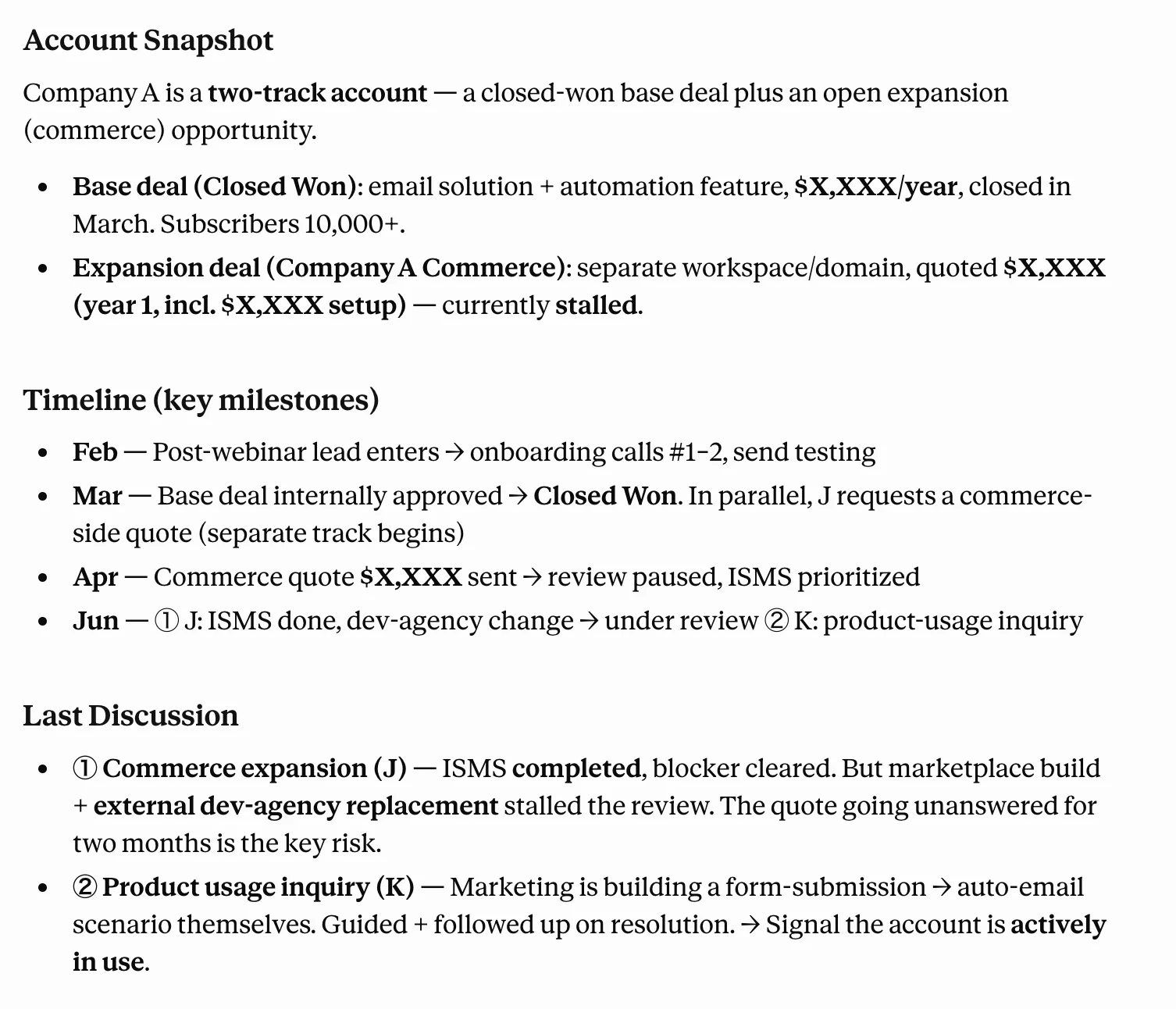
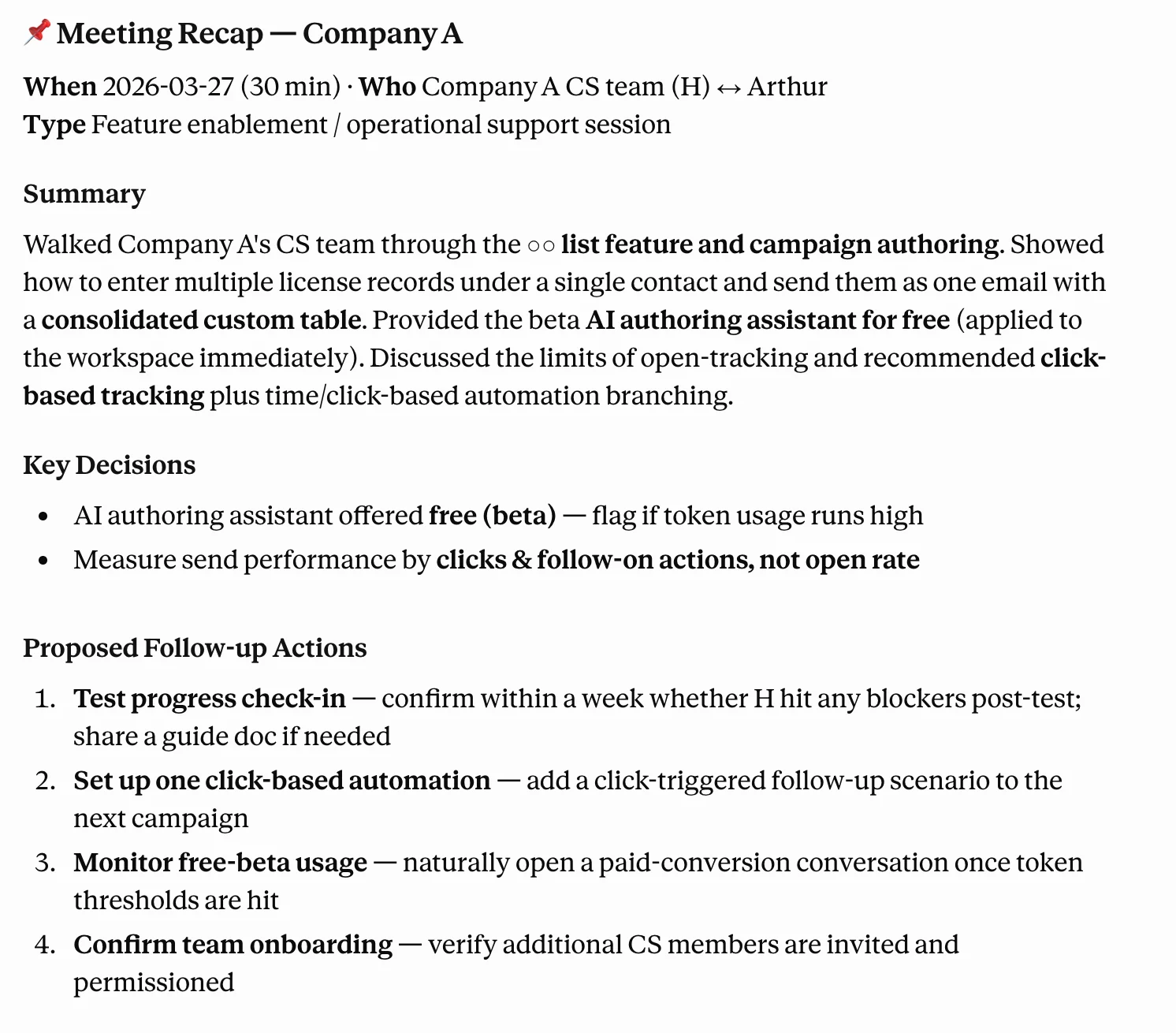
“For company A that I’m meeting tomorrow, summarize the notes, deal history, and recent email threads in Relate.”
Customer research & meeting prep example
Meeting follow-up
“Pull up the notetaker summary from the company B meeting that just ended, write up the key points as a note, and create follow-up tasks if needed.”
Meeting follow-up example
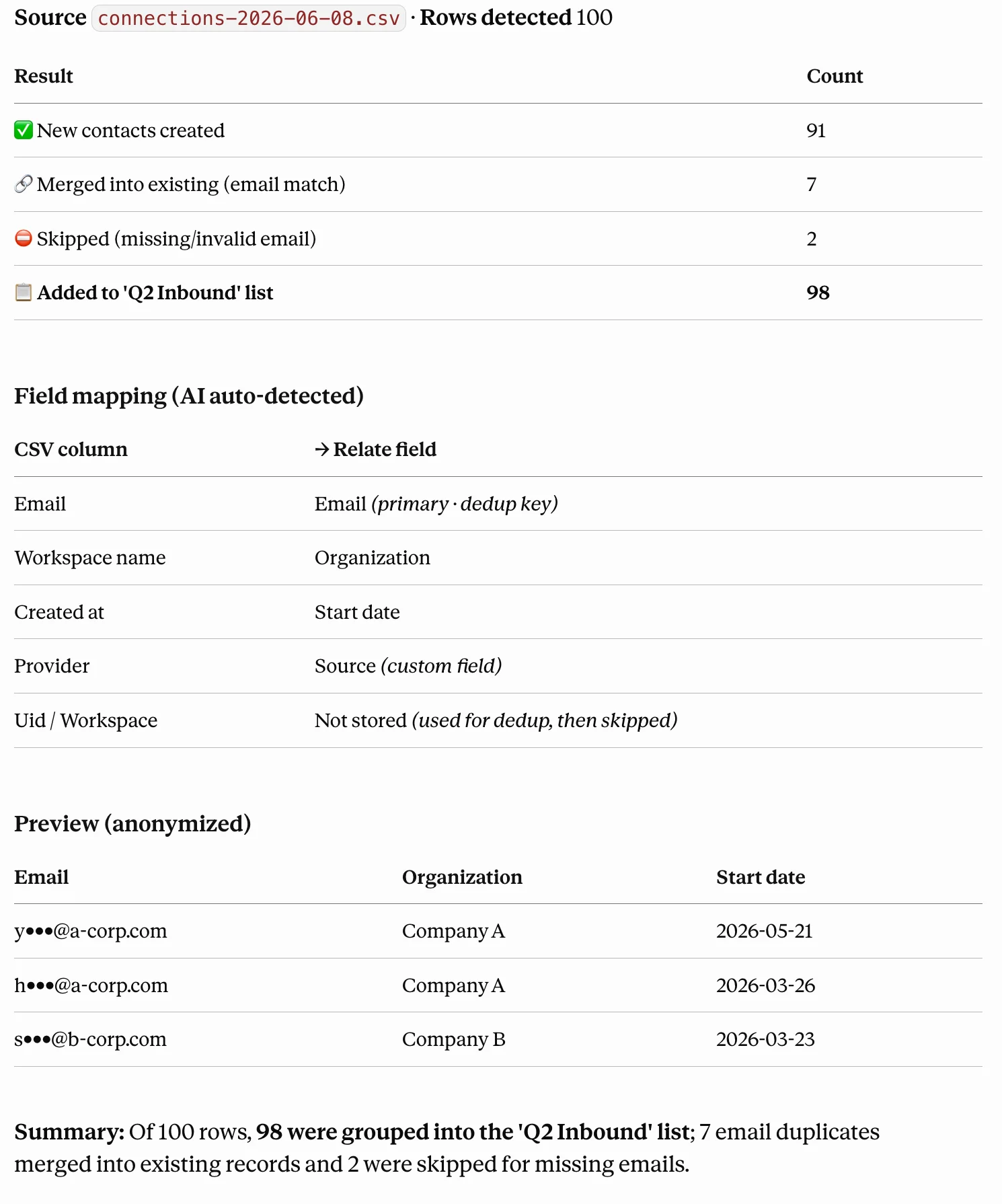
Data entry automation
“Import the 100 leads in this Excel file into Relate and group them into the ‘Q2 Inbound’ list.”
Data entry automation example
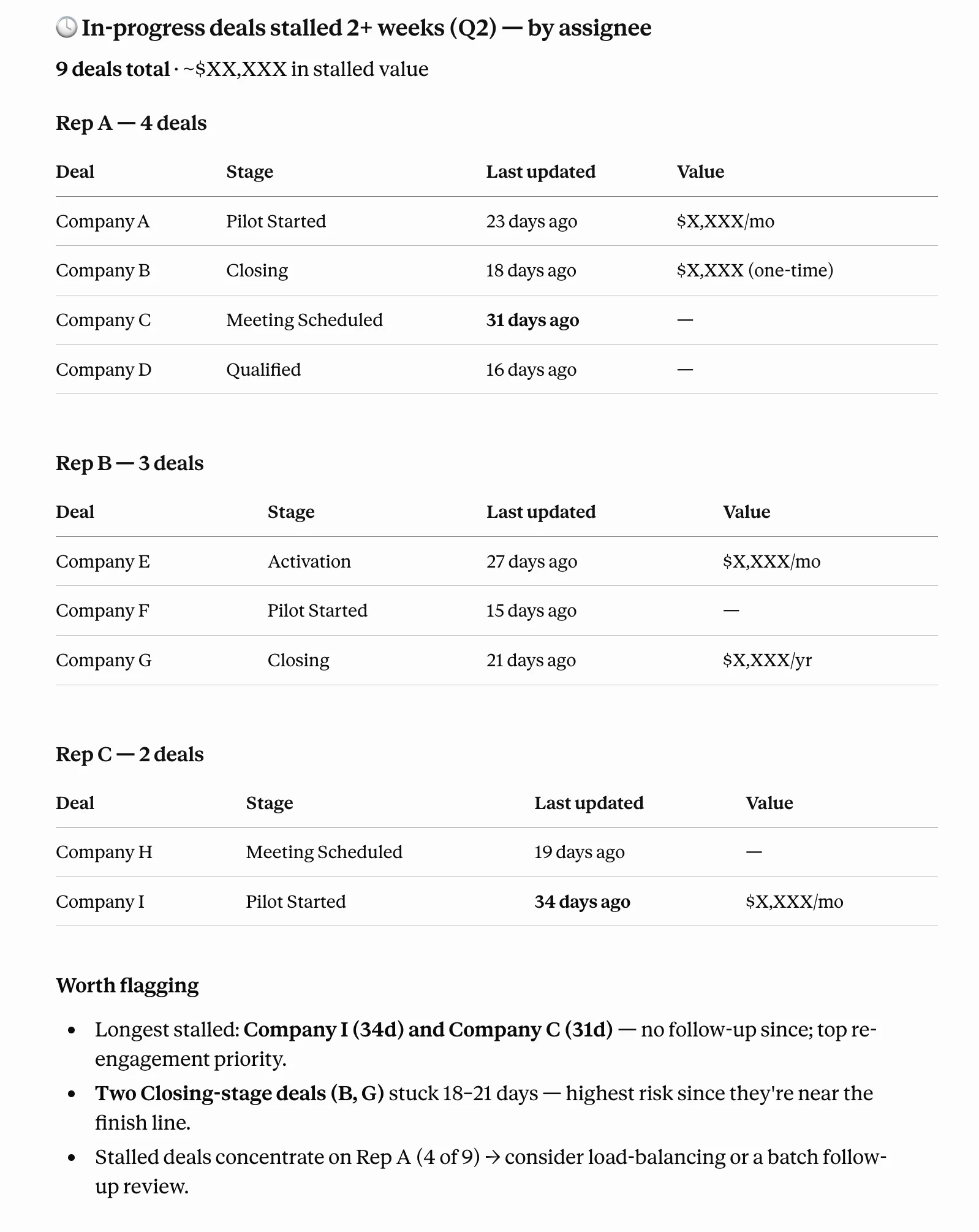
Pipeline review
“Find the in-progress deals this quarter that haven’t been updated in over two weeks, and organize them by assignee.”
Pipeline review example
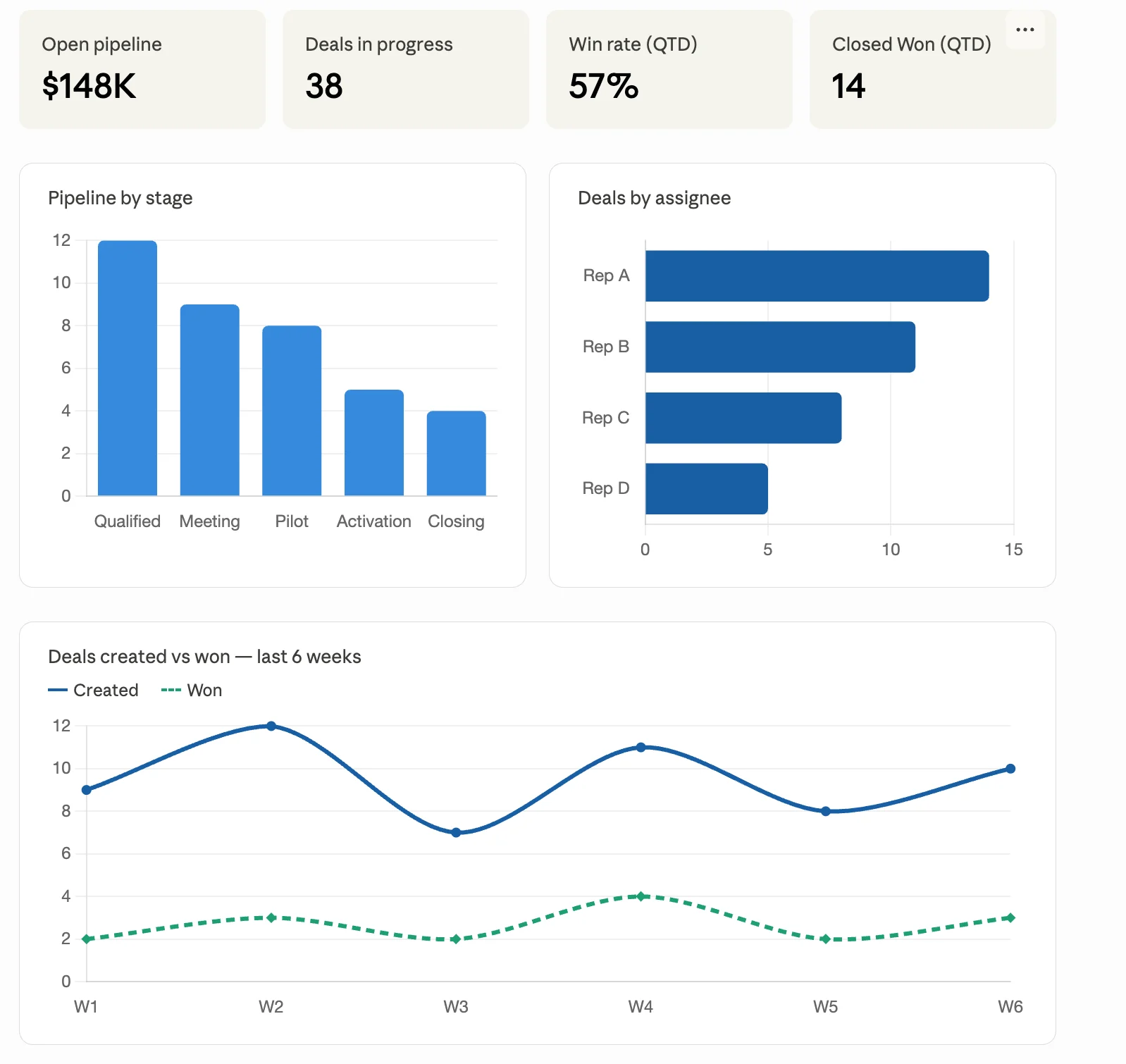
Sales report
“Show me the stage-by-stage conversion rate report for our main sales process.”
Sales report example
Campaign / sequence operations
From cleaning up a list to drafting a campaign, checking deliverability, and designing a sequence — you can carry the whole thing through in a single conversation.1. Review the target list
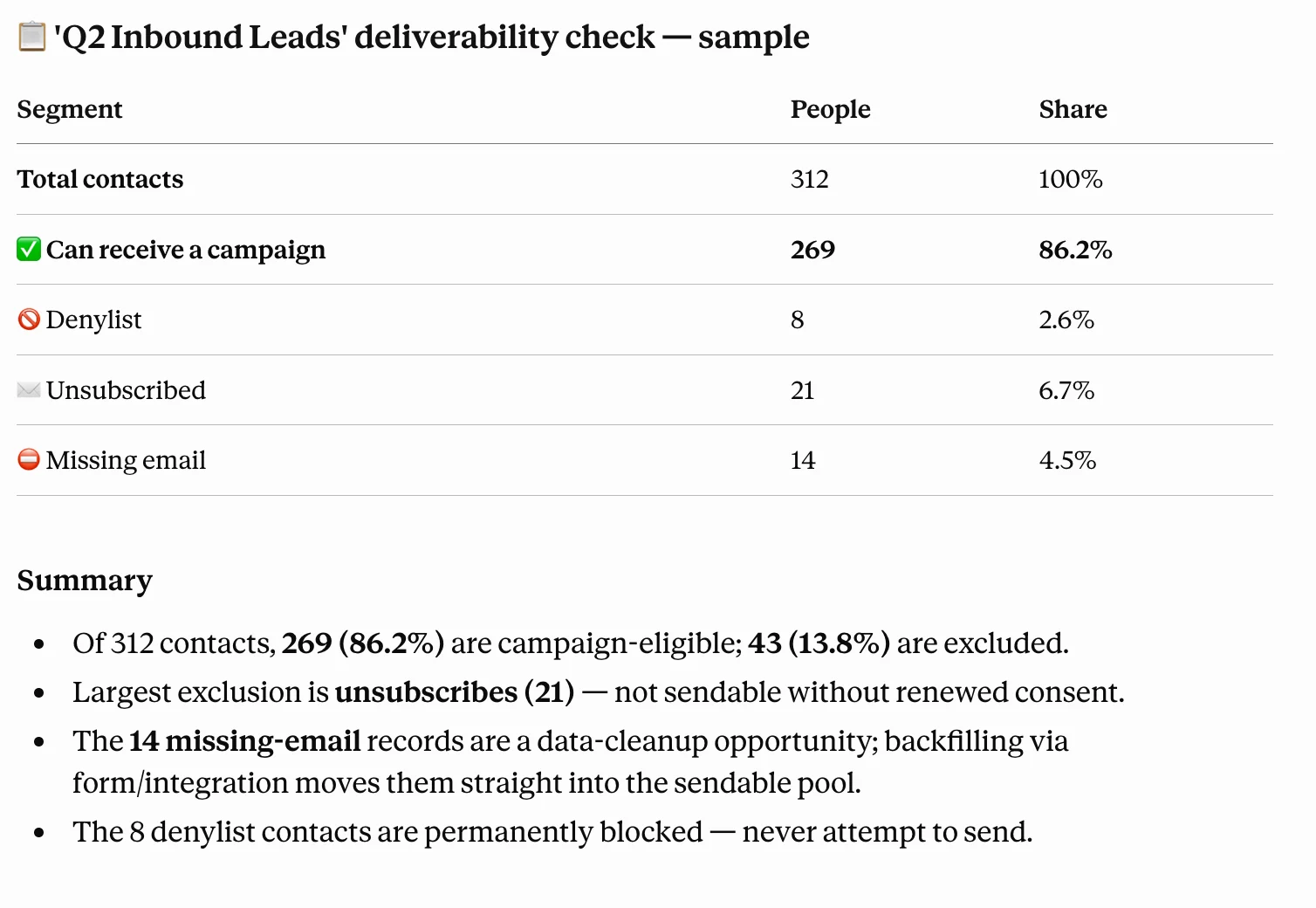
“How many people are in the ‘Q2 Inbound Leads’ list, and how many of them can receive a campaign? Break out who is excluded due to denylist, unsubscribe, or missing email.”
2. Draft the campaign
“Draft a new-feature announcement campaign for that list. Give me 3 subject-line options plus a body draft, and set the sender to one of our workspace’s sending domains.”
3. Design a follow-up sequence
“Create a 2-step follow-up sequence with a 3-day gap, targeting people who opened the campaign. Make step 1 a meeting proposal and step 2 a reminder tone.”
Actions that actually send are designed to ask for your confirmation before the AI executes them. We recommend letting the AI handle drafting and review, and sending only after you confirm it yourself.
Campaign / sequence operations example
For questions about Relate MCP or to share how you’re using it, let us know via we@relate.so or in-app chat :)