> ## Documentation Index
> Fetch the complete documentation index at: https://relate.so/docs/llms.txt
> Use this file to discover all available pages before exploring further.
# Google Contacts Sync
> Automatically import contacts saved in Google Contacts into Relate.
## Overview
Connect your Google account to **automatically import contacts saved in Google Contacts into Relate.**
There's no need to build a file yourself — you simply sync the contacts you already have.
**There are two ways to bring contacts into Relate.**
1. **Sync from Google Contacts** (this page) — connect your Google account to sync automatically
2. [**Import an Excel/CSV file**](/docs/setup/ai-import) — upload a file and let AI map it
If your contacts are already in Google Contacts, use the sync method on this page. If you have a separate file, use the import method.
## Connecting Google Contacts (Step-by-Step)
### Step 1. Go to the Integrations menu
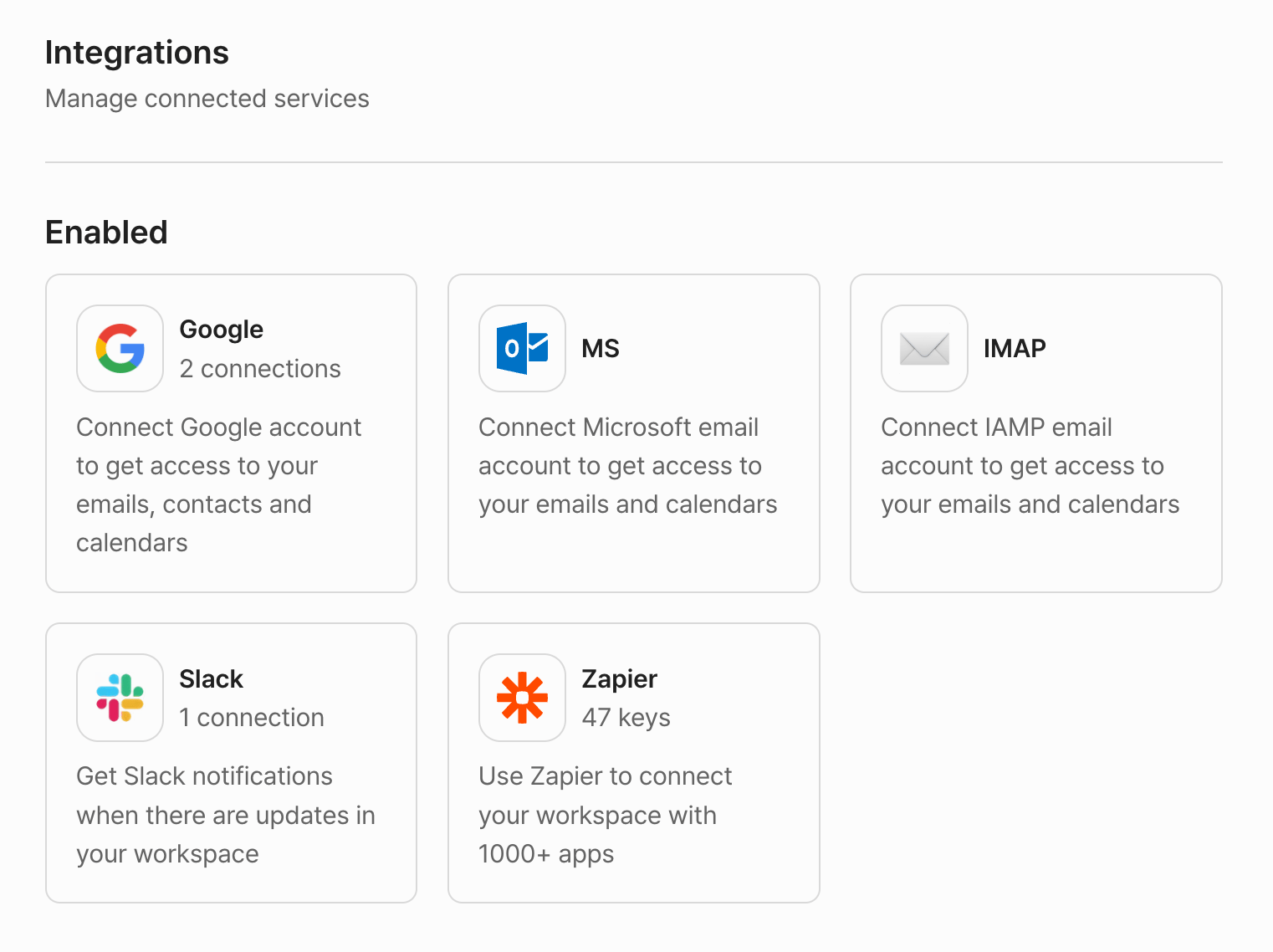
Go to `Workspace Settings` → `Integrations`, then select **`Google`** under `In use`.
 ### Step 2. Allow Google Contacts access
When connecting an account for the first time, sign in to Google and grant **Contacts access** on the consent screen. This permission is required for Google Contacts sync to work.
### Step 2. Allow Google Contacts access
When connecting an account for the first time, sign in to Google and grant **Contacts access** on the consent screen. This permission is required for Google Contacts sync to work.
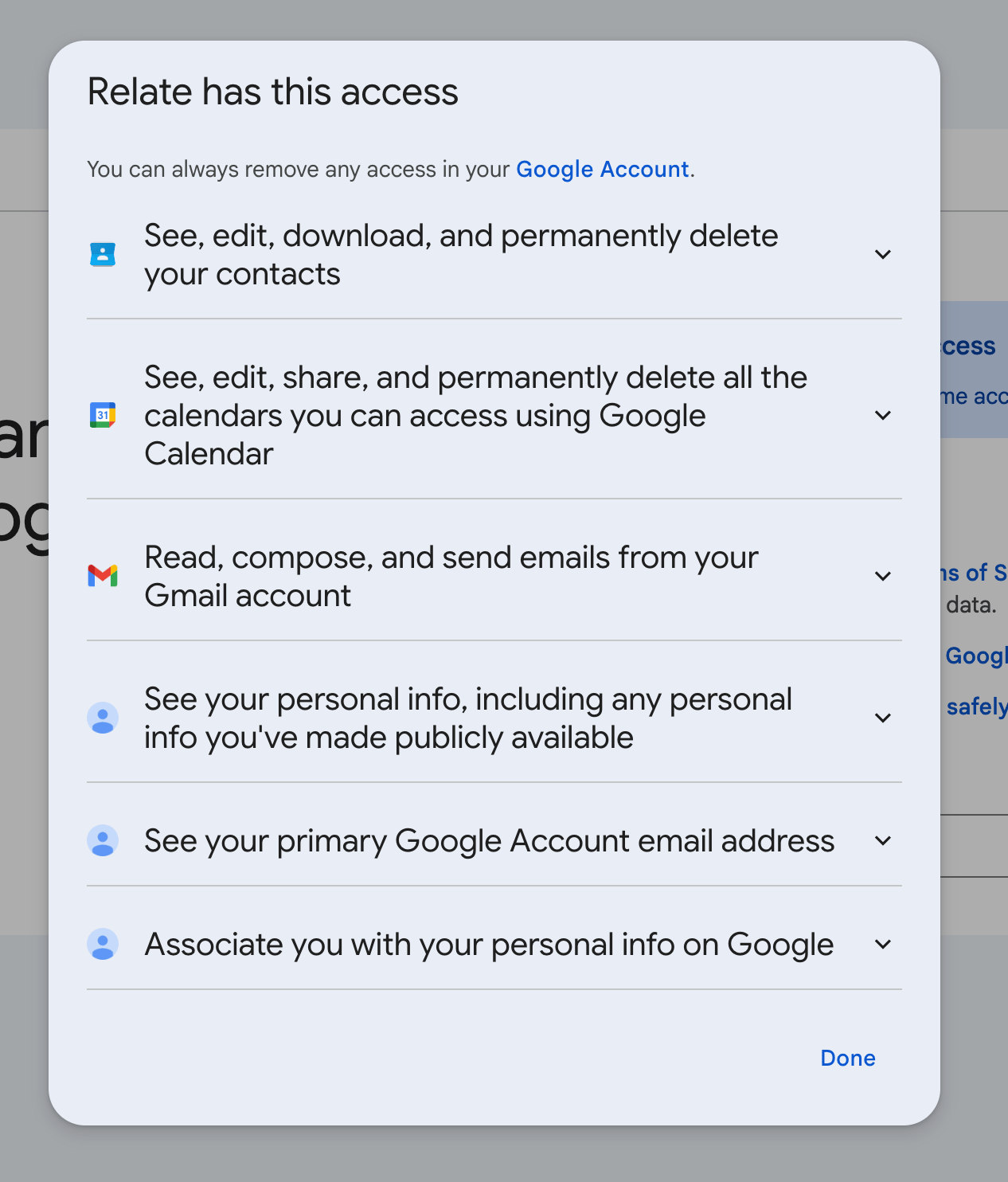 The Google consent screen also requests **Calendar and Gmail** permissions. A single Google account connection lets you use email, calendar, and contacts together.
### Step 3. Check the Contacts option and save
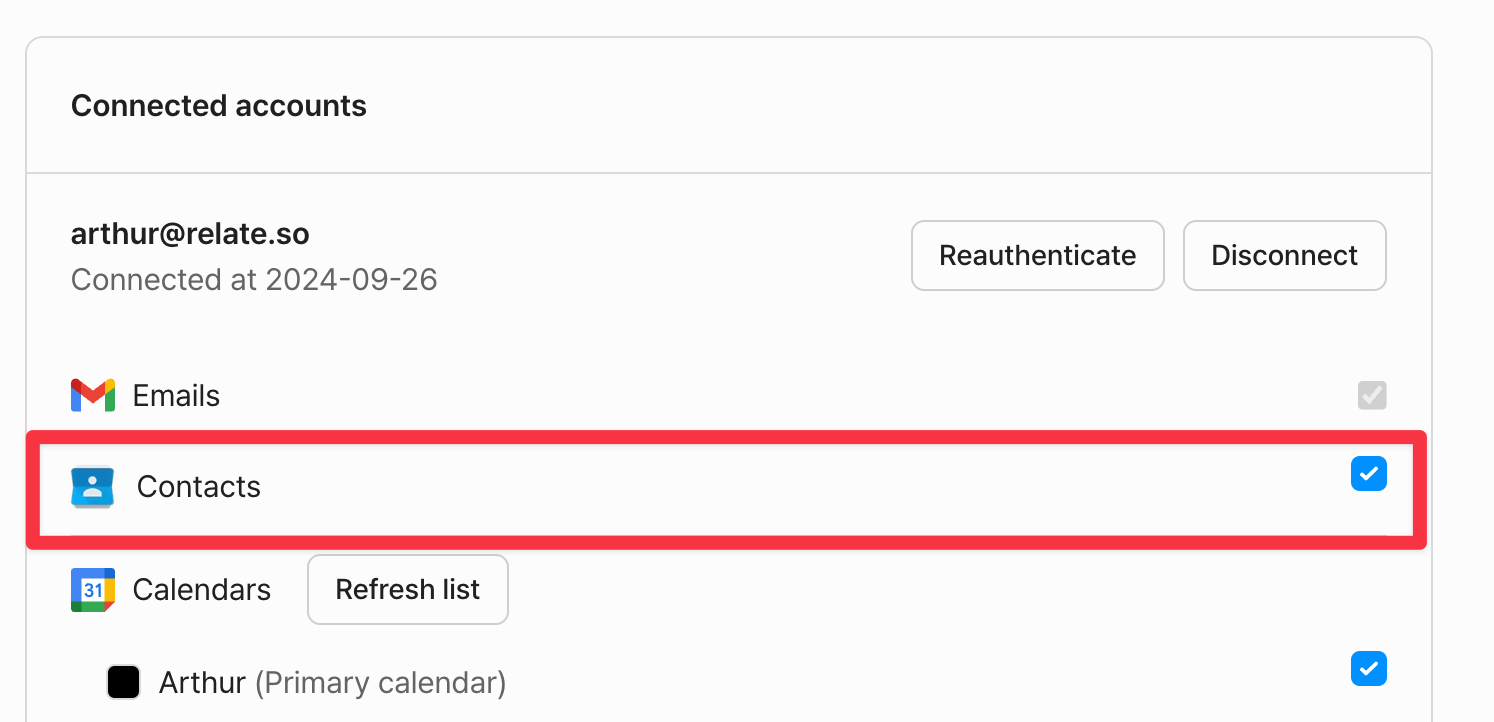
In `Connected accounts`, check the **`Contacts`** option for the Google account and **save** to start syncing.
The Google consent screen also requests **Calendar and Gmail** permissions. A single Google account connection lets you use email, calendar, and contacts together.
### Step 3. Check the Contacts option and save
In `Connected accounts`, check the **`Contacts`** option for the Google account and **save** to start syncing.
 **What information is imported**
Relate imports the **name, company, phone number, email, and title (job title)** registered in Google Contacts.
### Step 4. Check the sync results
Once you check the `Contacts` option and save, the **first sync starts immediately**, and shortly after, your Google Contacts appear in your Relate contact list.
If you have a large number of contacts, it may take some time for all of them to be reflected.
## How sync works
* **Sync timing**: A **full sync runs once immediately** when you first enable it. After that, contacts are **automatically updated once every 24 hours (daily at midnight)**, reflecting any added or changed contacts.
* **Scope**: Relate imports **all contacts** from the connected Google account. (It does not import only a specific group or label.)
* **Duplicate handling**: Contacts are **matched by email**. If a contact with the same email already exists in Relate, it is not duplicated — instead, the **existing contact is updated** with the merged information.
* **Contacts without an email**: If a contact has no email, it must have a **name** to be imported.
* **Deleted contacts**: Contacts deleted in Google are excluded from sync.
**What information is imported**
Relate imports the **name, company, phone number, email, and title (job title)** registered in Google Contacts.
### Step 4. Check the sync results
Once you check the `Contacts` option and save, the **first sync starts immediately**, and shortly after, your Google Contacts appear in your Relate contact list.
If you have a large number of contacts, it may take some time for all of them to be reflected.
## How sync works
* **Sync timing**: A **full sync runs once immediately** when you first enable it. After that, contacts are **automatically updated once every 24 hours (daily at midnight)**, reflecting any added or changed contacts.
* **Scope**: Relate imports **all contacts** from the connected Google account. (It does not import only a specific group or label.)
* **Duplicate handling**: Contacts are **matched by email**. If a contact with the same email already exists in Relate, it is not duplicated — instead, the **existing contact is updated** with the merged information.
* **Contacts without an email**: If a contact has no email, it must have a **name** to be imported.
* **Deleted contacts**: Contacts deleted in Google are excluded from sync.