> ## Documentation Index
> Fetch the complete documentation index at: https://relate.so/docs/llms.txt
> Use this file to discover all available pages before exploring further.
# Admin settings
> Learn how to configure your Relate workspace.
 ## Overview
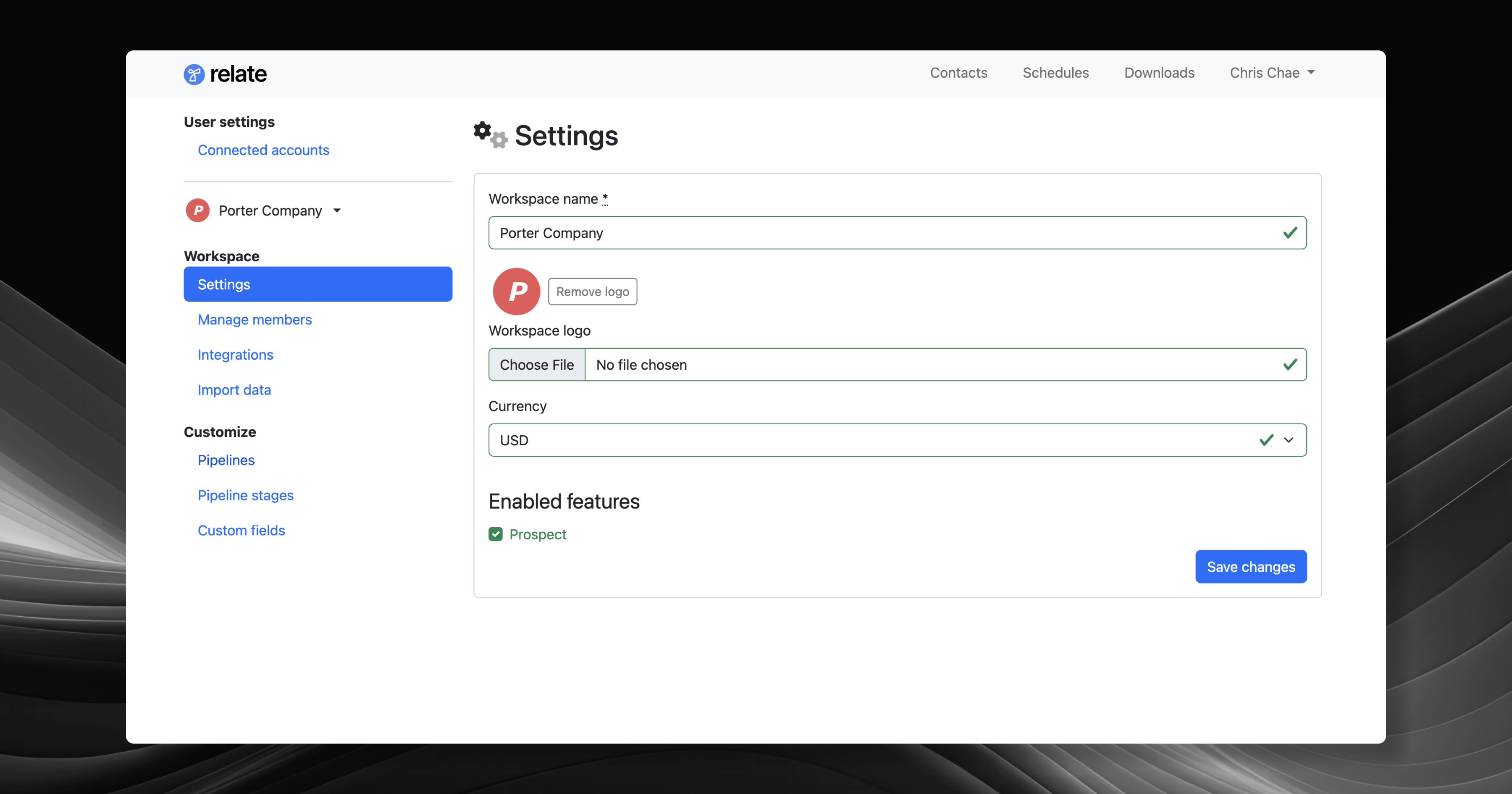
Relate has a separate admin settings page from the app. Only admins can make changes to the workspace.
To access Relate Admin:
* Click workspace, then [Workspace settings](https://admin.relate.so/).
* Go to Relate admin page: [admin.relate.so](https://admin.relate.so/)
## Basics
Click each tab below to learn more about what each role (Admins, Members, Guests) can do in the admin page.
**Admins will be able to:**
* Update your Workspace name and logo.
* Update your Workspace default currency.
* Enable/disable the Prospect feature.
* Invite new members to your Workspace.
* Manage memberships.
* Connect with email.
* Integrate with other software apps.
* Manage API keys used for Zapier.
* Import data into Relate.
* Manage and create new pipelines.
* Manage pipeline stages.
* Manage custom fields used in your Workspace.
**Members will be able to:**
* View your Workspace members.
* Connect with email.
* Import data into Relate.
* View pipelines.
* View pipeline stages.
* View custom fields.
**Guests will be able to:**
* View your Workspace members.
* View pipelines.
* View pipeline stages.
* View custom fields.
## Settings
### Manage members
See manage members guide:
### Integrations
See integrations guide:
### Import data
See the import guide:
## Customize
### Pipelines
See the pipeline customization guide:
### Pipeline stages
### Custom fields
See Custom Fields guide:
## Frequently Asked Questions
Reach out to [we@relate.so](mailto:we@relate.so) and we'll be able to delete the workspace for you.
Yes. Reach out to [we@relate.so](mailto:we@relate.so) and we'll be able to create a new workspace.
Reach out to [we@relate.so](mailto:we@relate.so) and we'll be able to export your data via .CSV file.
## Overview
Relate has a separate admin settings page from the app. Only admins can make changes to the workspace.
To access Relate Admin:
* Click workspace, then [Workspace settings](https://admin.relate.so/).
* Go to Relate admin page: [admin.relate.so](https://admin.relate.so/)
## Basics
Click each tab below to learn more about what each role (Admins, Members, Guests) can do in the admin page.
**Admins will be able to:**
* Update your Workspace name and logo.
* Update your Workspace default currency.
* Enable/disable the Prospect feature.
* Invite new members to your Workspace.
* Manage memberships.
* Connect with email.
* Integrate with other software apps.
* Manage API keys used for Zapier.
* Import data into Relate.
* Manage and create new pipelines.
* Manage pipeline stages.
* Manage custom fields used in your Workspace.
**Members will be able to:**
* View your Workspace members.
* Connect with email.
* Import data into Relate.
* View pipelines.
* View pipeline stages.
* View custom fields.
**Guests will be able to:**
* View your Workspace members.
* View pipelines.
* View pipeline stages.
* View custom fields.
## Settings
### Manage members
See manage members guide:
### Integrations
See integrations guide:
### Import data
See the import guide:
## Customize
### Pipelines
See the pipeline customization guide:
### Pipeline stages
### Custom fields
See Custom Fields guide:
## Frequently Asked Questions
Reach out to [we@relate.so](mailto:we@relate.so) and we'll be able to delete the workspace for you.
Yes. Reach out to [we@relate.so](mailto:we@relate.so) and we'll be able to create a new workspace.
Reach out to [we@relate.so](mailto:we@relate.so) and we'll be able to export your data via .CSV file.