> ## Documentation Index
> Fetch the complete documentation index at: https://relate.so/docs/llms.txt
> Use this file to discover all available pages before exploring further.
# Campaigns
> Learn how to use Campaigns to broadcast emails to your audience.
 ## Overview
Campaigns is a simple email tool for B2B marketing teams.
You can use Campaigns to send emails to your audience (e.g., users, marketing leads, newsletter subscribers, etc.) to grow your business.
Email Deliverability is a top priority for Relate campaigns.
We make sure all technical setups are in place and assist in ensuring that the emails you send to your customers are delivered safely to their inboxes and not marked as spam.
Campaigns is currently in beta. If you would like **Early access**, please sign up [here](https://relate.so/forms/owanag3splmfy6zr).
Currently, Campaigns is in beta and includes the following features
* Set up and verify SPF, DKIM, DMARC, and MX records for reliable email deliverability
* Custom domains
* Preview text creation
* Email editor: Quickly compose and style emails based on Markdown
* Test sending
* Send bulk emails to your list
* Measuring email campaign performance
We'll be adding more features in the future, including automation features.
## How it works
Before you can use a campaign, you need to register a sending domain. For the process of registering a sending domain, see the [DNS Records Setup Guide](/docs/marketing/dns-records)
### Create a new campaign
## Overview
Campaigns is a simple email tool for B2B marketing teams.
You can use Campaigns to send emails to your audience (e.g., users, marketing leads, newsletter subscribers, etc.) to grow your business.
Email Deliverability is a top priority for Relate campaigns.
We make sure all technical setups are in place and assist in ensuring that the emails you send to your customers are delivered safely to their inboxes and not marked as spam.
Campaigns is currently in beta. If you would like **Early access**, please sign up [here](https://relate.so/forms/owanag3splmfy6zr).
Currently, Campaigns is in beta and includes the following features
* Set up and verify SPF, DKIM, DMARC, and MX records for reliable email deliverability
* Custom domains
* Preview text creation
* Email editor: Quickly compose and style emails based on Markdown
* Test sending
* Send bulk emails to your list
* Measuring email campaign performance
We'll be adding more features in the future, including automation features.
## How it works
Before you can use a campaign, you need to register a sending domain. For the process of registering a sending domain, see the [DNS Records Setup Guide](/docs/marketing/dns-records)
### Create a new campaign
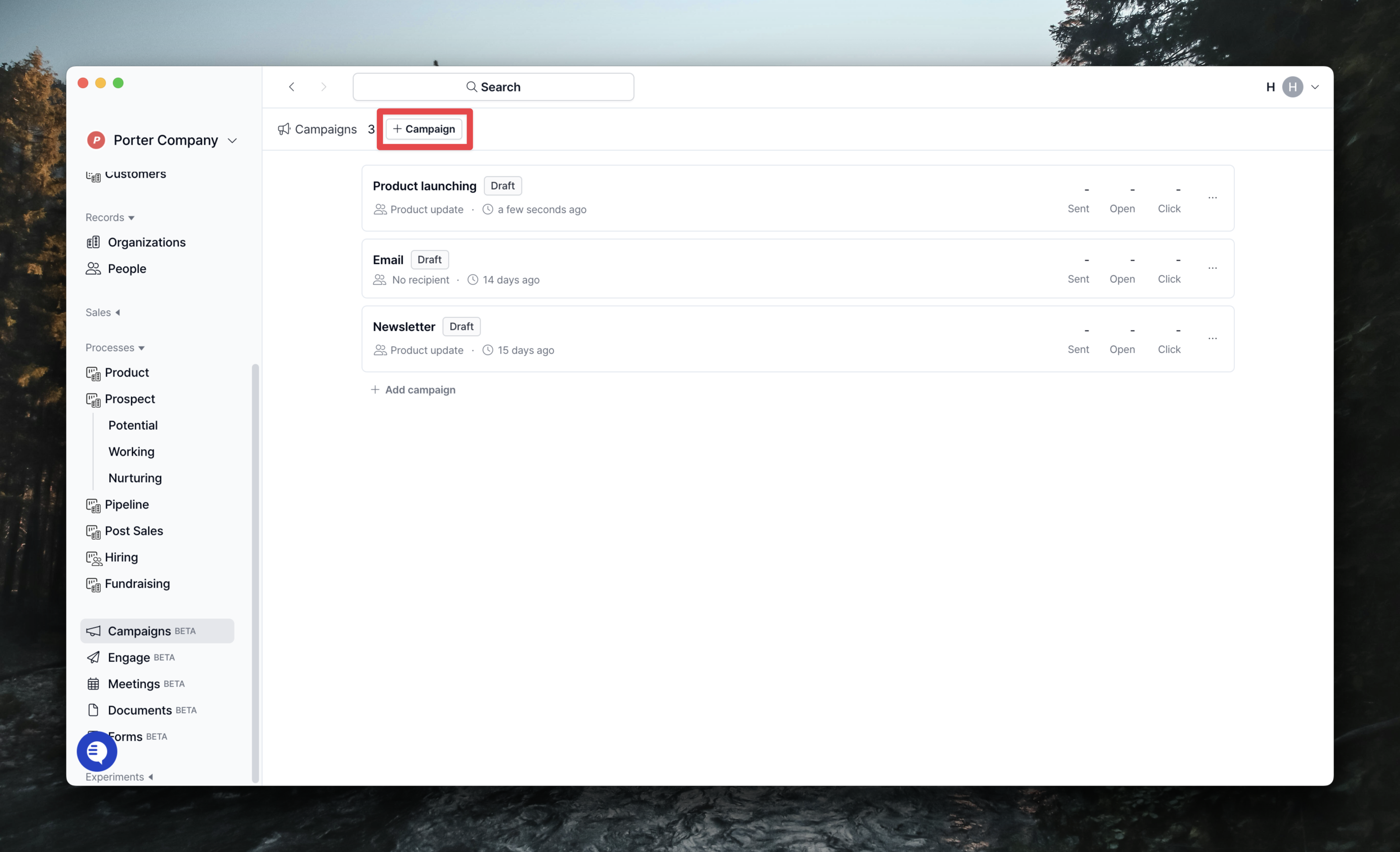 Create a new campaign by clicking the `+ Campaign` button in the Campaigns page.
### Compose an email
#### Write preview text
Create a new campaign by clicking the `+ Campaign` button in the Campaigns page.
### Compose an email
#### Write preview text
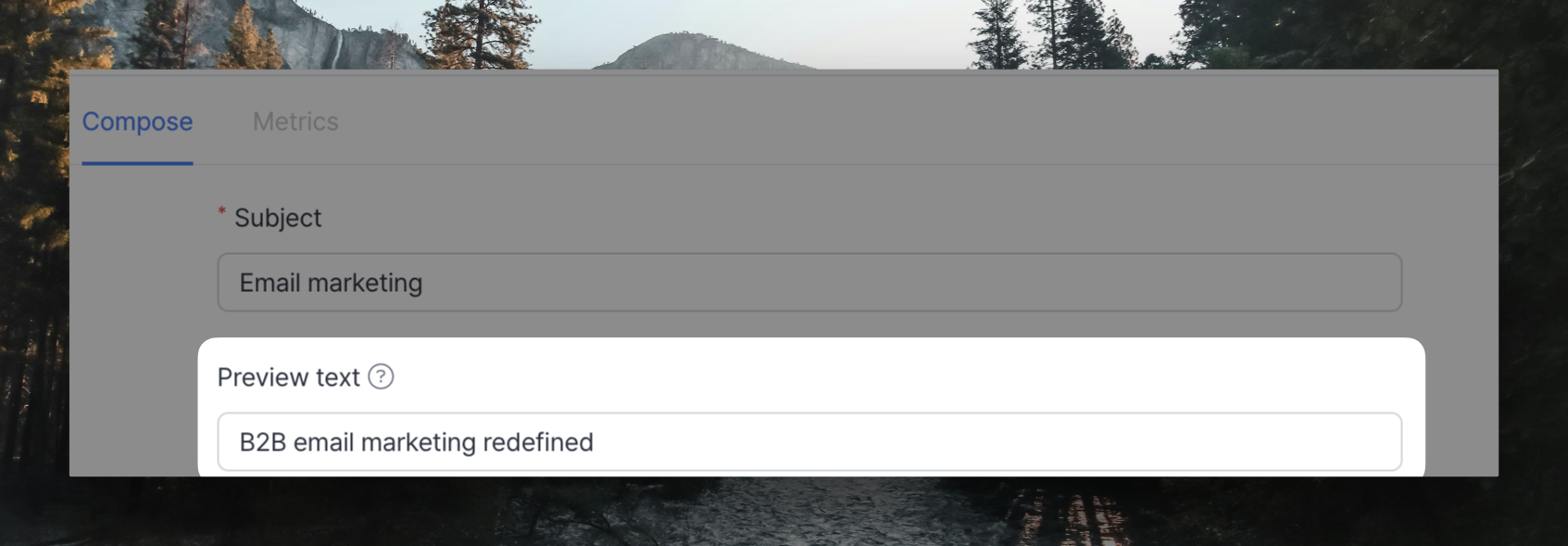 Preview text is the one-line description that appears after the subject line in your customer's inbox.
It's optional, and you can send your campaign without it.
Depending on whether or not you write the preview text, it will look slightly different in your customer's inbox.
* Composed: The preview text appears **next to the email subject line**.
(e.g., Relate changelog update for October - Google contacts integration, List\&Processes)
* Uncomposed: **The first line of the email content** is displayed next to the email subject.
(e.g., Relate changelog update for October - Hey! Chris here, from the Relate team. We shipped bunch of ...)
#### Compose the email content
Preview text is the one-line description that appears after the subject line in your customer's inbox.
It's optional, and you can send your campaign without it.
Depending on whether or not you write the preview text, it will look slightly different in your customer's inbox.
* Composed: The preview text appears **next to the email subject line**.
(e.g., Relate changelog update for October - Google contacts integration, List\&Processes)
* Uncomposed: **The first line of the email content** is displayed next to the email subject.
(e.g., Relate changelog update for October - Hey! Chris here, from the Relate team. We shipped bunch of ...)
#### Compose the email content
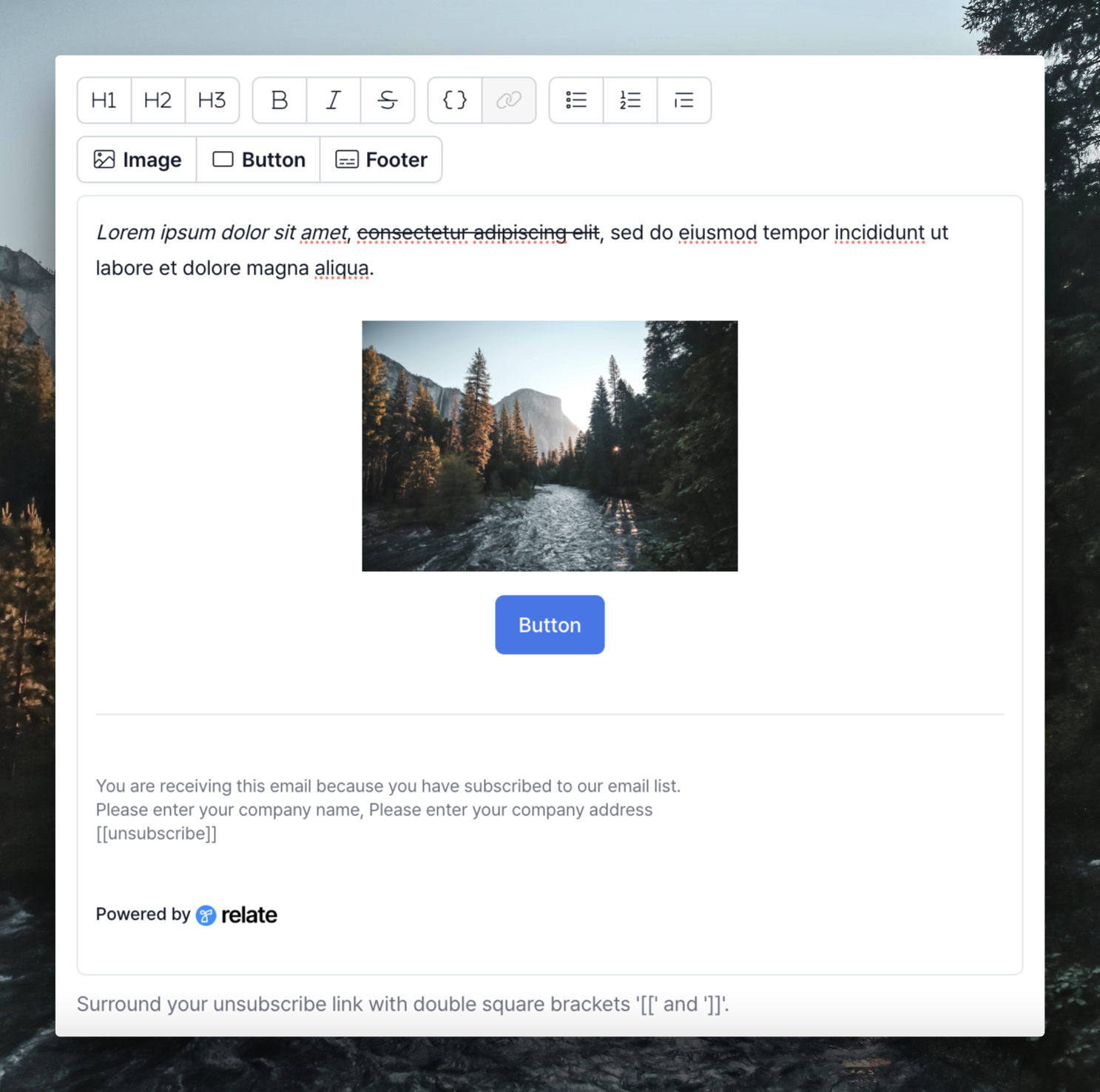 The Campaigns editor supports a full-featured markdown editor, but you can also use the WYSIWYG style buttons to style your email.
Our editor lets you write emails just like you would in Notion.
Use the `/` button to access the menu. Here, you can add images, videos, buttons, and more to your email.
#### Set email footer content
In a Relate campaign, every email is sent with a footer by default.
The footer should contain the following information
1. How and why the subscriber received this email
2. Your company name
3. Your company address
4. An Unsubscribe button: Subscribers can unsubscribe and unsubscribe themselves
The Campaigns editor supports a full-featured markdown editor, but you can also use the WYSIWYG style buttons to style your email.
Our editor lets you write emails just like you would in Notion.
Use the `/` button to access the menu. Here, you can add images, videos, buttons, and more to your email.
#### Set email footer content
In a Relate campaign, every email is sent with a footer by default.
The footer should contain the following information
1. How and why the subscriber received this email
2. Your company name
3. Your company address
4. An Unsubscribe button: Subscribers can unsubscribe and unsubscribe themselves
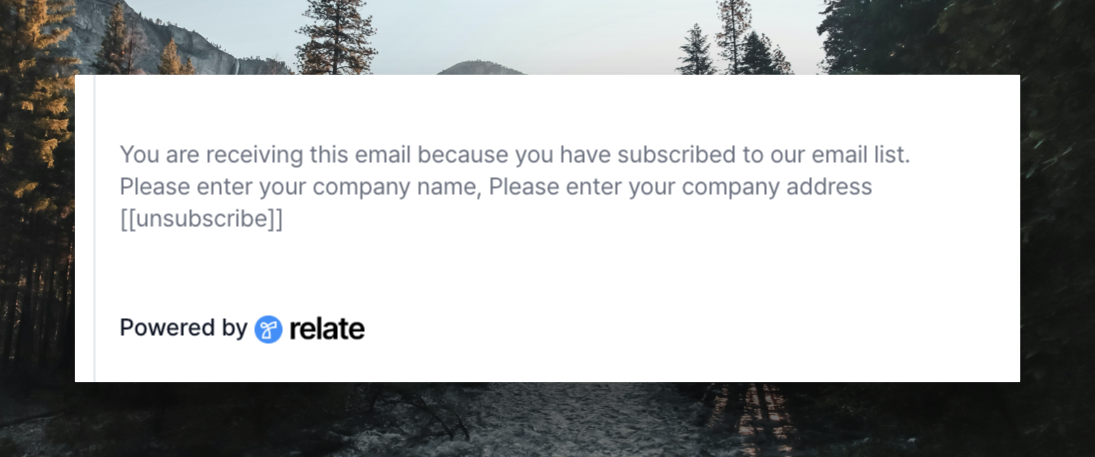 Currently, Relate requires you to enter your company name and company address in free-form.
Typically, the order is Company name > Company address. See the example above.
#### How to remove the `Powered by Relate` button
`Powered by Relate` can only be removed from paid plans and the Enterprise Plan.
You can change [plans and start a free trial here](https://admin.relate.so/workspaces/settings/plans).
### Specify sender email address and name
Currently, Relate requires you to enter your company name and company address in free-form.
Typically, the order is Company name > Company address. See the example above.
#### How to remove the `Powered by Relate` button
`Powered by Relate` can only be removed from paid plans and the Enterprise Plan.
You can change [plans and start a free trial here](https://admin.relate.so/workspaces/settings/plans).
### Specify sender email address and name
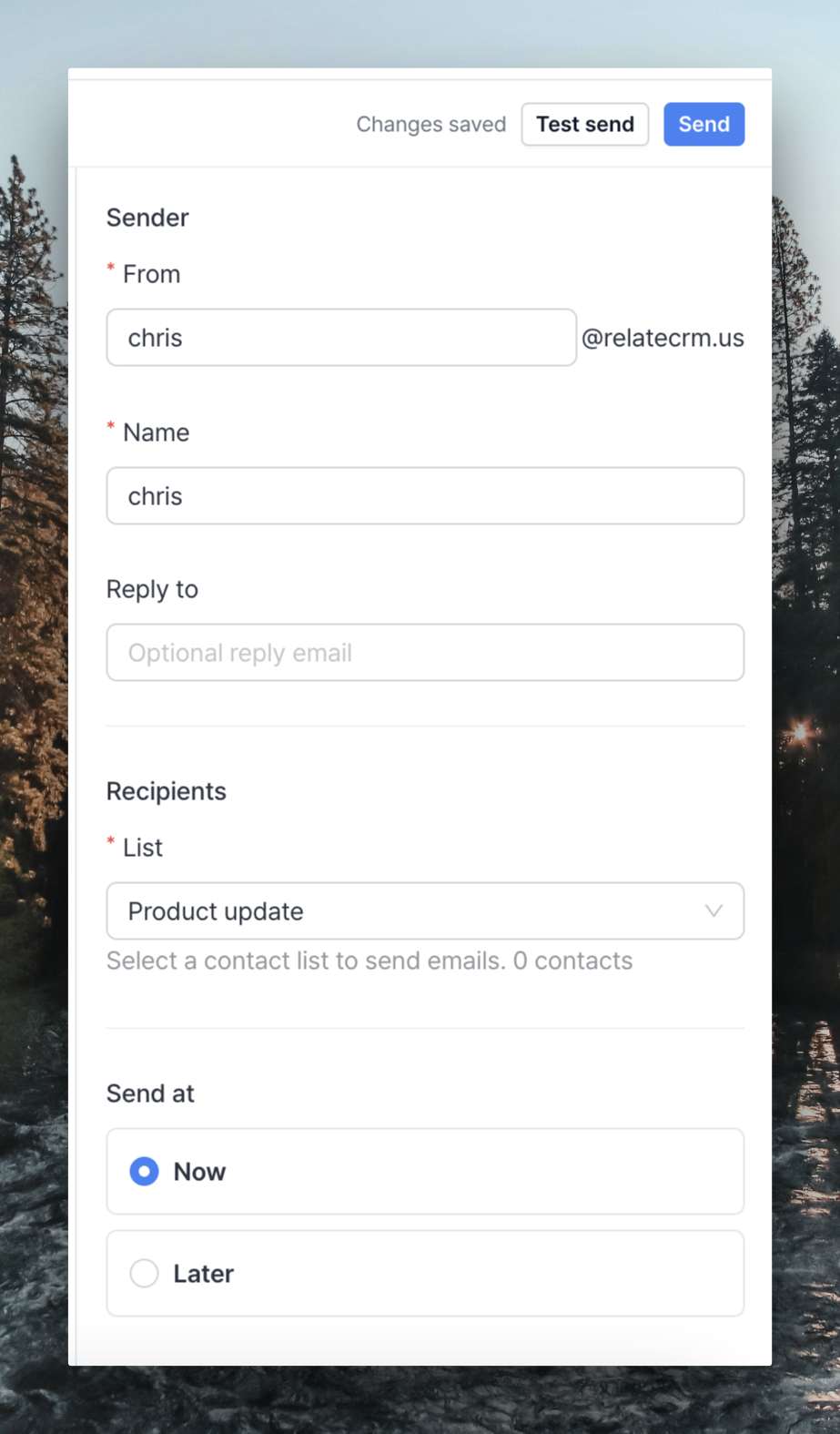 #### Specify the sending email address/name
Before you send an email, you need to set the email address and name of the sender, and the email address for receiving replies.
#### Select an email audience
Because Relate sends campaigns based on a contact list, you need to create a contact list in advance.
You can learn the basics of creating a list in [How to create a list](https://www.relate.so/changelog/lists-and-processes).
If you want to quickly add a customer list you already have to Relate, you can do so in the following ways
#### Specify the sending email address/name
Before you send an email, you need to set the email address and name of the sender, and the email address for receiving replies.
#### Select an email audience
Because Relate sends campaigns based on a contact list, you need to create a contact list in advance.
You can learn the basics of creating a list in [How to create a list](https://www.relate.so/changelog/lists-and-processes).
If you want to quickly add a customer list you already have to Relate, you can do so in the following ways
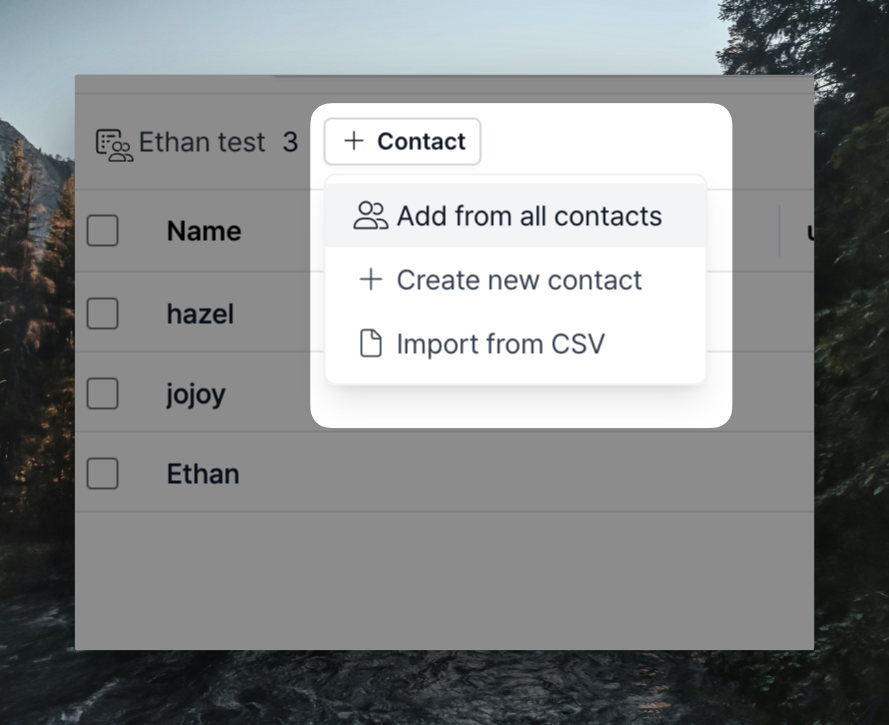 1. After you create a List, select `+ Contact` > `+ Import from CSV`.
2. Upload the customer CSV file that you currently have. You can learn more about how to import a CSV file in our [import guide](setup/import).
### Send an email to recipients
Once you've created your contact list, select the list in the `Recipients` section to add it to your audience, and the email will be sent to all the contacts in the list.
Once you've selected the list you want to send the email to, select whether you want to send it immediately (Now) or schedule it (Later), then press the `Send` or `Schedule` button in the top right corner.
#### Test send
If you want to test your email first to make sure that it went out as intended when you actually send it, you can send a test email to yourself or a team member by tapping `Test send` in the top right corner.
Unsubscribe is not available in test sends where there is no contact, but it is working well in actual sends. If you have any questions, please contact [we@relate.so](mailto:we@relate.so).
## Campaign metrics
1. After you create a List, select `+ Contact` > `+ Import from CSV`.
2. Upload the customer CSV file that you currently have. You can learn more about how to import a CSV file in our [import guide](setup/import).
### Send an email to recipients
Once you've created your contact list, select the list in the `Recipients` section to add it to your audience, and the email will be sent to all the contacts in the list.
Once you've selected the list you want to send the email to, select whether you want to send it immediately (Now) or schedule it (Later), then press the `Send` or `Schedule` button in the top right corner.
#### Test send
If you want to test your email first to make sure that it went out as intended when you actually send it, you can send a test email to yourself or a team member by tapping `Test send` in the top right corner.
Unsubscribe is not available in test sends where there is no contact, but it is working well in actual sends. If you have any questions, please contact [we@relate.so](mailto:we@relate.so).
## Campaign metrics
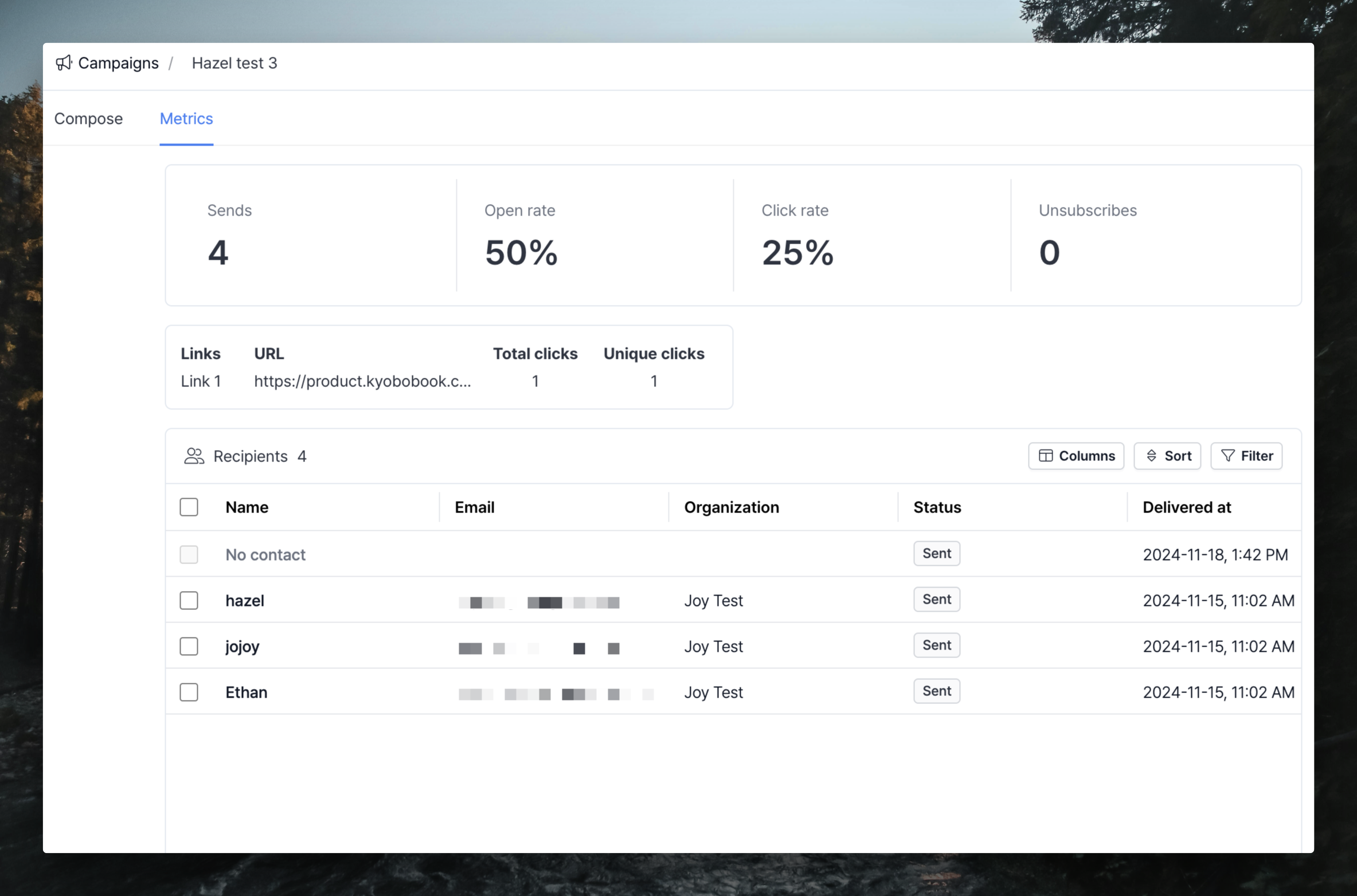 You can measure the overall performance of each campaign and the performance of individual contacts, and the metrics available in the beta include
* Number of emails sent
* Overall open rate for the campaign, including unsubscribes
* Number of clicks per link (URL)
* Status, opens, clicks, and unsubscribes by recipient
### Track clicks by link
If you've added links to your emails, you can see a table of clicks by link in the Metrics tab.
You can measure the overall performance of each campaign and the performance of individual contacts, and the metrics available in the beta include
* Number of emails sent
* Overall open rate for the campaign, including unsubscribes
* Number of clicks per link (URL)
* Status, opens, clicks, and unsubscribes by recipient
### Track clicks by link
If you've added links to your emails, you can see a table of clicks by link in the Metrics tab.
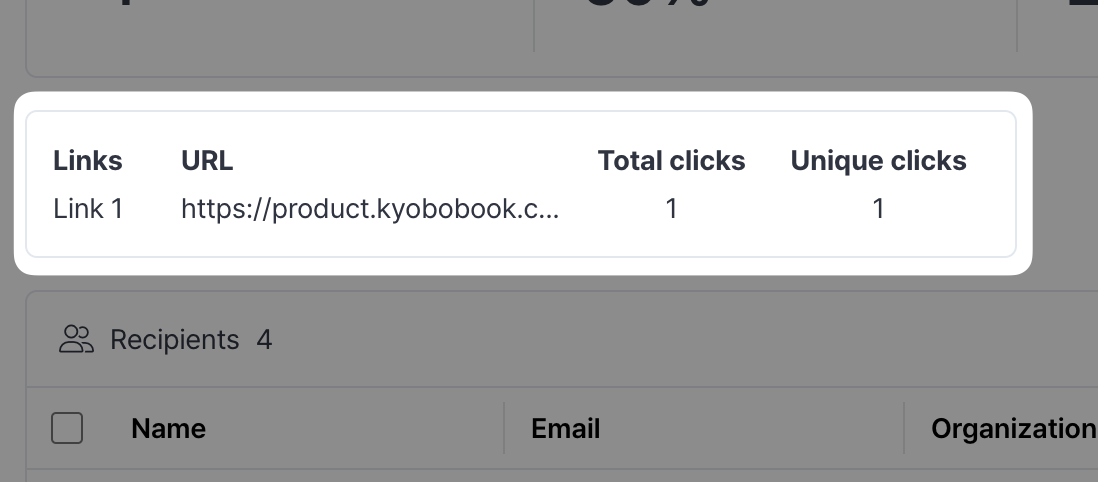 * **Links**: Number the links and give them names, such as Links 1, 2, 3. Use the same in the Recipients table below (e.g. Link 1 clicks).
* **URL**: This is a shortened version of the link you added to the email. If you're curious about the full link, you can hover over the link to see it.
* **Total clicks**: This is the number of clicks, including duplicates. If one customer opened your email and clicked 5 times, all 5 clicks will be reflected.
* **Unique clicks**: The number of clicks that do not include duplicates. If a single customer opens your email 5 times, it will be reflected as 1.
### Filters and additional actions with recipient-specific metrics
* **Links**: Number the links and give them names, such as Links 1, 2, 3. Use the same in the Recipients table below (e.g. Link 1 clicks).
* **URL**: This is a shortened version of the link you added to the email. If you're curious about the full link, you can hover over the link to see it.
* **Total clicks**: This is the number of clicks, including duplicates. If one customer opened your email and clicked 5 times, all 5 clicks will be reflected.
* **Unique clicks**: The number of clicks that do not include duplicates. If a single customer opens your email 5 times, it will be reflected as 1.
### Filters and additional actions with recipient-specific metrics
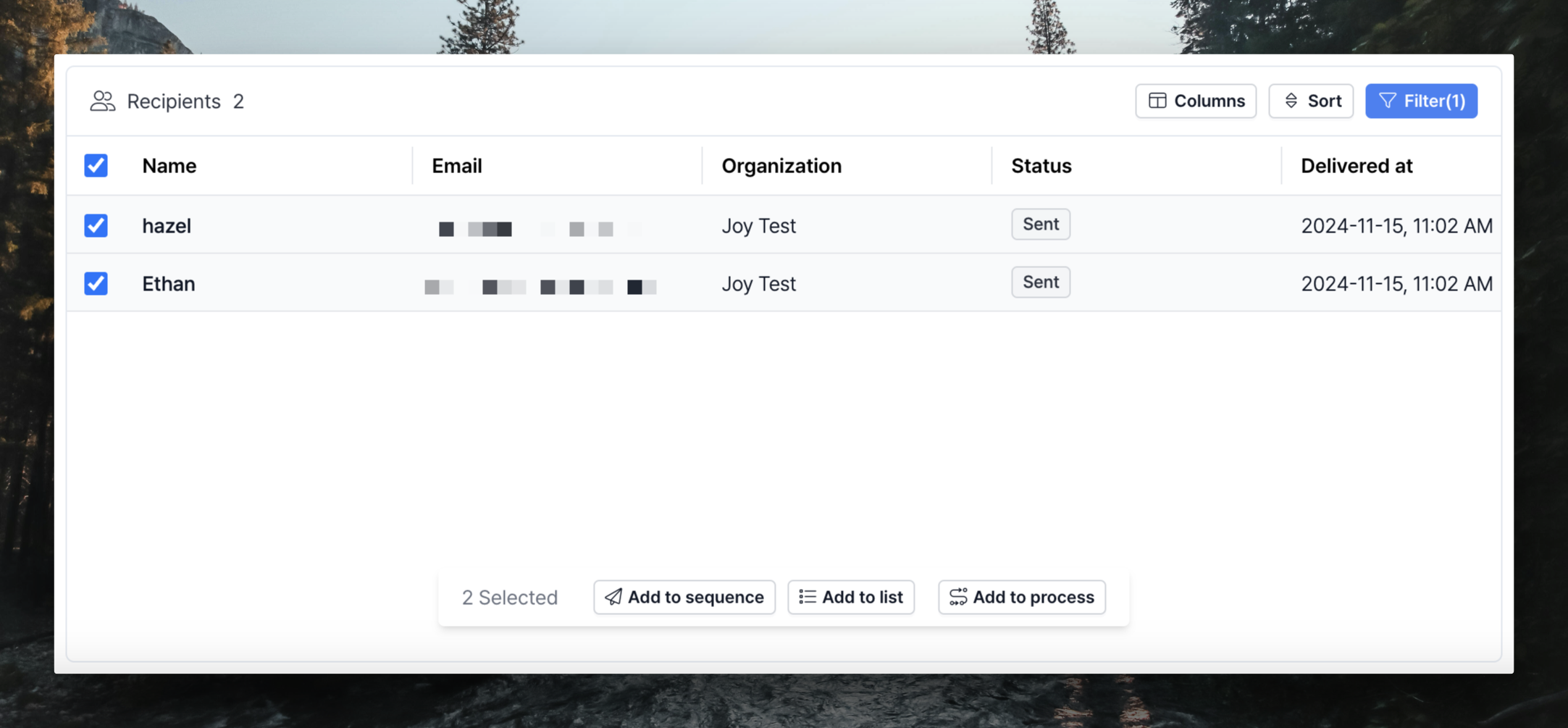 In the Recipients table, you can see the status of each recipient, the number of opens, clicks per link, and whether they have unsubscribed. You can use this to filter and then take further actions.
* Add to sequence
* Add to list: Create a new list to send another campaign
* Add to process
## Relate Marketing Billing Policy
Relate Marketing charges based on the number of subscribers in a workspace. Here, a subscriber refers to **a contact to whom at least one email has been sent.**
Check out [Relate Marketing's pricing plans page](https://www.relate.so/pricing/marketing)
### How Subscribers Are Counted
Subscribers are calculated as follows:\
**Subscribers = Contacts emailed at least once - (Unsubscribers + Bounced)**
* Unsubscriber: A contact who clicked the unsubscribe link in an email sent from the workspace.
* Bounced: A contact whose email is no longer valid, or whose domain address does not exist, meaning the email could not be delivered.
## Getting Started with Relate Marketing
Relate Marketing has been separated into a dedicated email marketing solution called Spread.
With Spread, you can freely use the following features:
* **Unlimited contact registrations**
* **1,000 free emails per month**
Start using [Spread](https://www.spread.so/) now and take your B2B email marketing to the next level!
In the Recipients table, you can see the status of each recipient, the number of opens, clicks per link, and whether they have unsubscribed. You can use this to filter and then take further actions.
* Add to sequence
* Add to list: Create a new list to send another campaign
* Add to process
## Relate Marketing Billing Policy
Relate Marketing charges based on the number of subscribers in a workspace. Here, a subscriber refers to **a contact to whom at least one email has been sent.**
Check out [Relate Marketing's pricing plans page](https://www.relate.so/pricing/marketing)
### How Subscribers Are Counted
Subscribers are calculated as follows:\
**Subscribers = Contacts emailed at least once - (Unsubscribers + Bounced)**
* Unsubscriber: A contact who clicked the unsubscribe link in an email sent from the workspace.
* Bounced: A contact whose email is no longer valid, or whose domain address does not exist, meaning the email could not be delivered.
## Getting Started with Relate Marketing
Relate Marketing has been separated into a dedicated email marketing solution called Spread.
With Spread, you can freely use the following features:
* **Unlimited contact registrations**
* **1,000 free emails per month**
Start using [Spread](https://www.spread.so/) now and take your B2B email marketing to the next level!