> ## Documentation Index
> Fetch the complete documentation index at: https://relate.so/docs/llms.txt
> Use this file to discover all available pages before exploring further.
# Prospect
> Use the Prospect feature to engage with your potential customers and qualify and send them to your pipeline.
 ## Overview
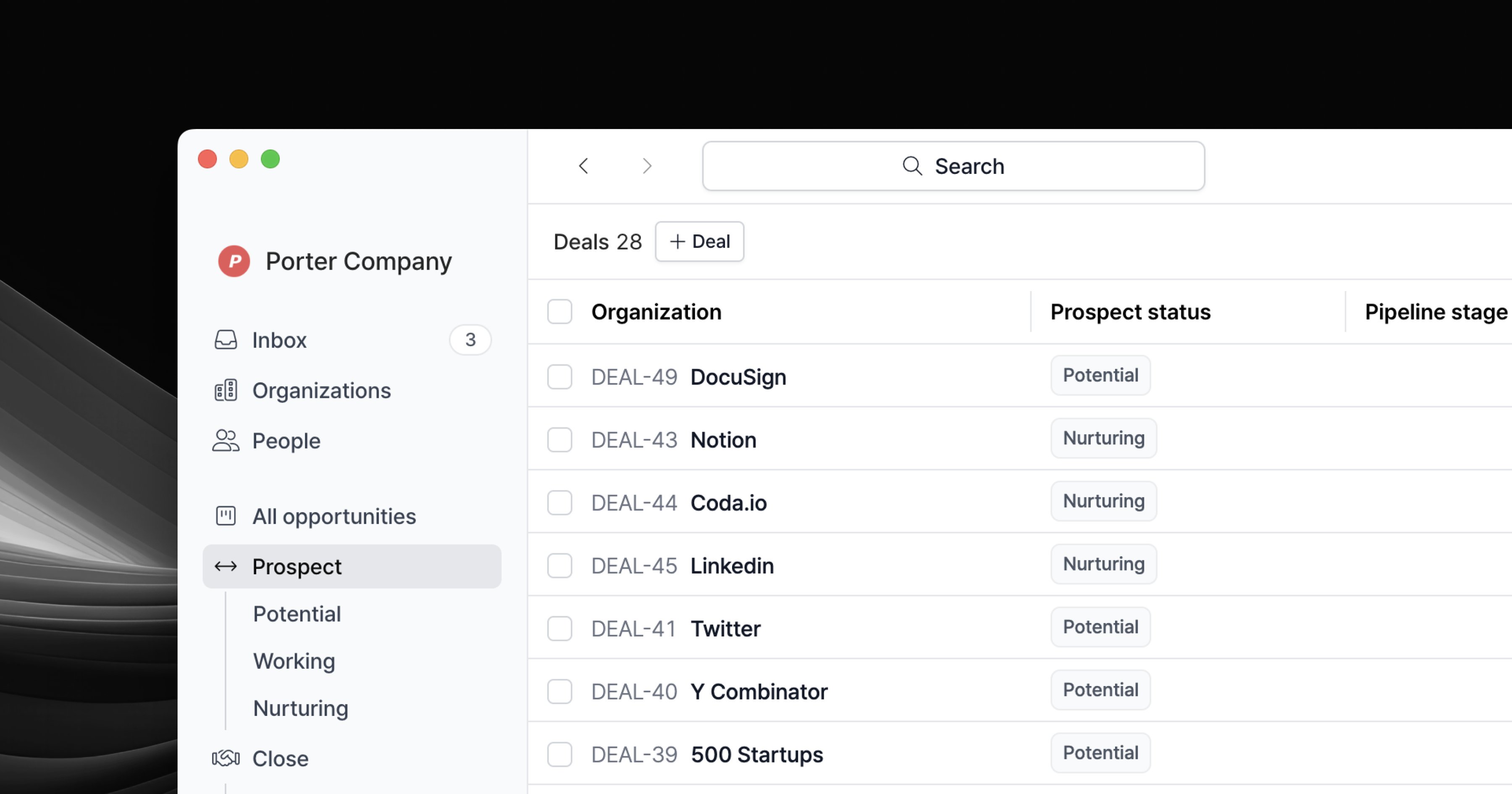
The Prospect feature is a place where you engage with your potential customers, qualify them, and handoff to the sales pipeline. In general, the person who assumes the [SDR role](https://www.relate.so/docs/wiki/sales-roles#sales-development-representative-sdr-and-business-development-representative-bdr) will use this feature.
## Configure
To use the Prospect feature, go to the [Relate admin page](https://admin.relate.so/) and enable the feature by clicking the checkbox.
## Overview
The Prospect feature is a place where you engage with your potential customers, qualify them, and handoff to the sales pipeline. In general, the person who assumes the [SDR role](https://www.relate.so/docs/wiki/sales-roles#sales-development-representative-sdr-and-business-development-representative-bdr) will use this feature.
## Configure
To use the Prospect feature, go to the [Relate admin page](https://admin.relate.so/) and enable the feature by clicking the checkbox.
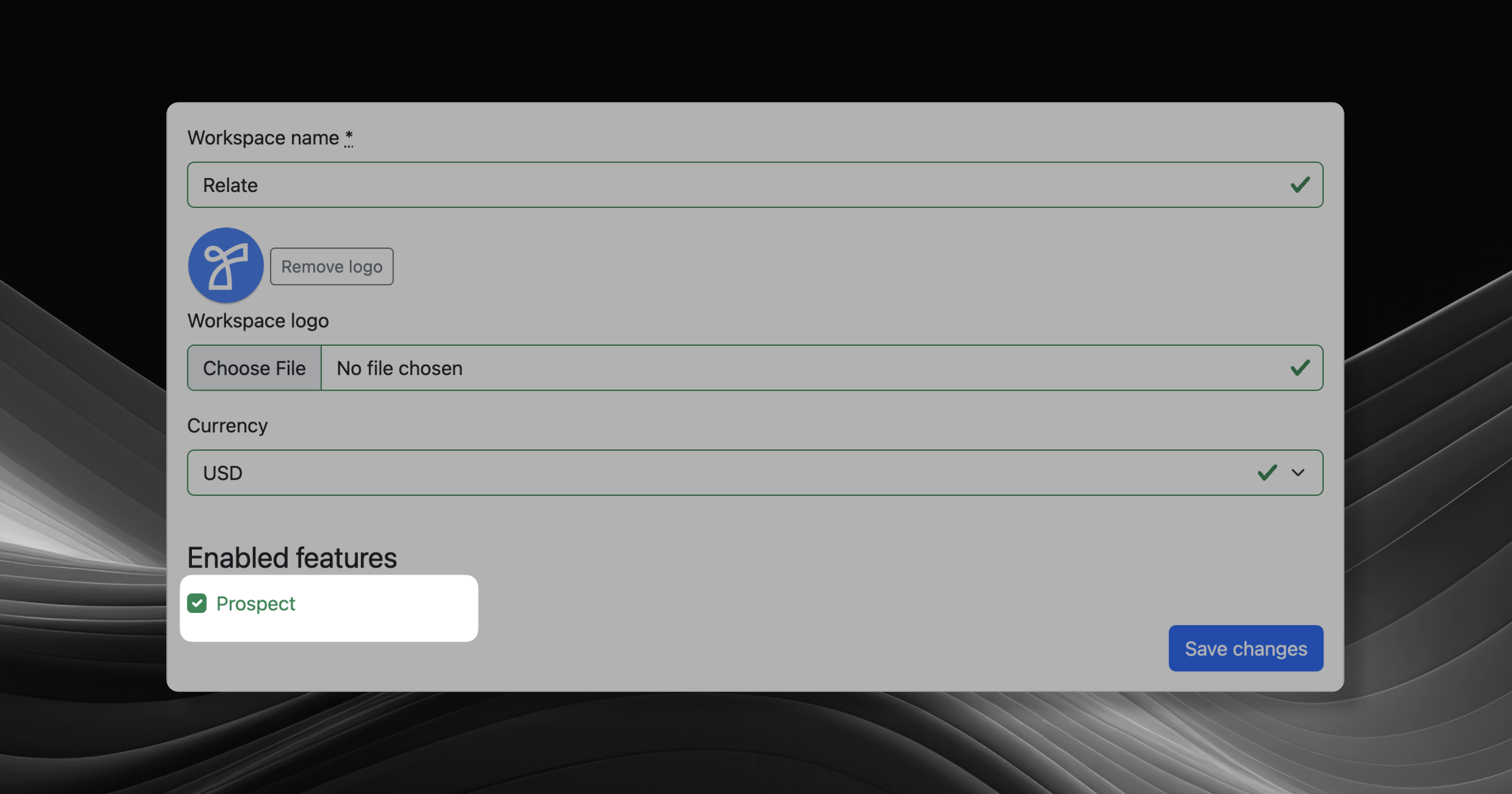 Once the feature is turned on, you should see the Prospect feature on your main navigation menu.
If you do not see it, hit `⌘+R` (`Ctrl+R` for Windows) to refresh.
## Basics
### Managing Prospect Status
Prospect deals have statuses that define the order and progress of each prospect (=lead) that goes through from start to handoff to pipeline.
Prospect Status has a default set and order:
* Potential
* Working
* Nurturing
* Bad Fit
* Qualified
See the [Prospect Status](/features/prospect-status) guide for more details.
### Automatic workflows
Setting a prospect status triggers automation to send to each status list accordingly.
Once the feature is turned on, you should see the Prospect feature on your main navigation menu.
If you do not see it, hit `⌘+R` (`Ctrl+R` for Windows) to refresh.
## Basics
### Managing Prospect Status
Prospect deals have statuses that define the order and progress of each prospect (=lead) that goes through from start to handoff to pipeline.
Prospect Status has a default set and order:
* Potential
* Working
* Nurturing
* Bad Fit
* Qualified
See the [Prospect Status](/features/prospect-status) guide for more details.
### Automatic workflows
Setting a prospect status triggers automation to send to each status list accordingly.
For example, if you set a prospect status from `Potential` to `Working`, then the prospect will move to the Working list and you'll no longer see the prospect in the Potential list.
### Automatically create a new prospect
**Relate will automatically create a new prospect and set it as 'Potential' whenever there is a new Organization.** This will save you time filling in your prospect list.
### Set Prospect Status
There are multiple ways to set Prospect Status for each prospect.
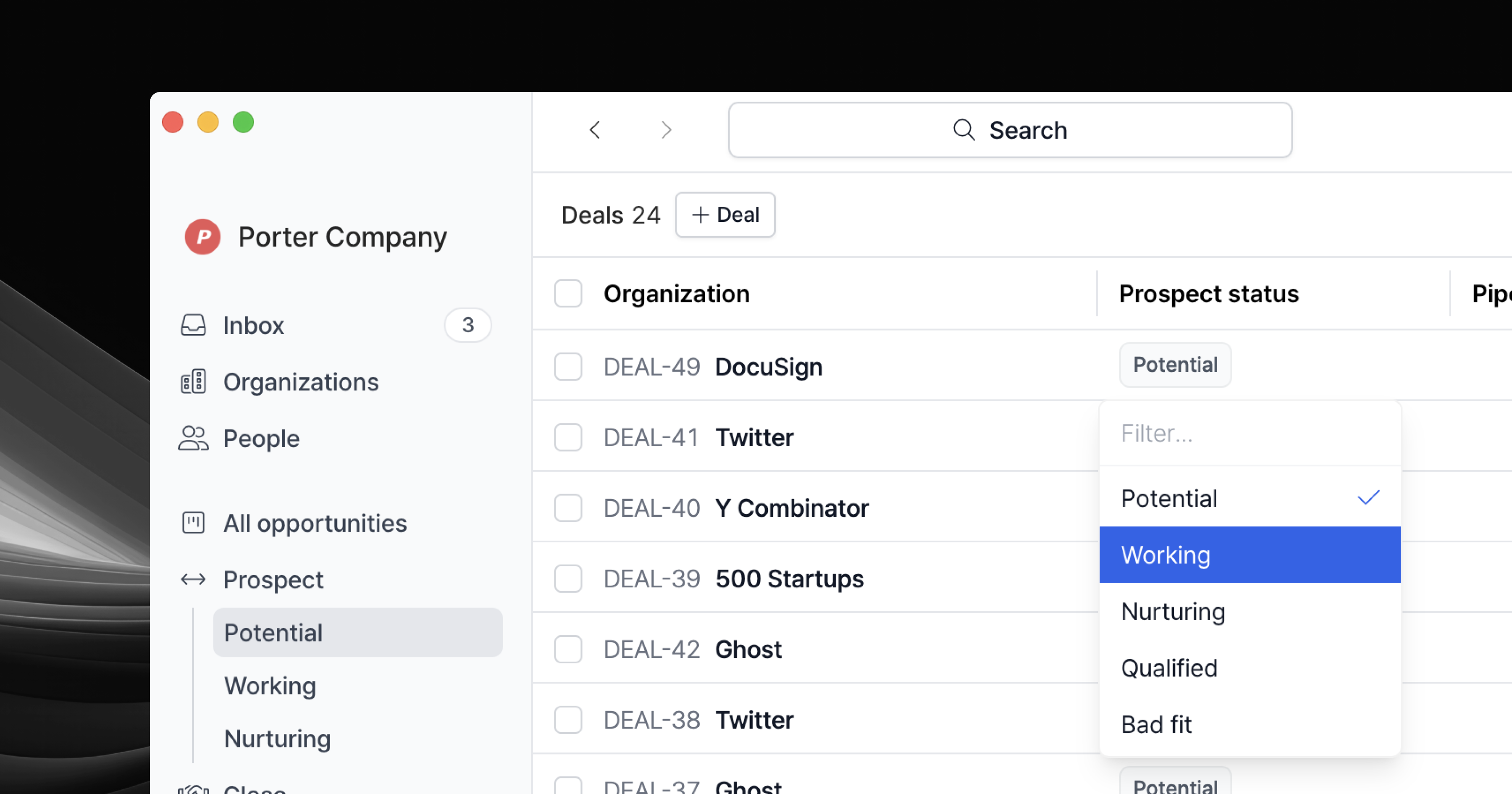 The easiest way is to set them directly from the grid view. You can also set them on the Organization detail page.
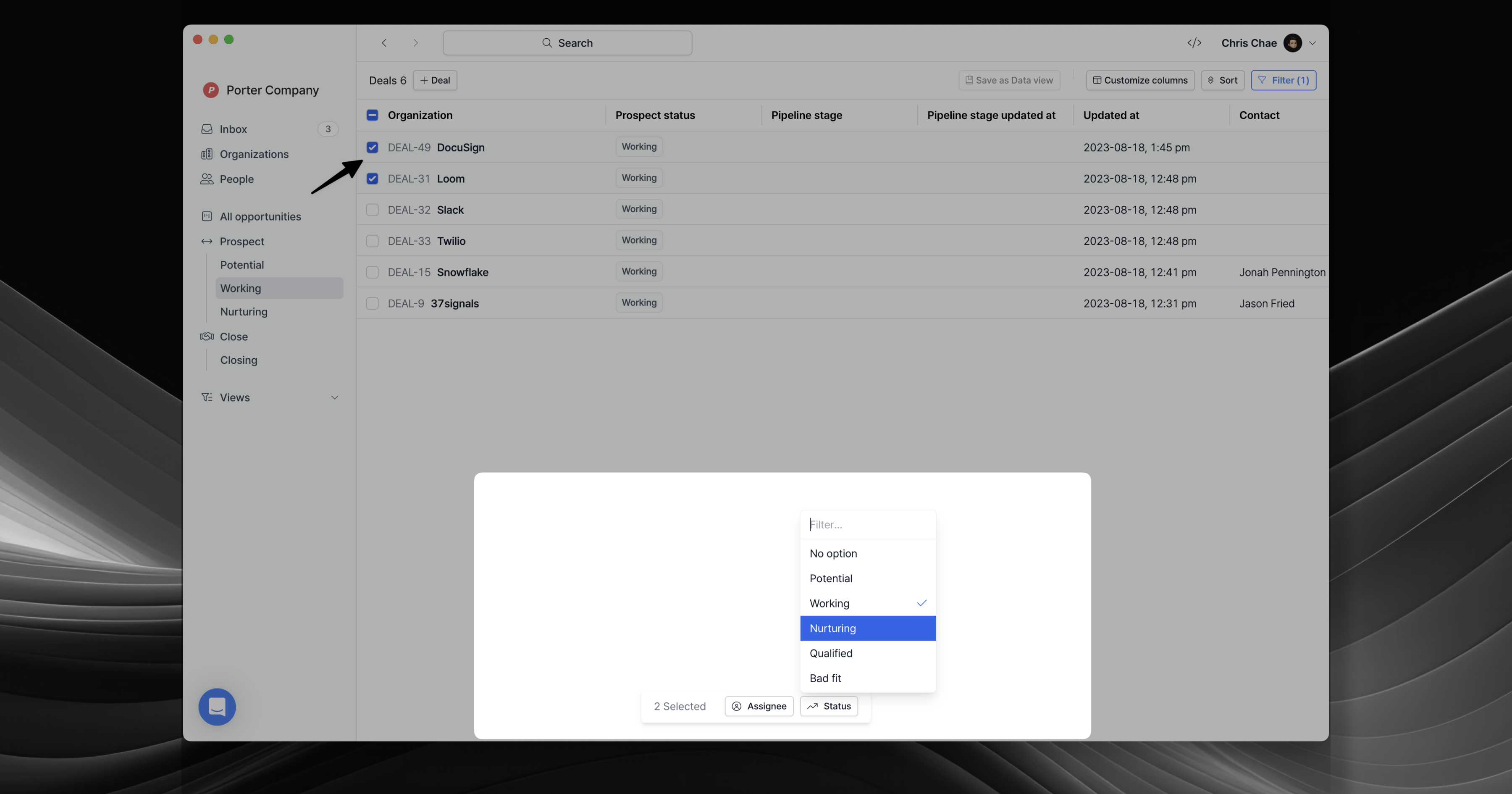
If you want to bulk edit statuses for multiple prospects, you can select the desired prospect(s) and use the modal at the bottom of the screen to set the statuses.
The easiest way is to set them directly from the grid view. You can also set them on the Organization detail page.
If you want to bulk edit statuses for multiple prospects, you can select the desired prospect(s) and use the modal at the bottom of the screen to set the statuses.
 ### Start a new sales process for lost deals
Losing a deal does not mean you cannot sell to the same customer again later. Many times customers come back if situations change.
In Relate, you can create multiple sales processes to track new deals. To start a new sales process for a lost deal, go to the Organization page and select the organization linked to that lost deal. Click `Start sales process` on the bottom of the page. This will create a new prospect so that you can track the opportunity as a separate deal.