> ## Documentation Index
> Fetch the complete documentation index at: https://relate.so/docs/llms.txt
> Use this file to discover all available pages before exploring further.
# People
> People can be your customers, champions, or any stakeholders that contribute to the buying process.
 ## Overview
People can either belong to an [Organization](/docs/features/organizations/) or exist independently. "People" can be your customers, any stakeholder involved in the customer’s purchasing process, such as company representatives, decision-makers (champions), or procurement managers.
## Concepts
### People Grid
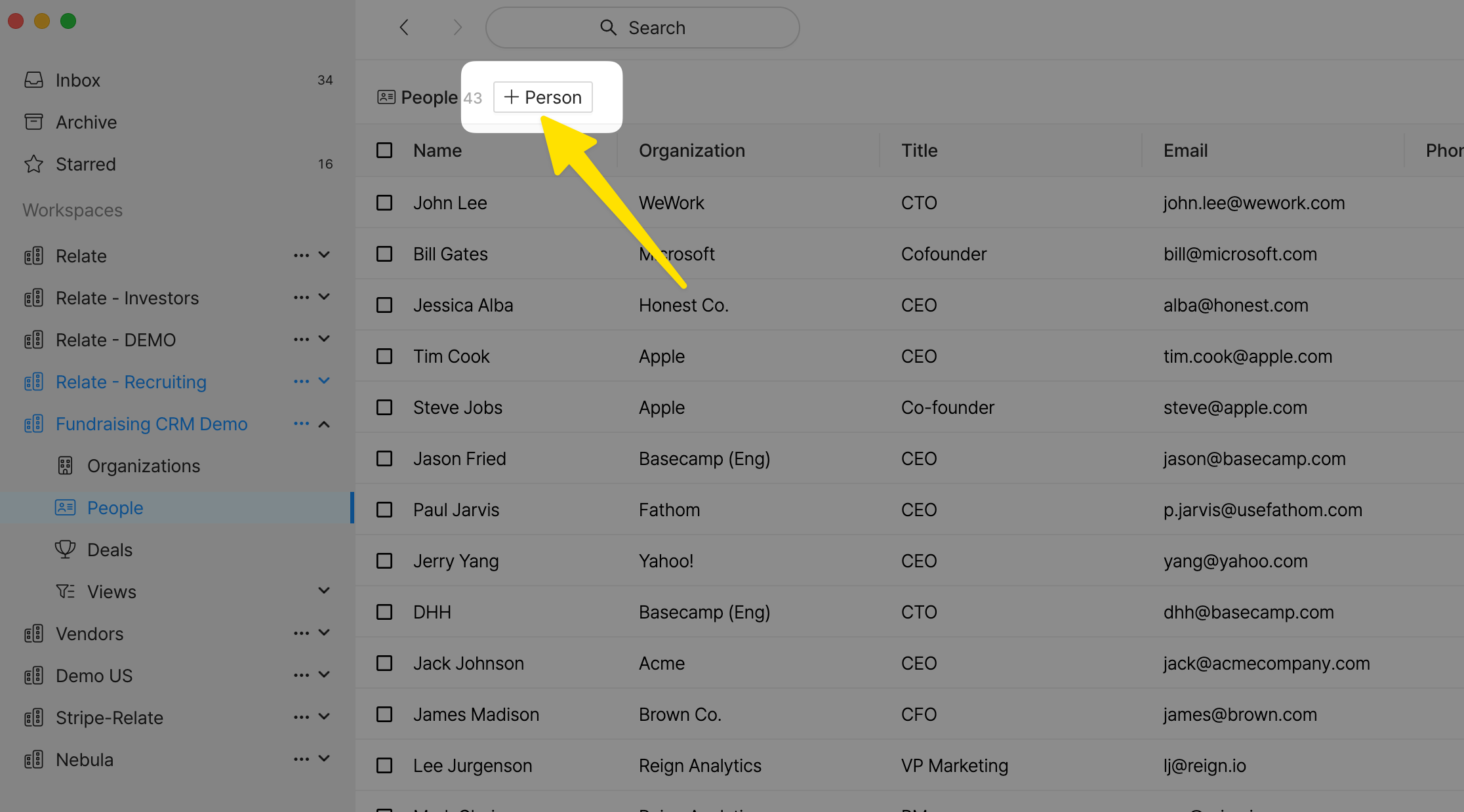
The People Grid is a list view of all people records in your Workspace. In the grid, you can update each field by selecting and double clicking (or hitting `Return`) the field.
To open the Organization Details page associated with a person, click the `Open` button.
## Add a Person
There are multiple ways to add a new Person:
* Click `+Contact` in the People Grid to add a new person.
## Overview
People can either belong to an [Organization](/docs/features/organizations/) or exist independently. "People" can be your customers, any stakeholder involved in the customer’s purchasing process, such as company representatives, decision-makers (champions), or procurement managers.
## Concepts
### People Grid
The People Grid is a list view of all people records in your Workspace. In the grid, you can update each field by selecting and double clicking (or hitting `Return`) the field.
To open the Organization Details page associated with a person, click the `Open` button.
## Add a Person
There are multiple ways to add a new Person:
* Click `+Contact` in the People Grid to add a new person.
 * In the Organization Details page, click the `+` button in the **Contacts** section.
* When adding a new Organiztion, click `Add contact data` located at the bottom of the modal.
While creating a new Contact, the system automatically assigns the contact to an [Organization](/docs/features/organizations) based on the domain of their email address, even if you don't manually enter the organization's name.
* In the Organization Details page, click the `+` button in the **Contacts** section.
* When adding a new Organiztion, click `Add contact data` located at the bottom of the modal.
While creating a new Contact, the system automatically assigns the contact to an [Organization](/docs/features/organizations) based on the domain of their email address, even if you don't manually enter the organization's name.