> ## Documentation Index
> Fetch the complete documentation index at: https://relate.so/docs/llms.txt
> Use this file to discover all available pages before exploring further.
# Custom Fields
> Learn how to create and manage custom fields in Relate.
## Overview
In Relate, you can create and use custom fields in addition to the default fields. Custom fields help you collect and manage various information about your customers.
## Creating Custom Fields
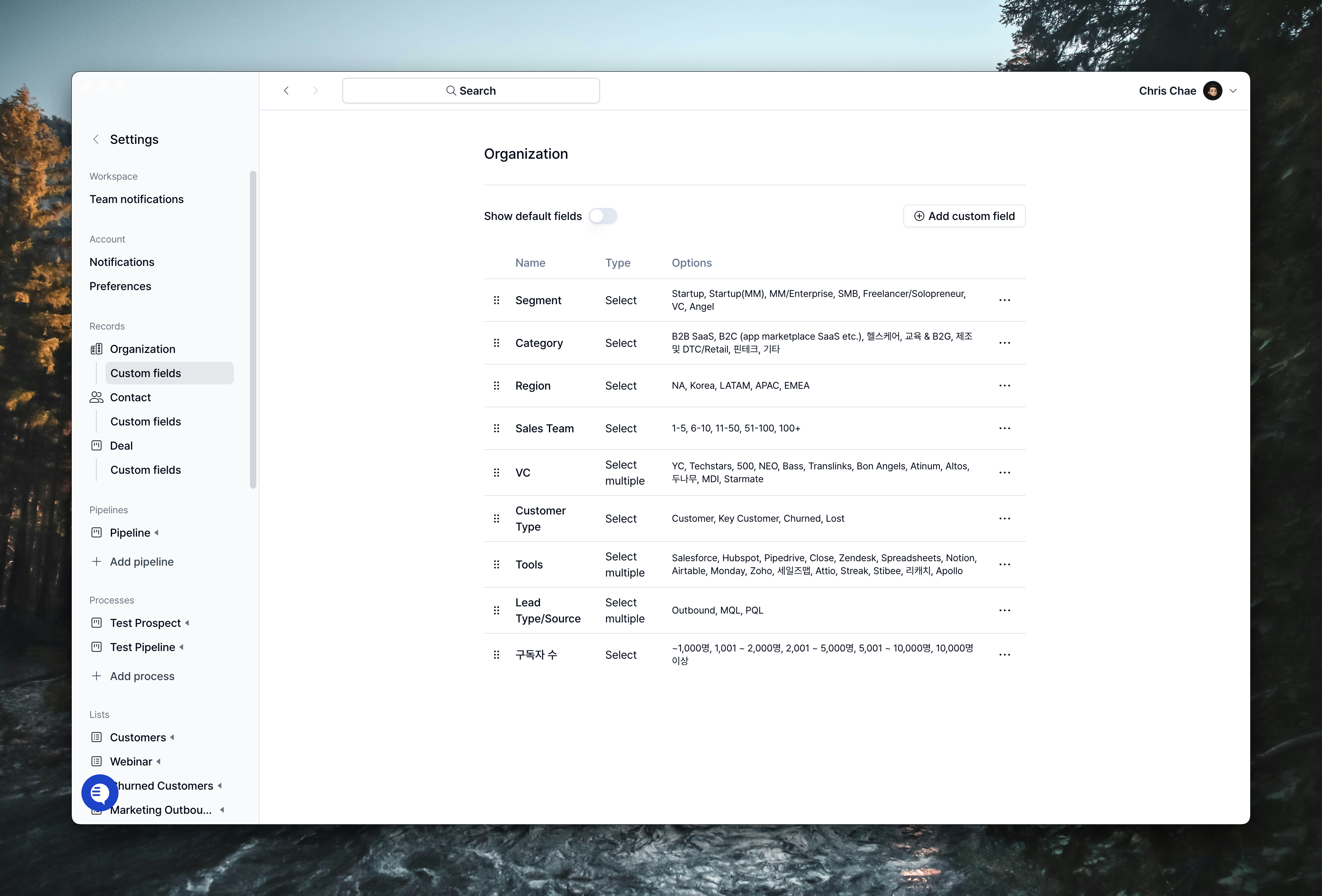 To create custom fields, first navigate to the settings page in the Relate app. You can create custom fields by going to `Workspace` > `Settings` > `Records`, or use the shortcut `Cmd+,` (macOS) or `Ctrl+,` (Windows) to directly access the settings page.
Relate allows you to create and manage custom fields for 4 types:
1. Organization
2. Contacts
3. Processes
4. Lists
Organization and Contacts are default Record Types, while Processes and Lists are features that help manage Organizations and Contacts through processes or lists. To create custom fields for Processes and Lists, you must first create a Process or List.
### Organization/Contacts Custom Fields
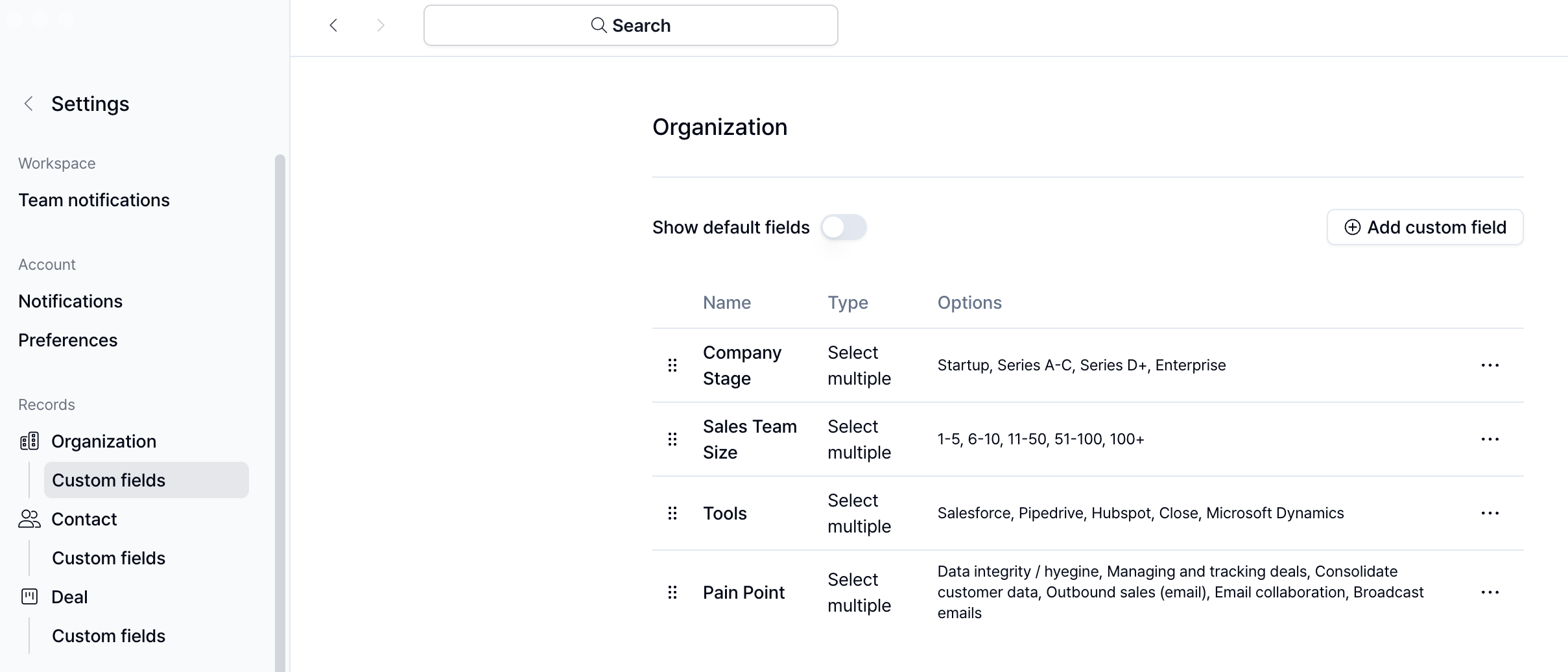
To create custom fields, first navigate to the settings page in the Relate app. You can create custom fields by going to `Workspace` > `Settings` > `Records`, or use the shortcut `Cmd+,` (macOS) or `Ctrl+,` (Windows) to directly access the settings page.
Relate allows you to create and manage custom fields for 4 types:
1. Organization
2. Contacts
3. Processes
4. Lists
Organization and Contacts are default Record Types, while Processes and Lists are features that help manage Organizations and Contacts through processes or lists. To create custom fields for Processes and Lists, you must first create a Process or List.
### Organization/Contacts Custom Fields
 ### Processes/Lists Custom Fields
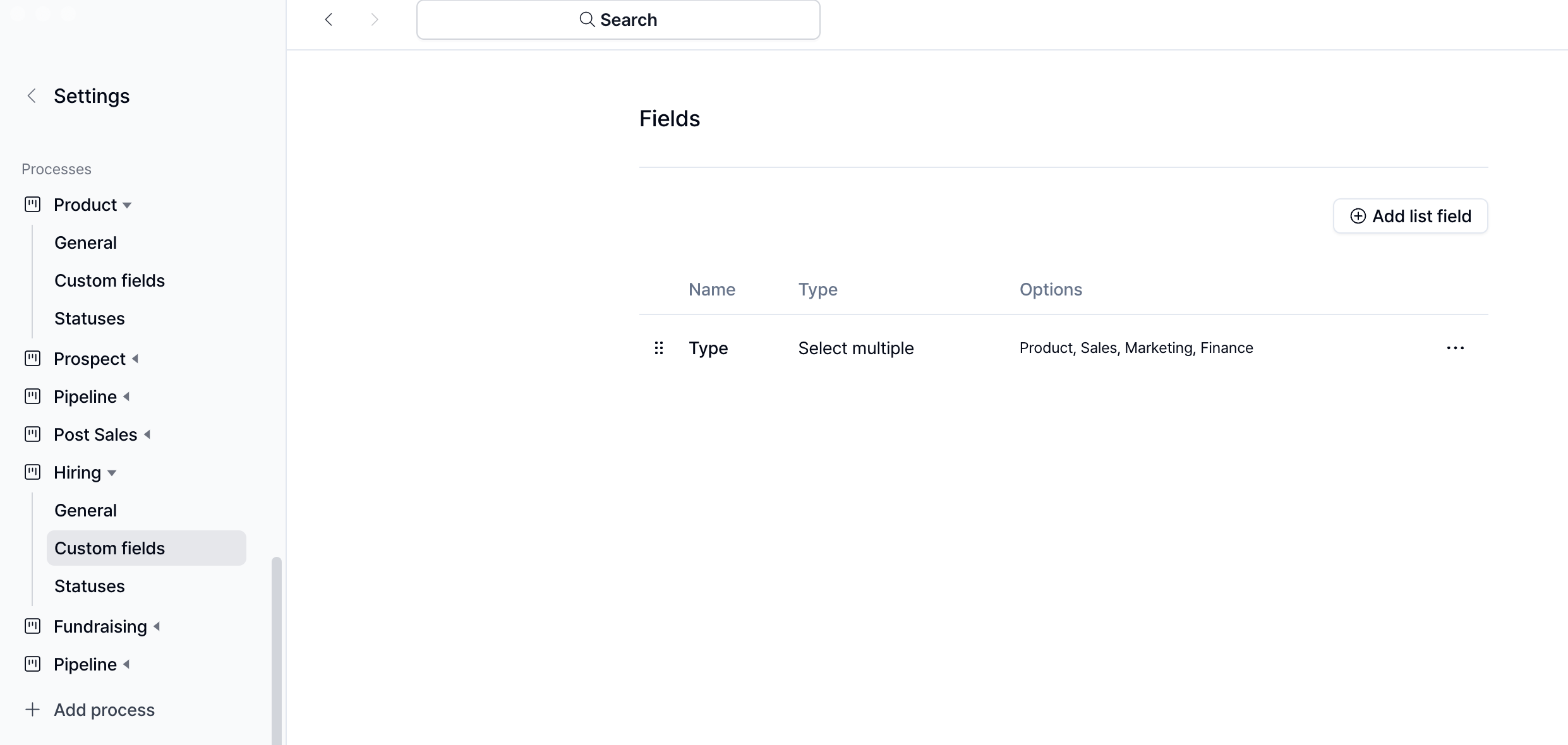 After creating a Process or List, you can create custom fields by clicking the `Custom fields` button.
## Managing Custom Fields
### Default Fields
Relate provides default fields for each Record Type. These fields are provided by default when creating custom fields and cannot be deleted.
| Name | Type | Description |
| ----------- | ---- | ------------------------------------------------------------------ |
| Name | Text | Organization name |
| Domain | Text | Organization's URL domain address, can register more than one |
| Description | Text | Organization description, can be entered in multi-line text format |
| Manager | User | Organization's manager, can link to users in our workspace |
| Name | Type | Description |
| ------------ | ---- | ----------------------------------------------------------------- |
| Name | Text | Contact's name |
| Email | Text | Contact's email address |
| Title | Text | Contact's title, can be entered in single-line text format |
| Phone number | Text | Contact's phone number, can be entered in single-line text format |
Processes and Lists have no default fields.
### Types of Custom Fields
| Name | Note |
| --------------- | --------------------------------------------------------------------------------------------- |
| Text | Supports regular text format. Good for short, single-line descriptions. |
| Multi-line text | Supports text format with multiple lines. Suitable for longer descriptions. |
| Number | Numeric format. |
| URL | URL format. |
| Date | Can display dates. |
| Datetime | Can display dates and times. |
| Select | Can input options to select from a dropdown during data entry. Can allow multiple selections. |
| User | Can link to users in our workspace. Suitable for assigning responsible persons. |
## Use cases for custom fields
By effectively utilizing Custom Fields, you can collect and manage various customer information that your company wants to track. Particularly, you can record information obtained through customer meetings and use it to generate sales opportunities.
For example, creating Custom Fields that align with [BANT](https://www.relate.so/blog/what-is-bant/) or [MEDDIC](https://www.relate.so/blog/what-is-meddic/) frameworks allows you to quickly record information gathered during sales meetings in your CRM.
BANT consists of four elements: Budget, Authority, Need, and Timeframe. By creating custom fields for these, you can quickly record information gathered during sales meetings.
* Budget: Does this prospect have sufficient budget to purchase our product?
* Authority: Does this prospect have the authority to make purchase decisions without approval from other stakeholders?
* Need: What are this prospect's needs? Can our product solve their problems?
* Timeframe: Is now the right time to implement?
You can create custom fields like this:
| Field Name | Type | Options |
| ----------- | --------------- | -------------------------------------------------------------------------------------------------------------------------------------------------------- |
| Budget | Select | `$0`, `<$1K`, `$1K-$10K`, `$10K+` |
| Authority | Text | Enter decision-making authority information. |
| Need | Select | `Difficult information gathering`, `Pipeline management`, `Outbound cold email`, `Mass marketing email`, `Sales team productivity issues`, `Other Needs` |
| Other Needs | Multi-line text | Enter information about other needs |
| Timeframe | Select | `Needed immediately`, `Within 1-3 months`, `Within 3-6 months`, `After 6 months` |
You can also start managing custom fields with settings like these:
* Team size: 1-5, 6-10, 11-50, 51-100, 100+
* Company stage: Startup, SMB, Mid-market, Enterprise
* Pain point: Composed of pain points that the business solves (multi-select)
* ICP Fit: Strong, Moderate, Weak
* Lead type: Outbound, Inbound, Marketing, Product (multi-select)
After creating a Process or List, you can create custom fields by clicking the `Custom fields` button.
## Managing Custom Fields
### Default Fields
Relate provides default fields for each Record Type. These fields are provided by default when creating custom fields and cannot be deleted.
| Name | Type | Description |
| ----------- | ---- | ------------------------------------------------------------------ |
| Name | Text | Organization name |
| Domain | Text | Organization's URL domain address, can register more than one |
| Description | Text | Organization description, can be entered in multi-line text format |
| Manager | User | Organization's manager, can link to users in our workspace |
| Name | Type | Description |
| ------------ | ---- | ----------------------------------------------------------------- |
| Name | Text | Contact's name |
| Email | Text | Contact's email address |
| Title | Text | Contact's title, can be entered in single-line text format |
| Phone number | Text | Contact's phone number, can be entered in single-line text format |
Processes and Lists have no default fields.
### Types of Custom Fields
| Name | Note |
| --------------- | --------------------------------------------------------------------------------------------- |
| Text | Supports regular text format. Good for short, single-line descriptions. |
| Multi-line text | Supports text format with multiple lines. Suitable for longer descriptions. |
| Number | Numeric format. |
| URL | URL format. |
| Date | Can display dates. |
| Datetime | Can display dates and times. |
| Select | Can input options to select from a dropdown during data entry. Can allow multiple selections. |
| User | Can link to users in our workspace. Suitable for assigning responsible persons. |
## Use cases for custom fields
By effectively utilizing Custom Fields, you can collect and manage various customer information that your company wants to track. Particularly, you can record information obtained through customer meetings and use it to generate sales opportunities.
For example, creating Custom Fields that align with [BANT](https://www.relate.so/blog/what-is-bant/) or [MEDDIC](https://www.relate.so/blog/what-is-meddic/) frameworks allows you to quickly record information gathered during sales meetings in your CRM.
BANT consists of four elements: Budget, Authority, Need, and Timeframe. By creating custom fields for these, you can quickly record information gathered during sales meetings.
* Budget: Does this prospect have sufficient budget to purchase our product?
* Authority: Does this prospect have the authority to make purchase decisions without approval from other stakeholders?
* Need: What are this prospect's needs? Can our product solve their problems?
* Timeframe: Is now the right time to implement?
You can create custom fields like this:
| Field Name | Type | Options |
| ----------- | --------------- | -------------------------------------------------------------------------------------------------------------------------------------------------------- |
| Budget | Select | `$0`, `<$1K`, `$1K-$10K`, `$10K+` |
| Authority | Text | Enter decision-making authority information. |
| Need | Select | `Difficult information gathering`, `Pipeline management`, `Outbound cold email`, `Mass marketing email`, `Sales team productivity issues`, `Other Needs` |
| Other Needs | Multi-line text | Enter information about other needs |
| Timeframe | Select | `Needed immediately`, `Within 1-3 months`, `Within 3-6 months`, `After 6 months` |
You can also start managing custom fields with settings like these:
* Team size: 1-5, 6-10, 11-50, 51-100, 100+
* Company stage: Startup, SMB, Mid-market, Enterprise
* Pain point: Composed of pain points that the business solves (multi-select)
* ICP Fit: Strong, Moderate, Weak
* Lead type: Outbound, Inbound, Marketing, Product (multi-select)