> ## Documentation Index
> Fetch the complete documentation index at: https://relate.so/docs/llms.txt
> Use this file to discover all available pages before exploring further.
# AI Suggestions
> AI automatically suggests CRM fields in your notes and fills them in at once.
## Overview
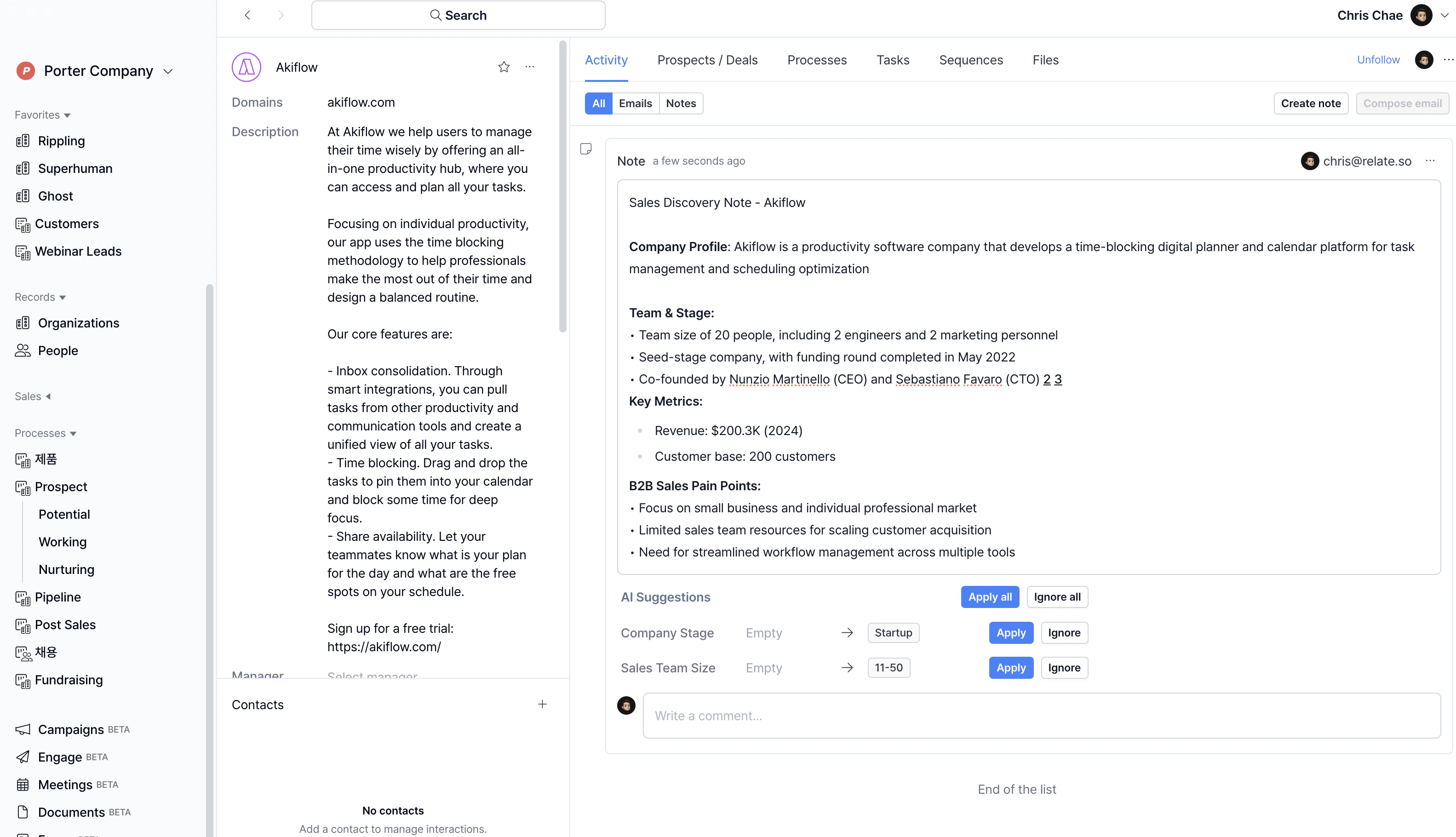 AI Suggestions is an AI feature that helps sales teams enter and manage data efficiently. It automatically suggests field values based on the information you have written in your notes, and makes it easy to fill in fields for your customers with just one click.
By reducing the amount of time you spend manually entering or editing data, and reducing the likelihood of mistakes or omissions in the process, you will be more organized in sales. This also makes setting up meetings and following up with customers faster and more organized.
## How it works
To get AI to suggest field values, you first need to create the data fields you want to manage. See the [Custom fields guide](/docs/features/custom-fields) to learn how to create fields.
### Take a note
AI Suggestions is an AI feature that helps sales teams enter and manage data efficiently. It automatically suggests field values based on the information you have written in your notes, and makes it easy to fill in fields for your customers with just one click.
By reducing the amount of time you spend manually entering or editing data, and reducing the likelihood of mistakes or omissions in the process, you will be more organized in sales. This also makes setting up meetings and following up with customers faster and more organized.
## How it works
To get AI to suggest field values, you first need to create the data fields you want to manage. See the [Custom fields guide](/docs/features/custom-fields) to learn how to create fields.
### Take a note
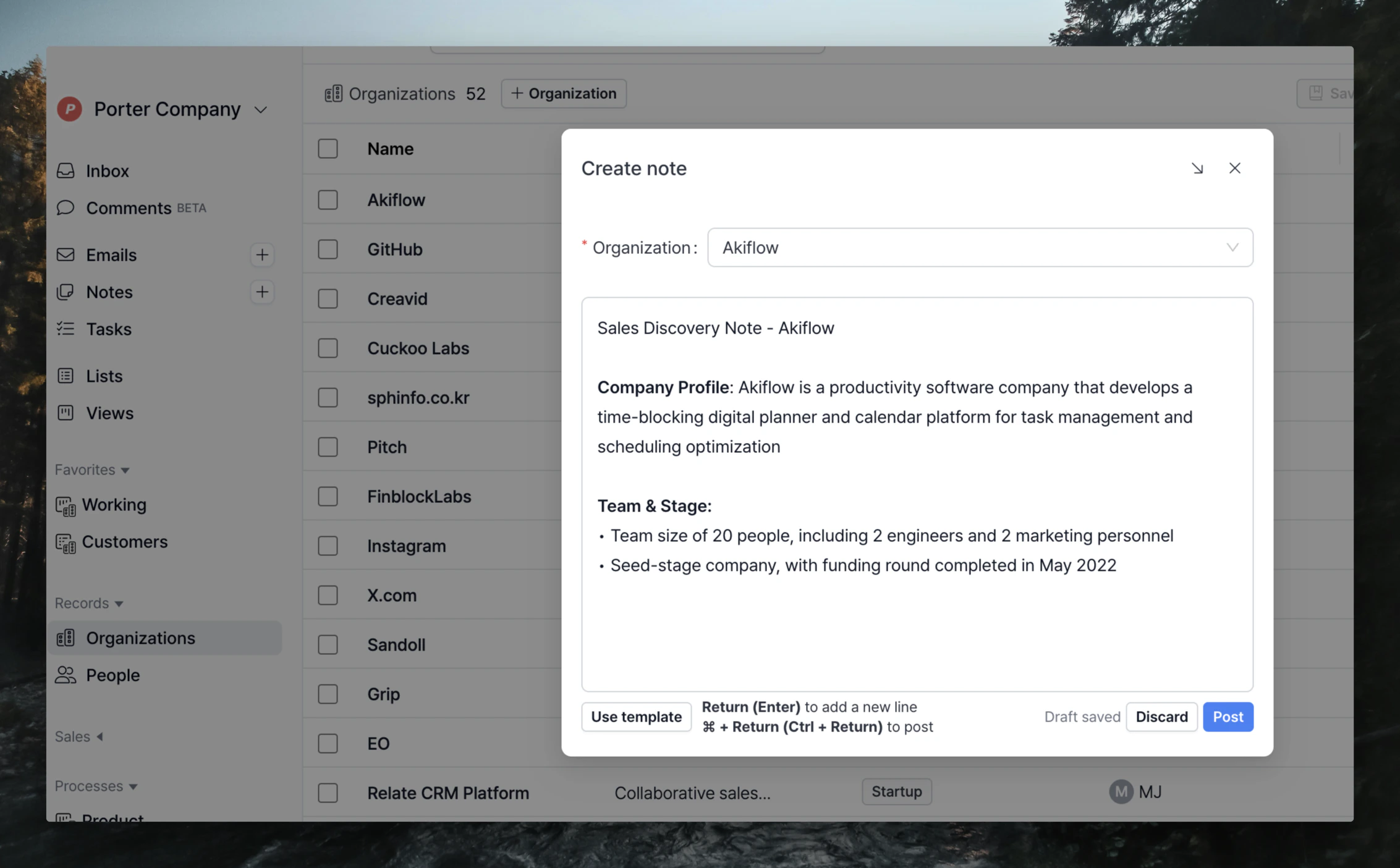 Once you have created all the fields you need to manage your data, you can create discovery call/meeting notes, etc.
You can create notes through the `+` button next to Notes in the left sidebar and through `create note` on the organization detail page. For more detailed note creation guides, see [note creation guide](/docs/features/notes).
Instant AI Suggestions are only available for new note creation. For notes that have already been created, see [Get AI Suggestions from past notes](#get-ai-suggestions-from-past-notes) below.
### Get AI Suggestions
Once you have created all the fields you need to manage your data, you can create discovery call/meeting notes, etc.
You can create notes through the `+` button next to Notes in the left sidebar and through `create note` on the organization detail page. For more detailed note creation guides, see [note creation guide](/docs/features/notes).
Instant AI Suggestions are only available for new note creation. For notes that have already been created, see [Get AI Suggestions from past notes](#get-ai-suggestions-from-past-notes) below.
### Get AI Suggestions
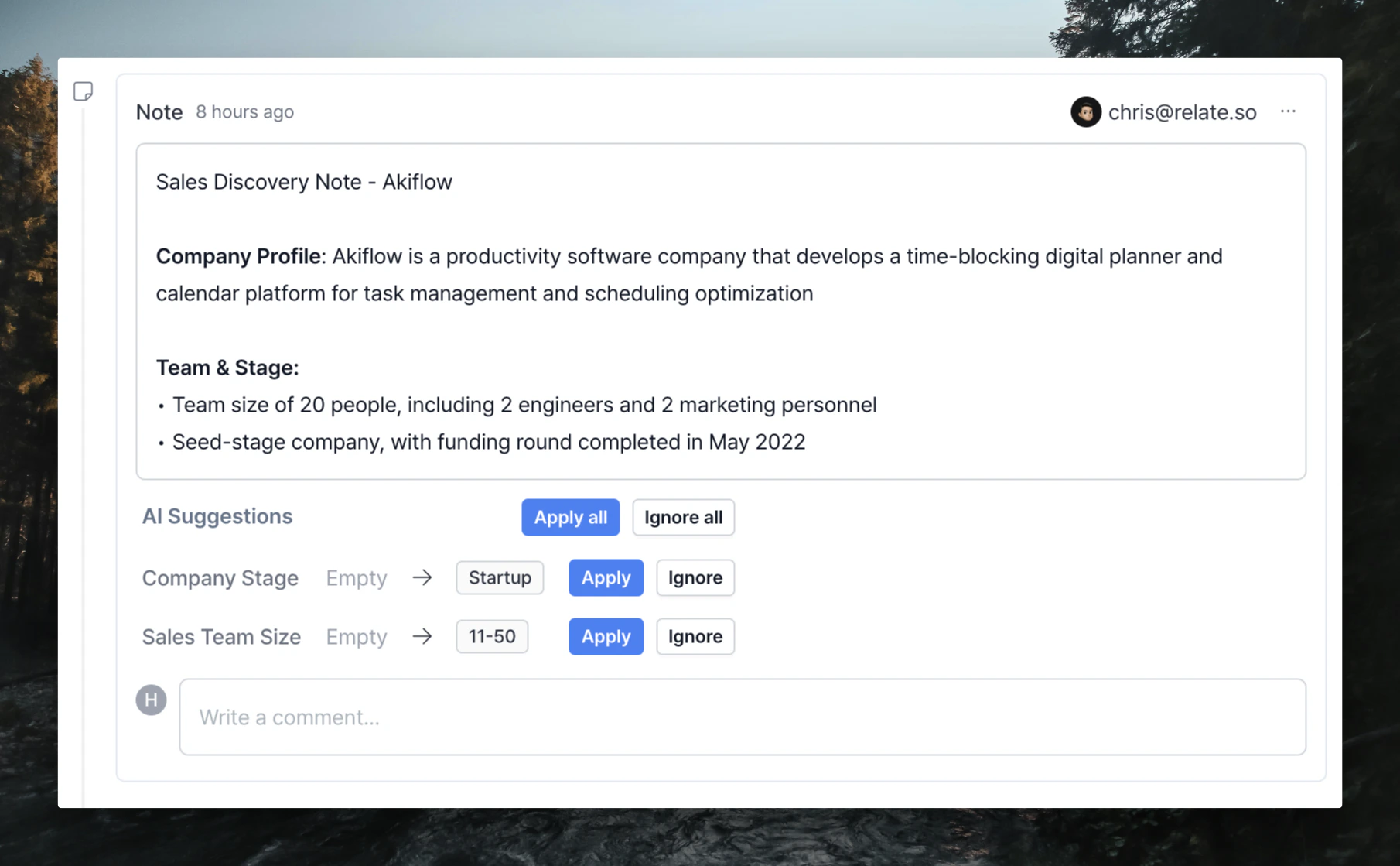 When you are finished writing a note, the AI Suggestions section will appear between the note and the comment. The section looks like this: **Field name - Existing value - Suggested value - Apply/Ignore button**. If the existing value is empty, it will appear as Empty.
The order of suggestions follows the order of the field, and if the existing information and the suggested value are the same for a field, it will not suggest a value. If you want to change the value to something other than the suggested value, you can click on the suggested value to edit it.
### Apply AI Suggestions
There are two ways to apply suggestions.
1. Apply all / Ignore all: You can apply or ignore all suggestions with a single click.
2. Apply / Ignore: You can apply or ignore suggestions individually. You can also ignore some and then apply them in bulk via Apply all.
When you are finished writing a note, the AI Suggestions section will appear between the note and the comment. The section looks like this: **Field name - Existing value - Suggested value - Apply/Ignore button**. If the existing value is empty, it will appear as Empty.
The order of suggestions follows the order of the field, and if the existing information and the suggested value are the same for a field, it will not suggest a value. If you want to change the value to something other than the suggested value, you can click on the suggested value to edit it.
### Apply AI Suggestions
There are two ways to apply suggestions.
1. Apply all / Ignore all: You can apply or ignore all suggestions with a single click.
2. Apply / Ignore: You can apply or ignore suggestions individually. You can also ignore some and then apply them in bulk via Apply all.
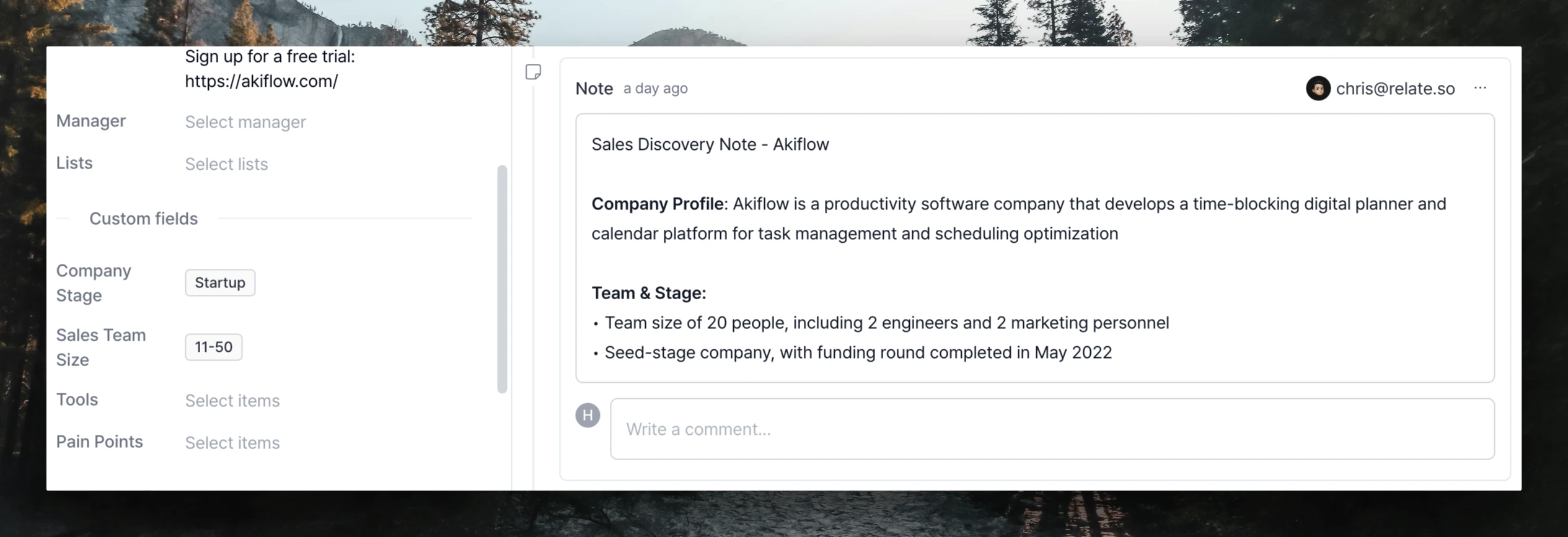 Once you hit the Apply button, you will see the values applied to the fields in the left sidebar.
At this point, if you have applied or ignored a field once, you will not receive suggestions for that field again.
### Get AI Suggestions from past notes
Once you hit the Apply button, you will see the values applied to the fields in the left sidebar.
At this point, if you have applied or ignored a field once, you will not receive suggestions for that field again.
### Get AI Suggestions from past notes
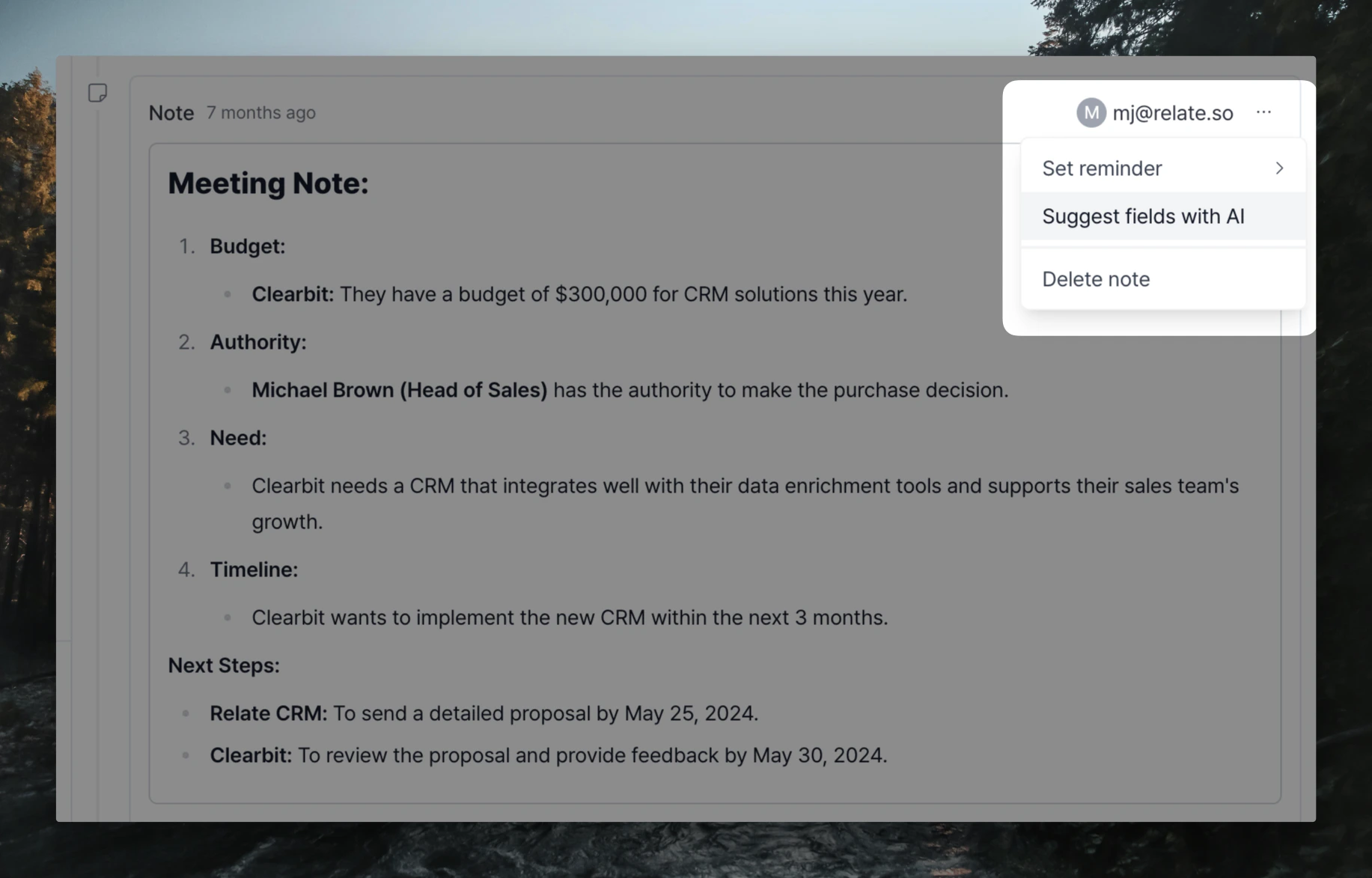 To make suggestions in an existing note, rather than a newly created note, select the `...` button to the right of the note > `Suggest fields with AI`. You can only get suggestions once, after which the button will disappear and you will not be able to get suggestions again.