> ## Documentation Index
> Fetch the complete documentation index at: https://relate.so/docs/llms.txt
> Use this file to discover all available pages before exploring further.
# Relate MCP
> Connect AI agents like Claude Code and Codex to Relate MCP to query and manage your CRM data in natural language.
## Overview
MCP (Model Context Protocol) is a standard protocol that lets AI agents like Claude and ChatGPT connect securely to external tools and data.
Relate provides an MCP server, so when you connect an MCP-capable AI agent such as Claude Code or Codex to Relate, you can **query CRM data and create/update contacts, deals, notes, campaigns, and more — all in natural language**. Without writing any code, you can hand requests like "summarize the companies I met with last week" or "add a note to this company" straight to the AI.
The Relate MCP server address is:
```
https://app.relate.so/mcp
```
Access through MCP follows the permissions of the connected workspace and user account. In other words, the AI agent can only access data that you can already see in Relate.
## 1. How to connect
### Create an MCP token
To connect to Relate MCP, you first need an MCP token (authentication token).
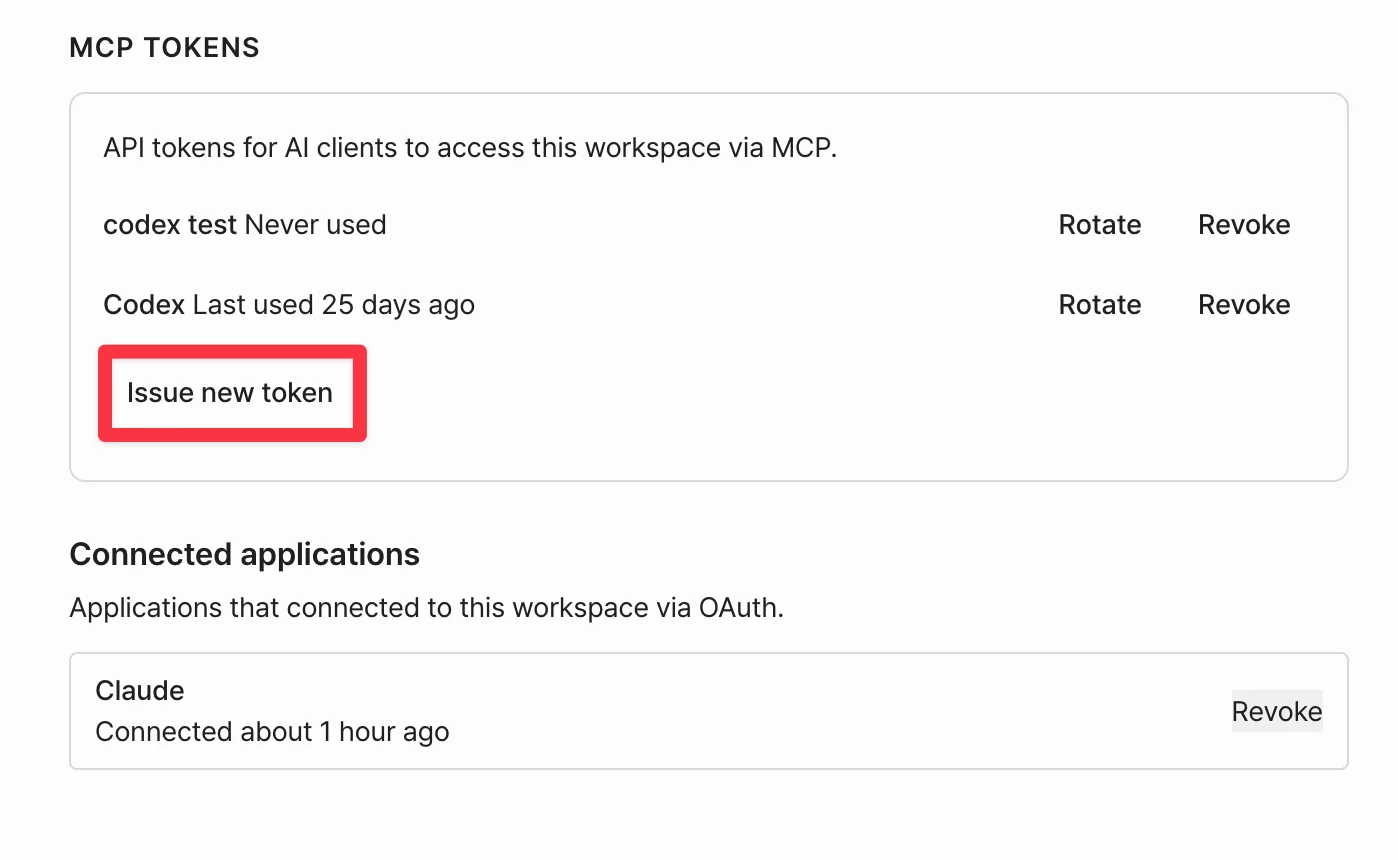
1. Log in to Relate, then go to **Workspace Settings > MCP** for the workspace you want to connect.
2. Click **`Issue new token`** to create a new token.
3. The token starts with `rk_`. For security it is shown only once right after creation, so copy it and store it somewhere safe.
 An MCP token is a secret key that can access your workspace data. Keep it from being exposed, and if you suspect it has leaked, revoke it immediately and generate a new one.
Use the issued token to connect Relate MCP to the AI agent you use.
In Claude Code (desktop app), you connect to Relate MCP through a custom connector and authenticate via OAuth.
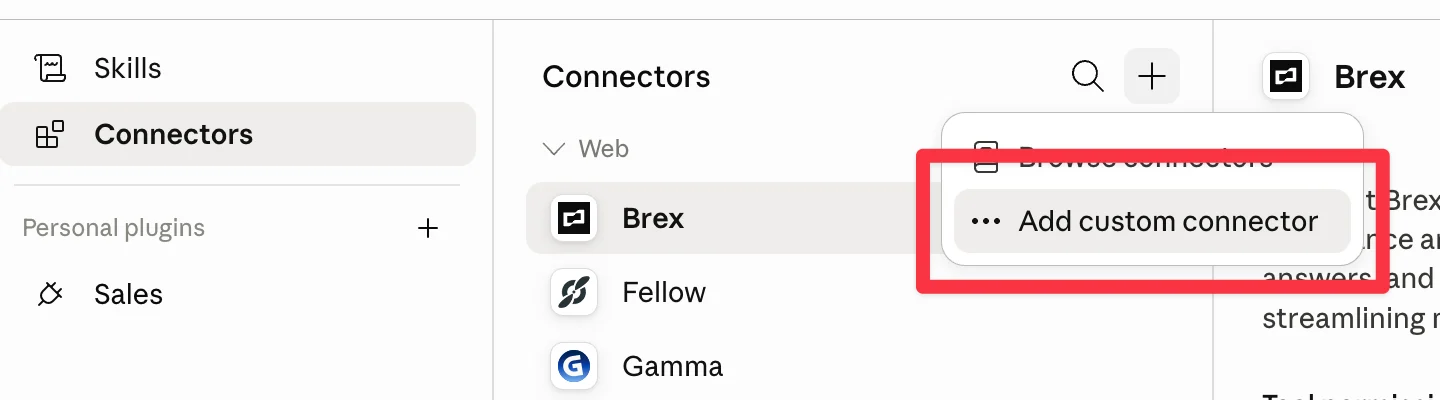
1. In Claude Code, go to **Customize > Connectors**.
2. From the `+` button in the top right, select **`Add custom connector`**.
An MCP token is a secret key that can access your workspace data. Keep it from being exposed, and if you suspect it has leaked, revoke it immediately and generate a new one.
Use the issued token to connect Relate MCP to the AI agent you use.
In Claude Code (desktop app), you connect to Relate MCP through a custom connector and authenticate via OAuth.
1. In Claude Code, go to **Customize > Connectors**.
2. From the `+` button in the top right, select **`Add custom connector`**.
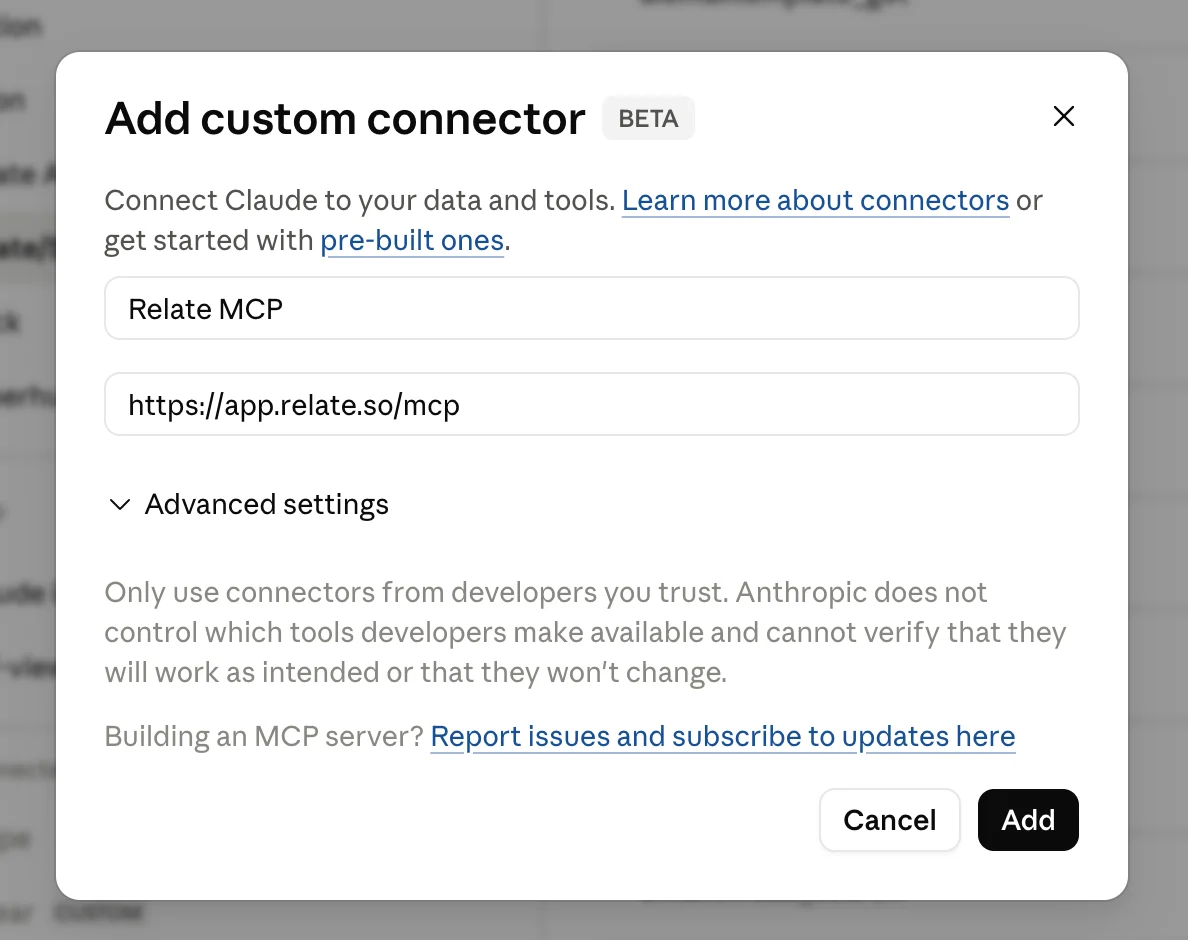
 3. Enter a name (e.g. `Relate MCP`) and the MCP server URL, then click `Add`.
```
https://app.relate.so/mcp
```
3. Enter a name (e.g. `Relate MCP`) and the MCP server URL, then click `Add`.
```
https://app.relate.so/mcp
```
 4. After adding the connector, you are taken to the Relate **OAuth authorization screen**. Log in with your Relate account and grant access to complete the connection.
5. Once connected, you can use Relate tools in your conversations with Claude.
When connecting Claude Code via OAuth, you don't need to enter the MCP token separately — authentication is completed simply by logging in to Relate.
In the Codex CLI, you register the MCP server in the config file (`~/.codex/config.toml`) and pass the issued token via an **HTTP header (Authorization)**.
Open `~/.codex/config.toml` and add the Relate MCP server as shown below.
```toml theme={null}
[mcp_servers.relate]
url = "https://app.relate.so/mcp"
http_headers = { Authorization = "Bearer rk_paste_your_issued_MCP_token_here" }
```
Save the config and restart Codex, and the Relate MCP tools will load.
Setup may differ slightly across Codex versions and other MCP clients. If you run into connection issues, reach out via [we@relate.so](mailto:we@relate.so) or in-app chat.
## 2. What you can do with MCP
Once Relate MCP is connected, you can perform the following through an AI agent in natural language. (As of June 15, 2026)
* Search contacts by name, email, phone number, or field conditions, and view details
* Create and update contacts, and bulk-import from a spreadsheet
* Add to / remove from the denylist (sending block list)
* Search organizations by name or domain, and view details
* Create and update organizations
* Search and view deals (entries) within a specific list/process
* Create deals; update status, assignee, value, and field values; delete
* Search across all notes by body content
* List notes attached to a specific contact, organization, or deal
* Create notes on contacts and organizations
* List, create, and rename lists
* Add contacts to a list
* Summarize a list's campaign deliverability (sendable / blocked breakdown)
* Search email threads for a contact or organization and view message content
* Send email immediately on your own behalf
* Search, view, create, update, and deliver broadcast campaigns, and check statistics
* View and create email sequences; add/edit steps; enroll contacts
* View AI campaigns / AI email templates and check recipients and engagement
* List the sender identities (sending domains) in the workspace
* Connect a sending domain and check/re-verify DNS records (MX, SPF, DMARC, DKIM) and verification status
* Search completed meeting notetaker records (transcripts and summaries)
* List records scoped to a contact/organization/calendar event, and retrieve the full transcript and summary
* Sales pipeline funnel and conversion-rate report by process
* Recent email-activity report for an AI plan
* Workspace info (lists, statuses, custom fields, team members, sending limits, etc.)
The available MCP tools are continuously being added and improved. You can check the exact list of tools available in your connected environment from your AI agent's tool list (e.g. in Claude Code).
## 3. Examples
Try asking your AI agent in natural language, like the examples below.
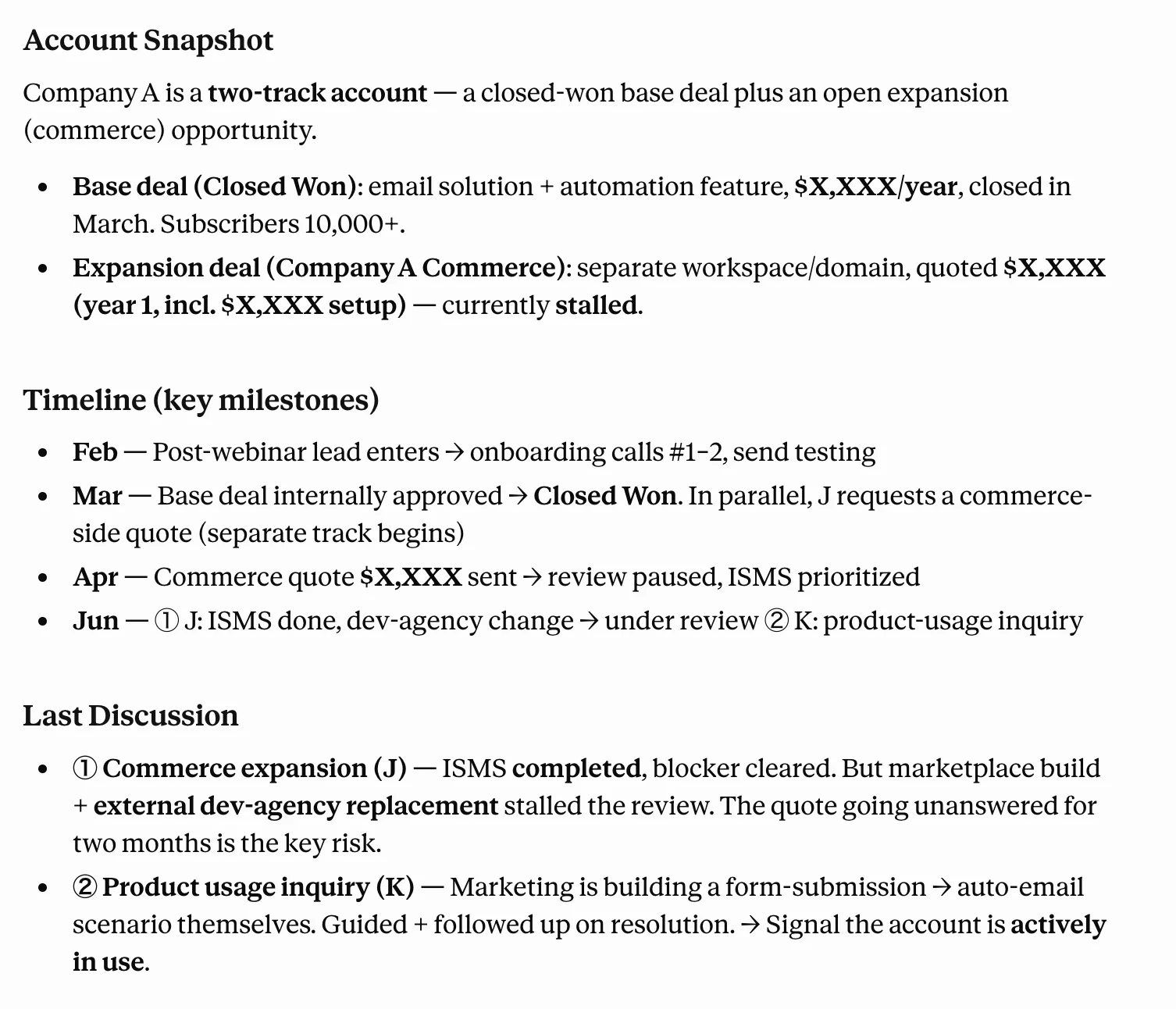
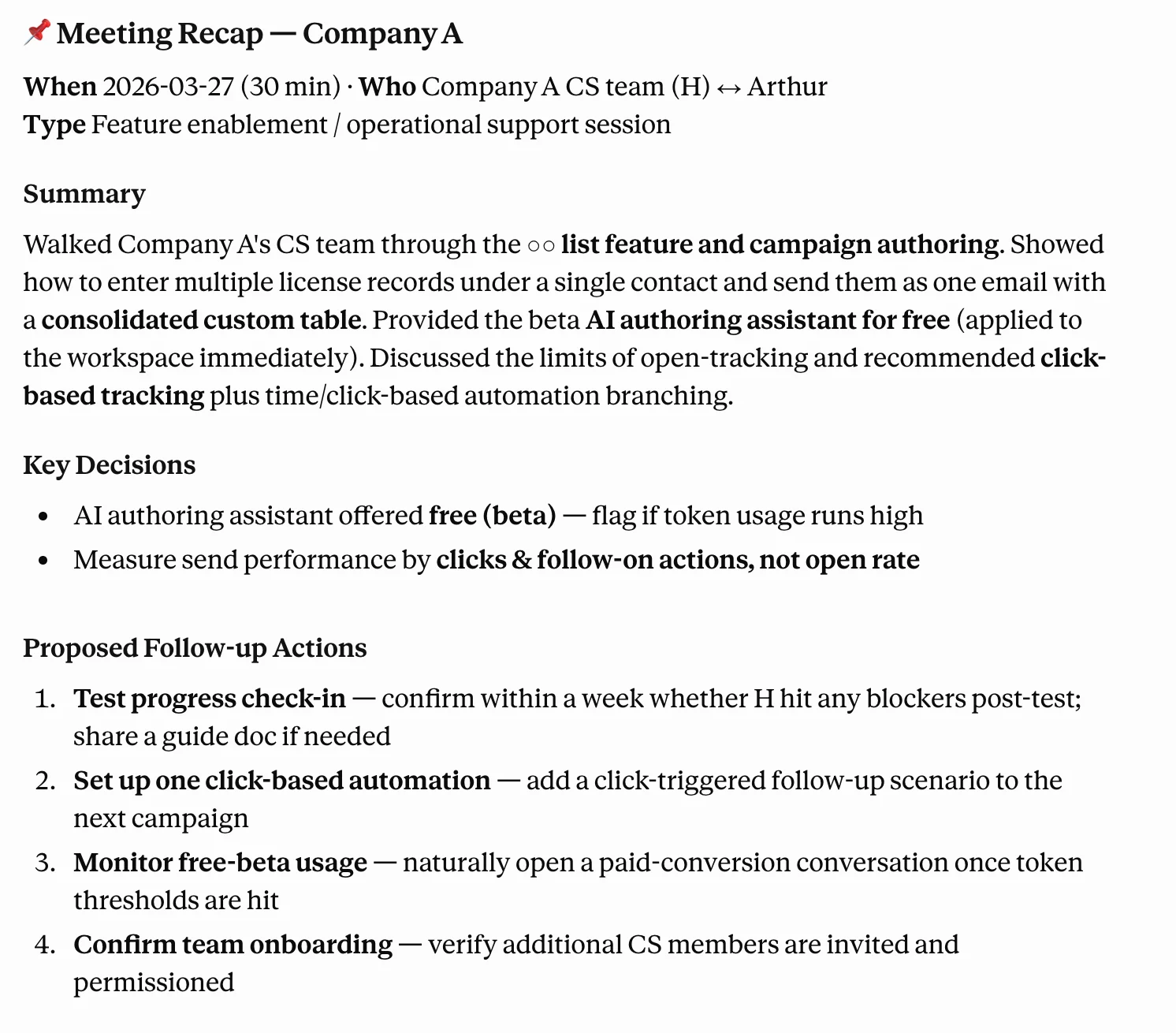
> "For company A that I'm meeting tomorrow, summarize the notes, deal history, and recent email threads in Relate."
4. After adding the connector, you are taken to the Relate **OAuth authorization screen**. Log in with your Relate account and grant access to complete the connection.
5. Once connected, you can use Relate tools in your conversations with Claude.
When connecting Claude Code via OAuth, you don't need to enter the MCP token separately — authentication is completed simply by logging in to Relate.
In the Codex CLI, you register the MCP server in the config file (`~/.codex/config.toml`) and pass the issued token via an **HTTP header (Authorization)**.
Open `~/.codex/config.toml` and add the Relate MCP server as shown below.
```toml theme={null}
[mcp_servers.relate]
url = "https://app.relate.so/mcp"
http_headers = { Authorization = "Bearer rk_paste_your_issued_MCP_token_here" }
```
Save the config and restart Codex, and the Relate MCP tools will load.
Setup may differ slightly across Codex versions and other MCP clients. If you run into connection issues, reach out via [we@relate.so](mailto:we@relate.so) or in-app chat.
## 2. What you can do with MCP
Once Relate MCP is connected, you can perform the following through an AI agent in natural language. (As of June 15, 2026)
* Search contacts by name, email, phone number, or field conditions, and view details
* Create and update contacts, and bulk-import from a spreadsheet
* Add to / remove from the denylist (sending block list)
* Search organizations by name or domain, and view details
* Create and update organizations
* Search and view deals (entries) within a specific list/process
* Create deals; update status, assignee, value, and field values; delete
* Search across all notes by body content
* List notes attached to a specific contact, organization, or deal
* Create notes on contacts and organizations
* List, create, and rename lists
* Add contacts to a list
* Summarize a list's campaign deliverability (sendable / blocked breakdown)
* Search email threads for a contact or organization and view message content
* Send email immediately on your own behalf
* Search, view, create, update, and deliver broadcast campaigns, and check statistics
* View and create email sequences; add/edit steps; enroll contacts
* View AI campaigns / AI email templates and check recipients and engagement
* List the sender identities (sending domains) in the workspace
* Connect a sending domain and check/re-verify DNS records (MX, SPF, DMARC, DKIM) and verification status
* Search completed meeting notetaker records (transcripts and summaries)
* List records scoped to a contact/organization/calendar event, and retrieve the full transcript and summary
* Sales pipeline funnel and conversion-rate report by process
* Recent email-activity report for an AI plan
* Workspace info (lists, statuses, custom fields, team members, sending limits, etc.)
The available MCP tools are continuously being added and improved. You can check the exact list of tools available in your connected environment from your AI agent's tool list (e.g. in Claude Code).
## 3. Examples
Try asking your AI agent in natural language, like the examples below.
> "For company A that I'm meeting tomorrow, summarize the notes, deal history, and recent email threads in Relate."
 > "Pull up the notetaker summary from the company B meeting that just ended, write up the key points as a note, and create follow-up tasks if needed."
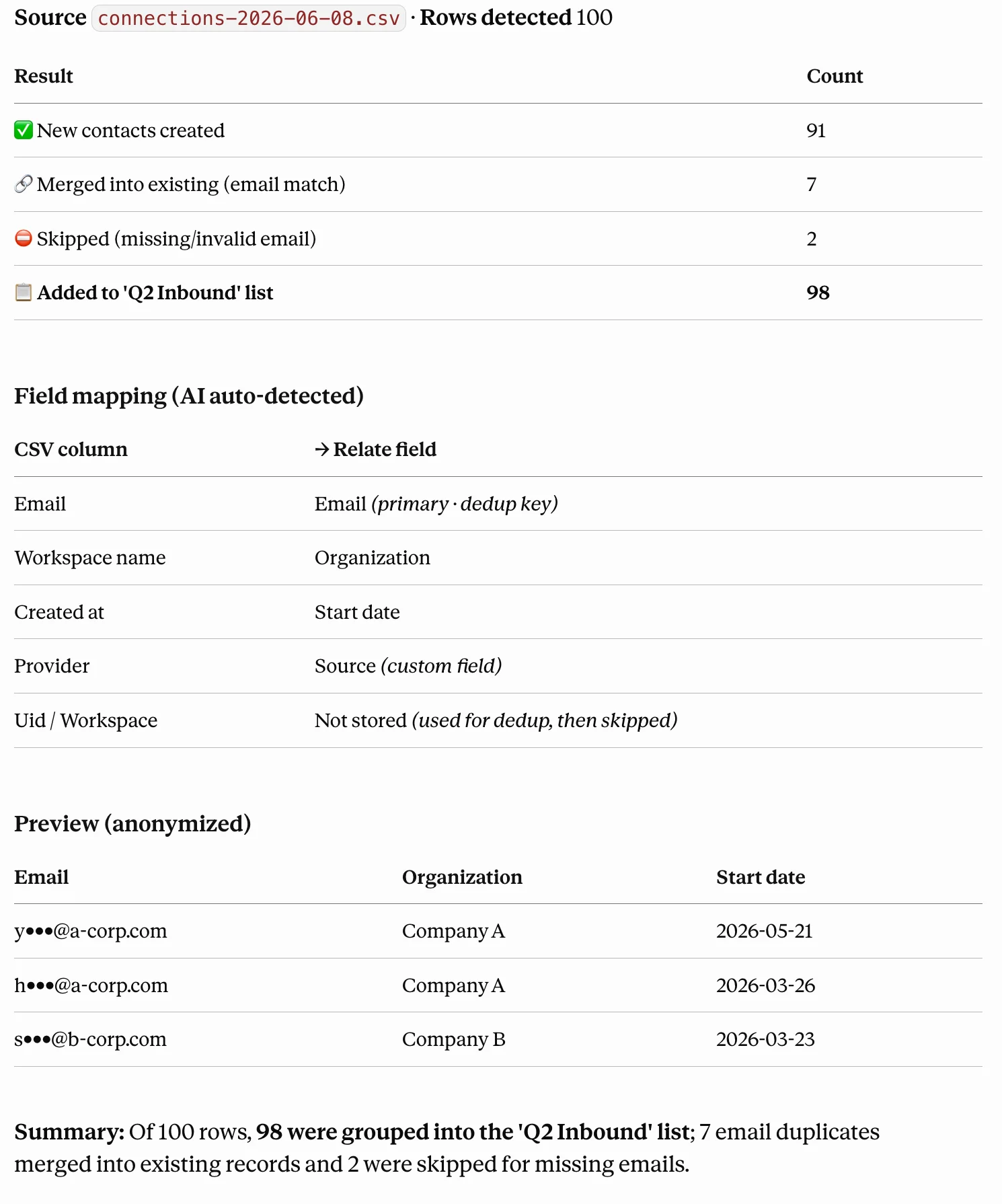
 > "Import the 100 leads in this Excel file into Relate and group them into the 'Q2 Inbound' list."
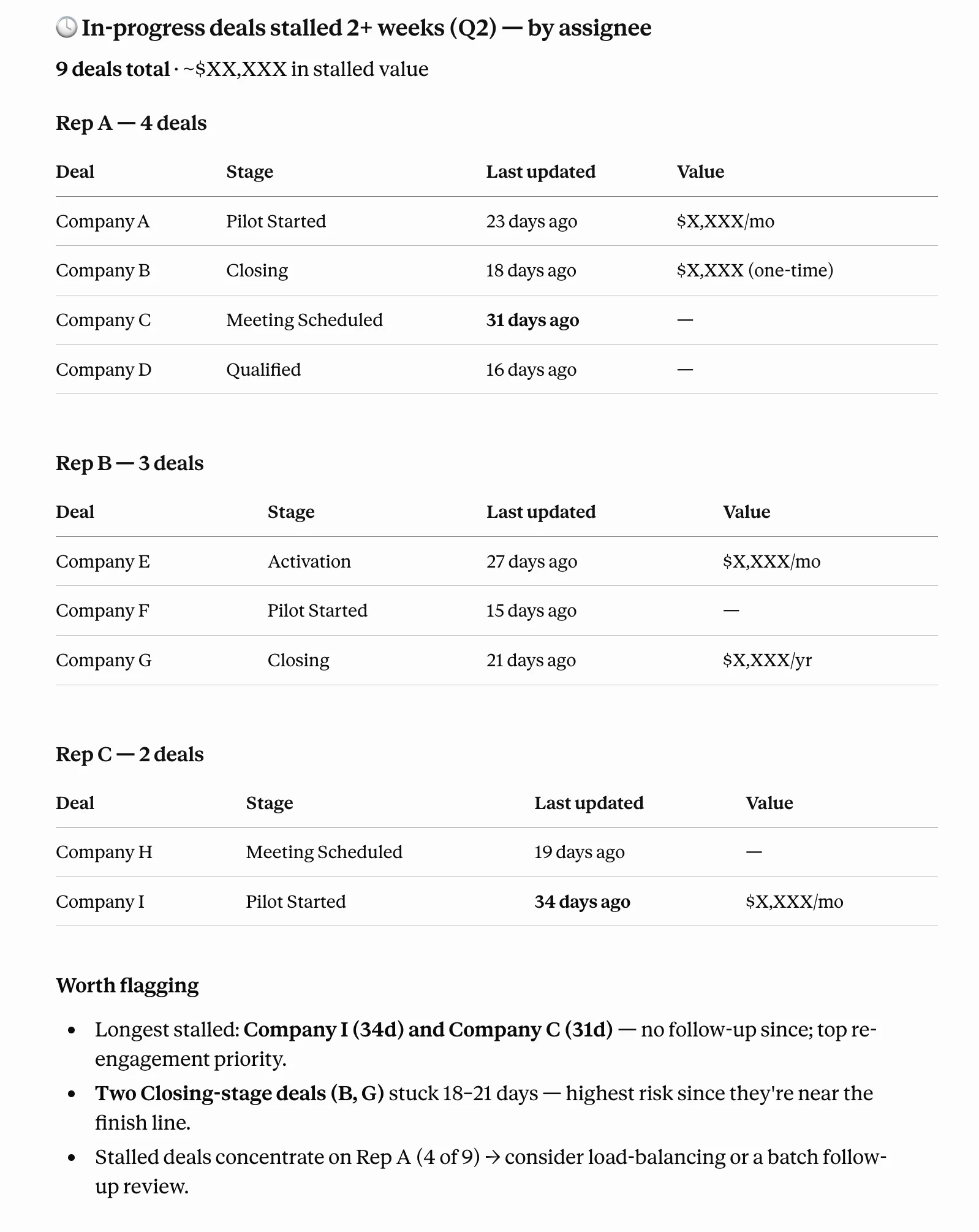
 > "Find the in-progress deals this quarter that haven't been updated in over two weeks, and organize them by assignee."
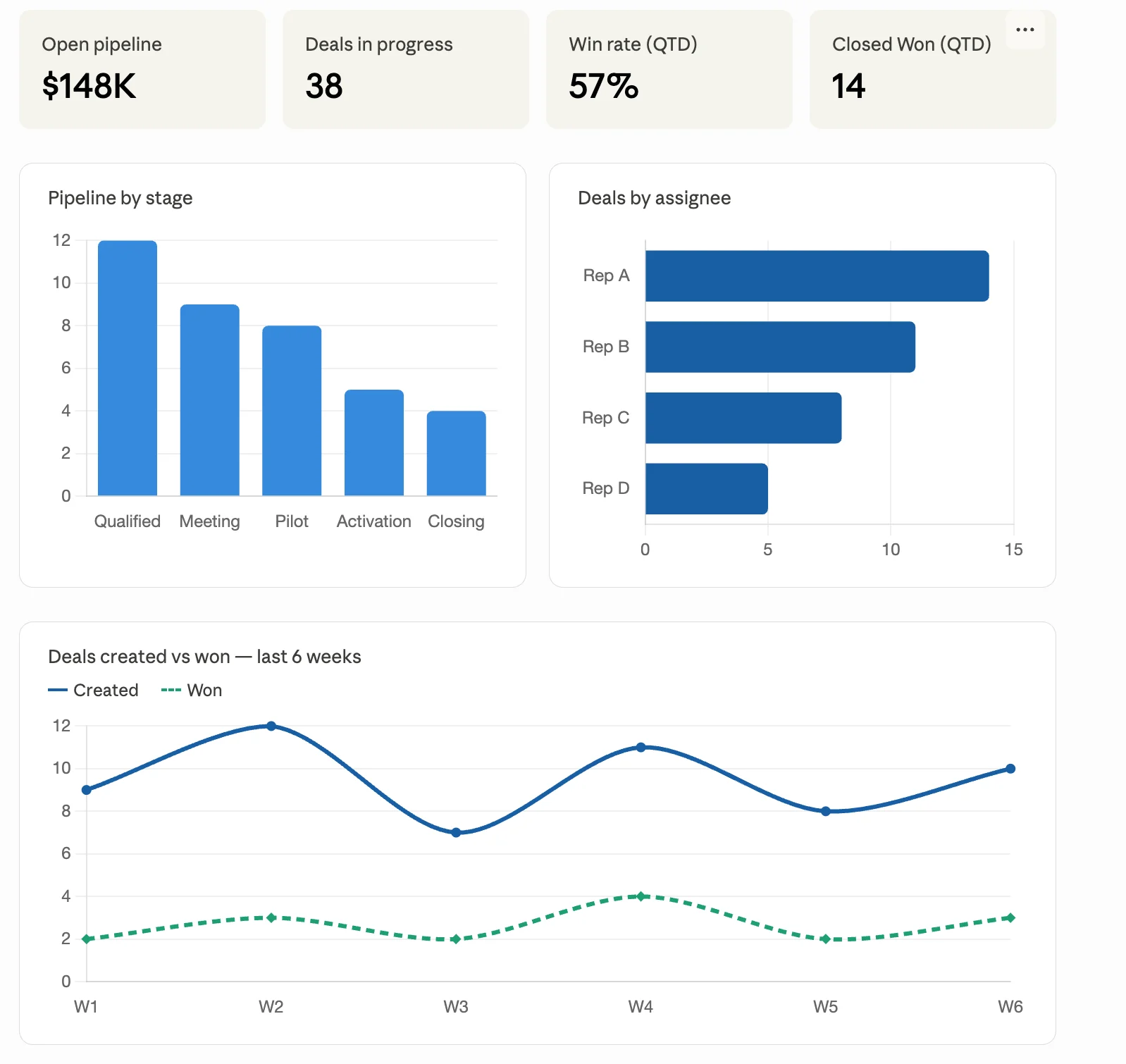
 > "Show me the stage-by-stage conversion rate report for our main sales process."
 From cleaning up a list to drafting a campaign, checking deliverability, and designing a sequence — you can carry the whole thing through in a single conversation.
**1. Review the target list**
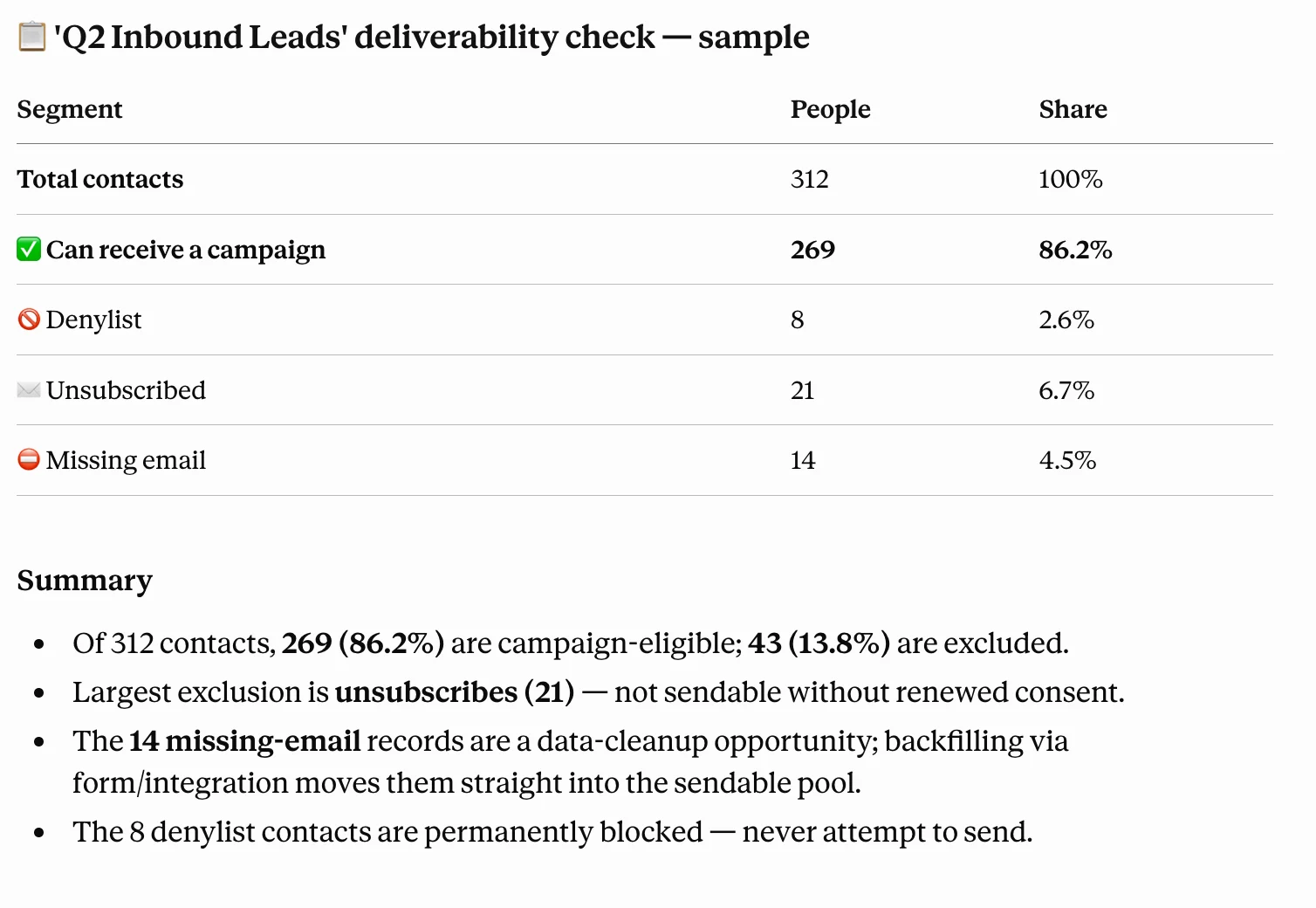
> "How many people are in the 'Q2 Inbound Leads' list, and how many of them can receive a campaign? Break out who is excluded due to denylist, unsubscribe, or missing email."
**2. Draft the campaign**
> "Draft a new-feature announcement campaign for that list. Give me 3 subject-line options plus a body draft, and set the sender to one of our workspace's sending domains."
**3. Design a follow-up sequence**
> "Create a 2-step follow-up sequence with a 3-day gap, targeting people who opened the campaign. Make step 1 a meeting proposal and step 2 a reminder tone."
Actions that actually send are designed to ask for your confirmation before the AI executes them. We recommend letting the AI handle drafting and review, and sending only after you confirm it yourself.
From cleaning up a list to drafting a campaign, checking deliverability, and designing a sequence — you can carry the whole thing through in a single conversation.
**1. Review the target list**
> "How many people are in the 'Q2 Inbound Leads' list, and how many of them can receive a campaign? Break out who is excluded due to denylist, unsubscribe, or missing email."
**2. Draft the campaign**
> "Draft a new-feature announcement campaign for that list. Give me 3 subject-line options plus a body draft, and set the sender to one of our workspace's sending domains."
**3. Design a follow-up sequence**
> "Create a 2-step follow-up sequence with a 3-day gap, targeting people who opened the campaign. Make step 1 a meeting proposal and step 2 a reminder tone."
Actions that actually send are designed to ask for your confirmation before the AI executes them. We recommend letting the AI handle drafting and review, and sending only after you confirm it yourself.
 For questions about Relate MCP or to share how you're using it, let us know via [we@relate.so](mailto:we@relate.so) or in-app chat :)